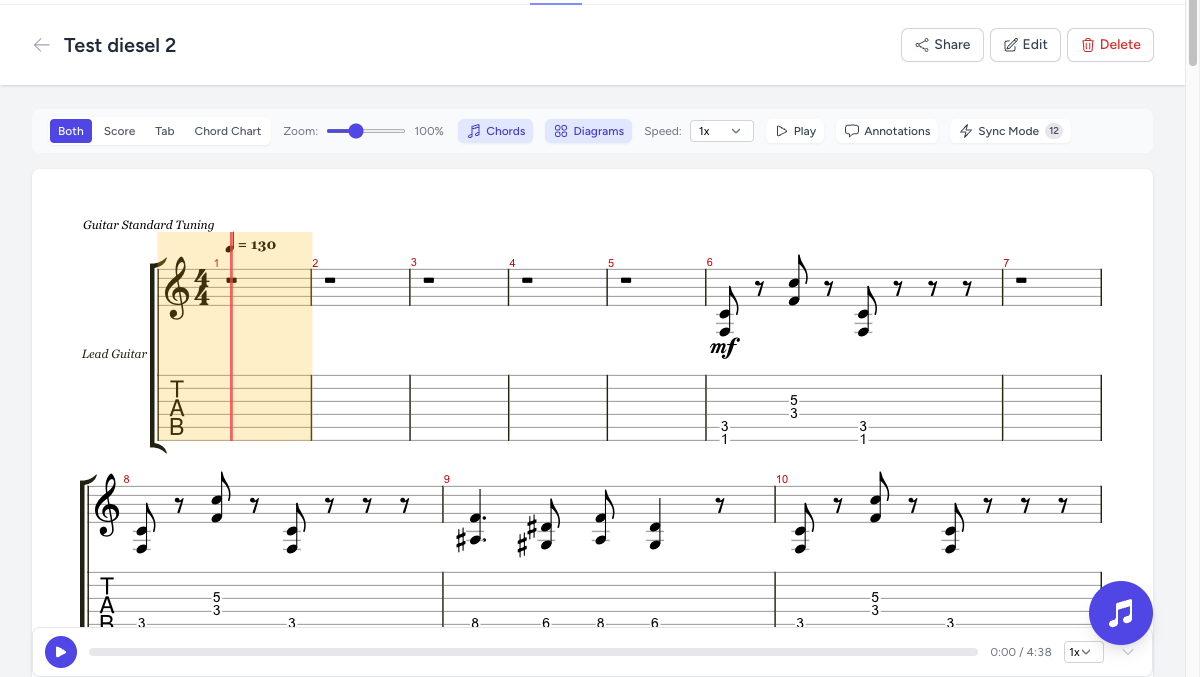
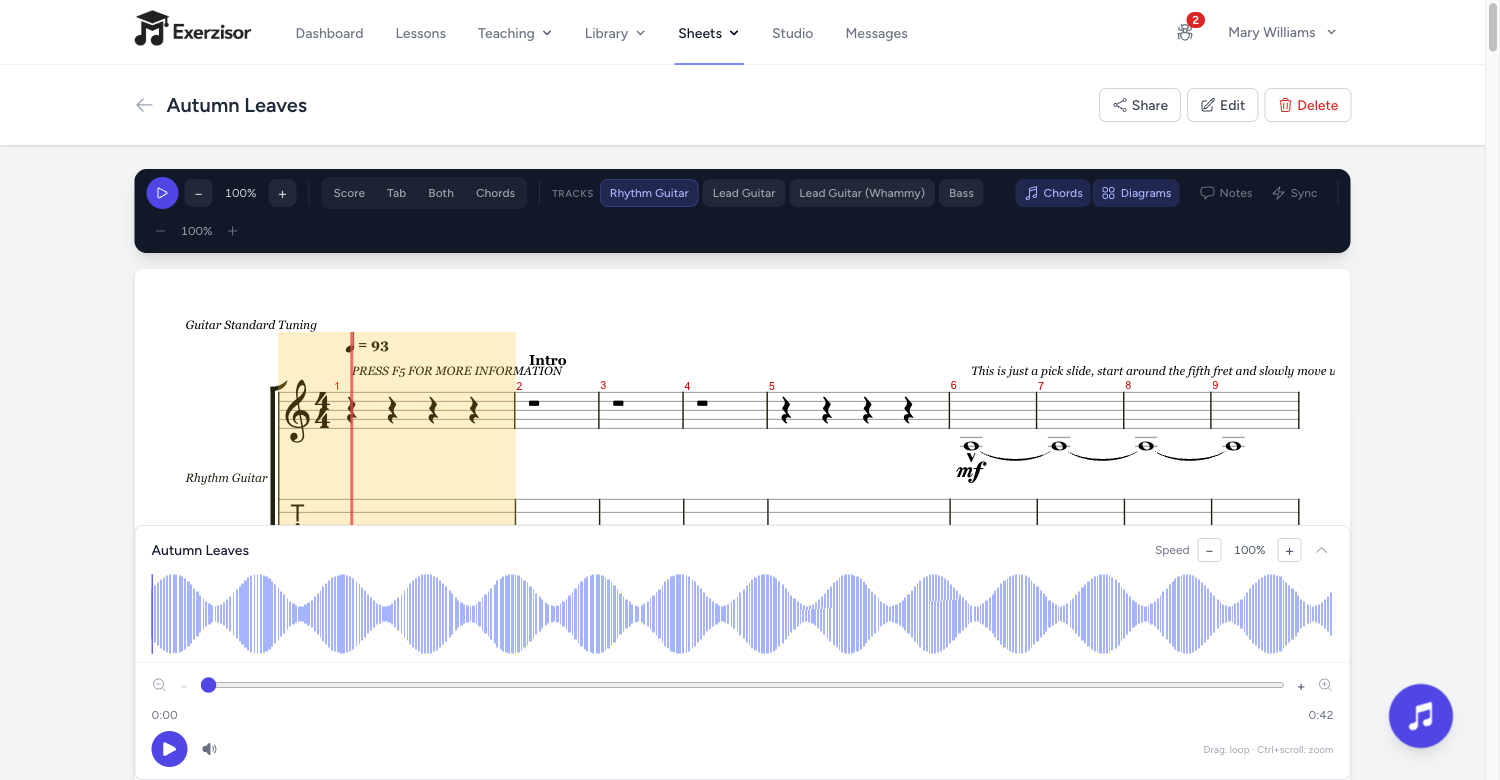
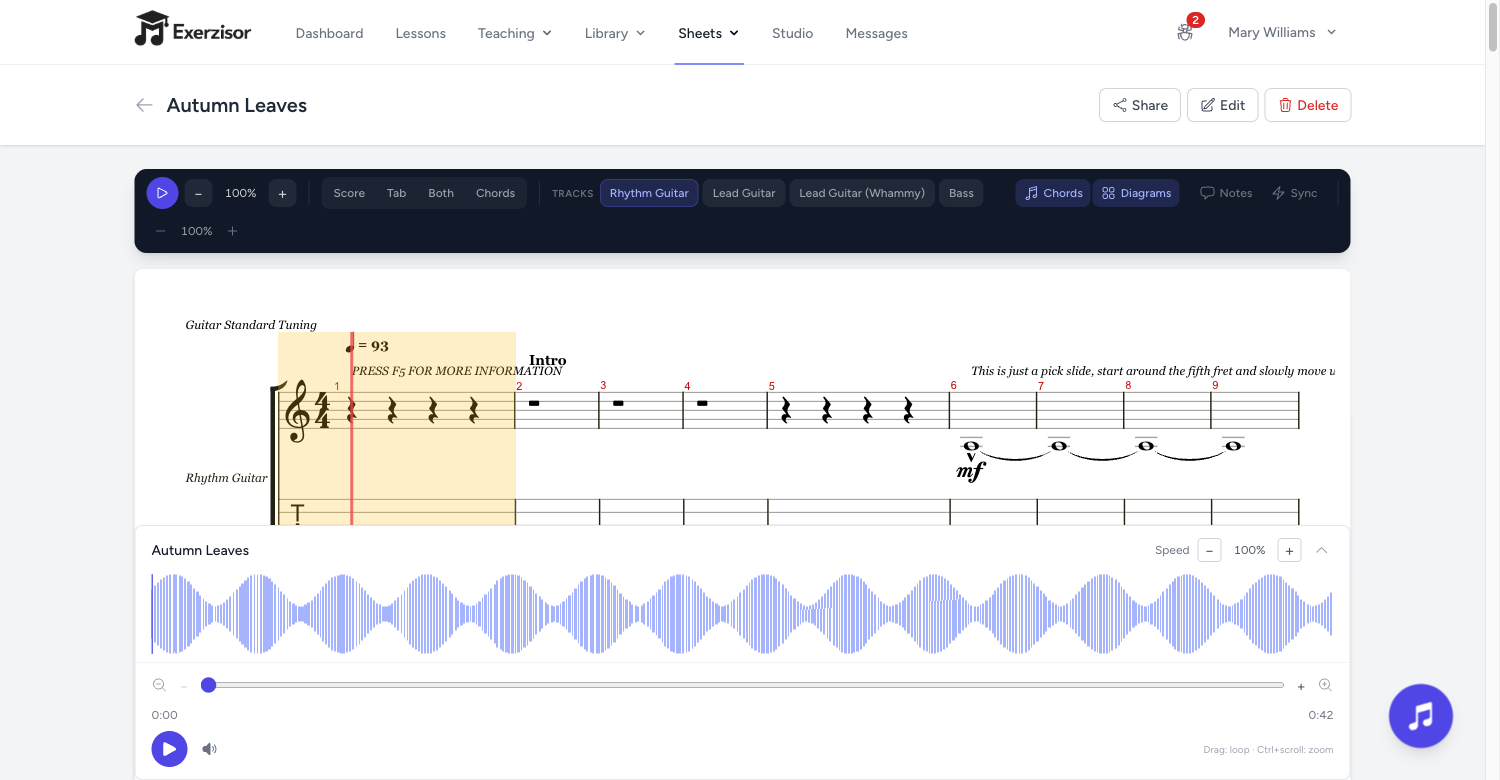
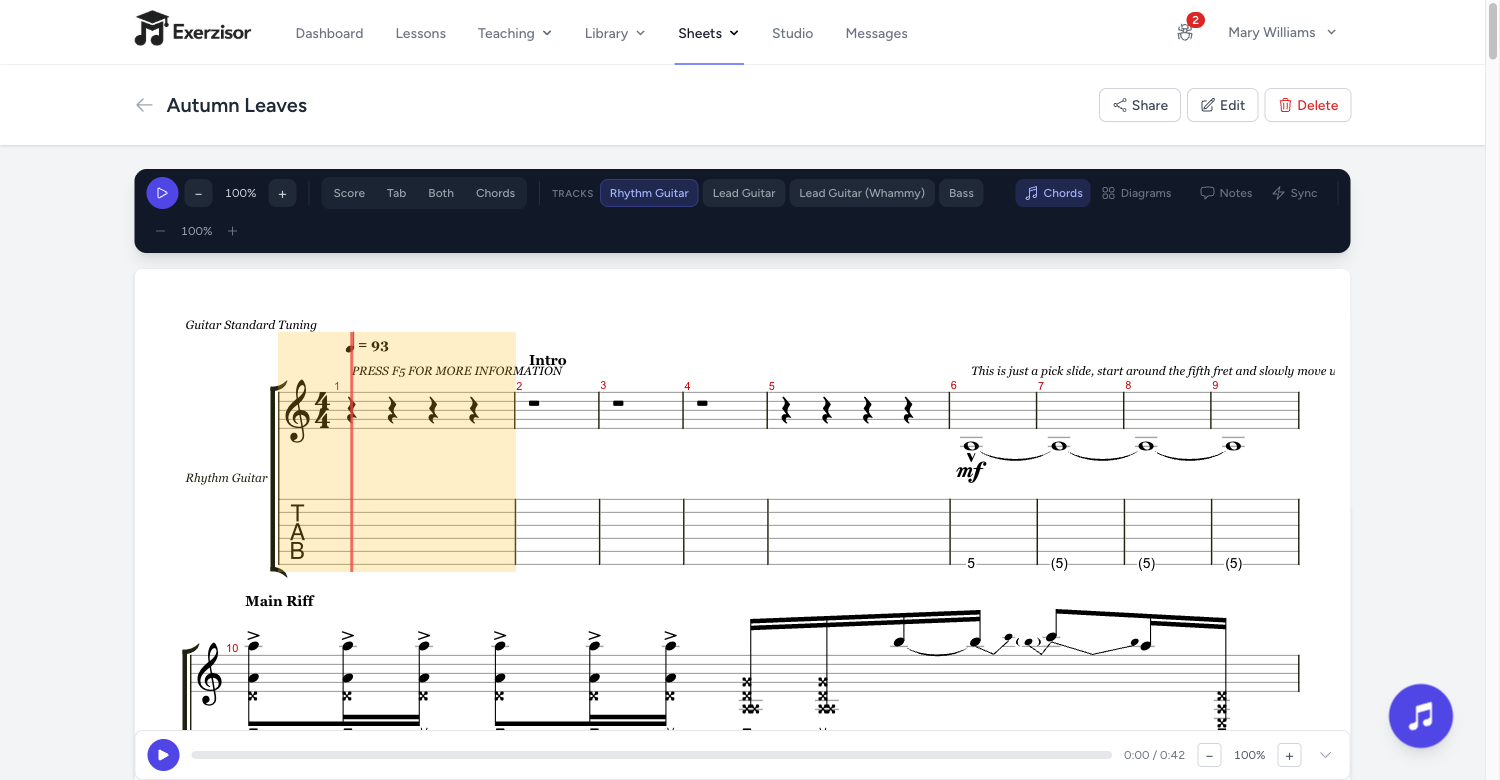
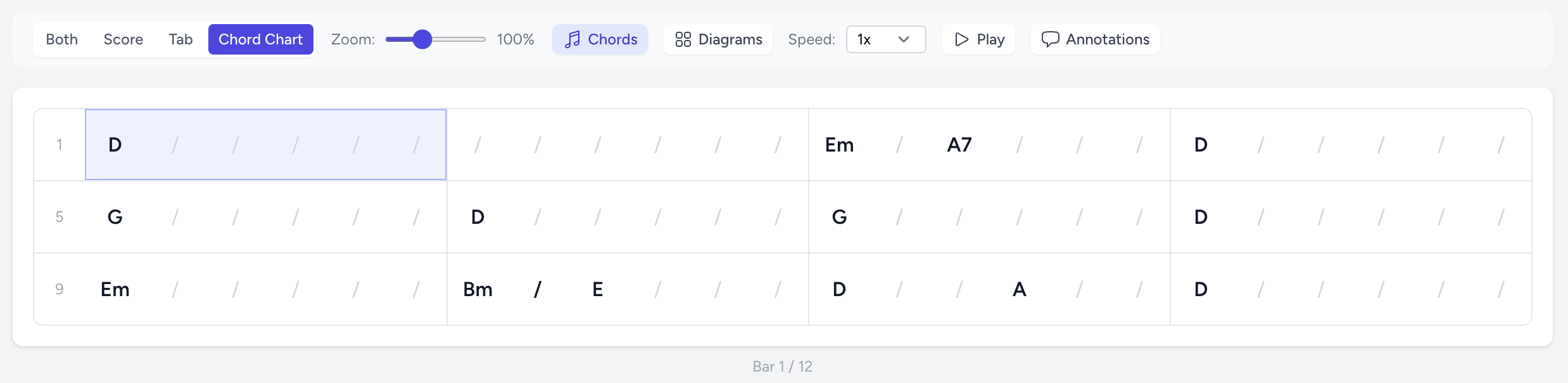
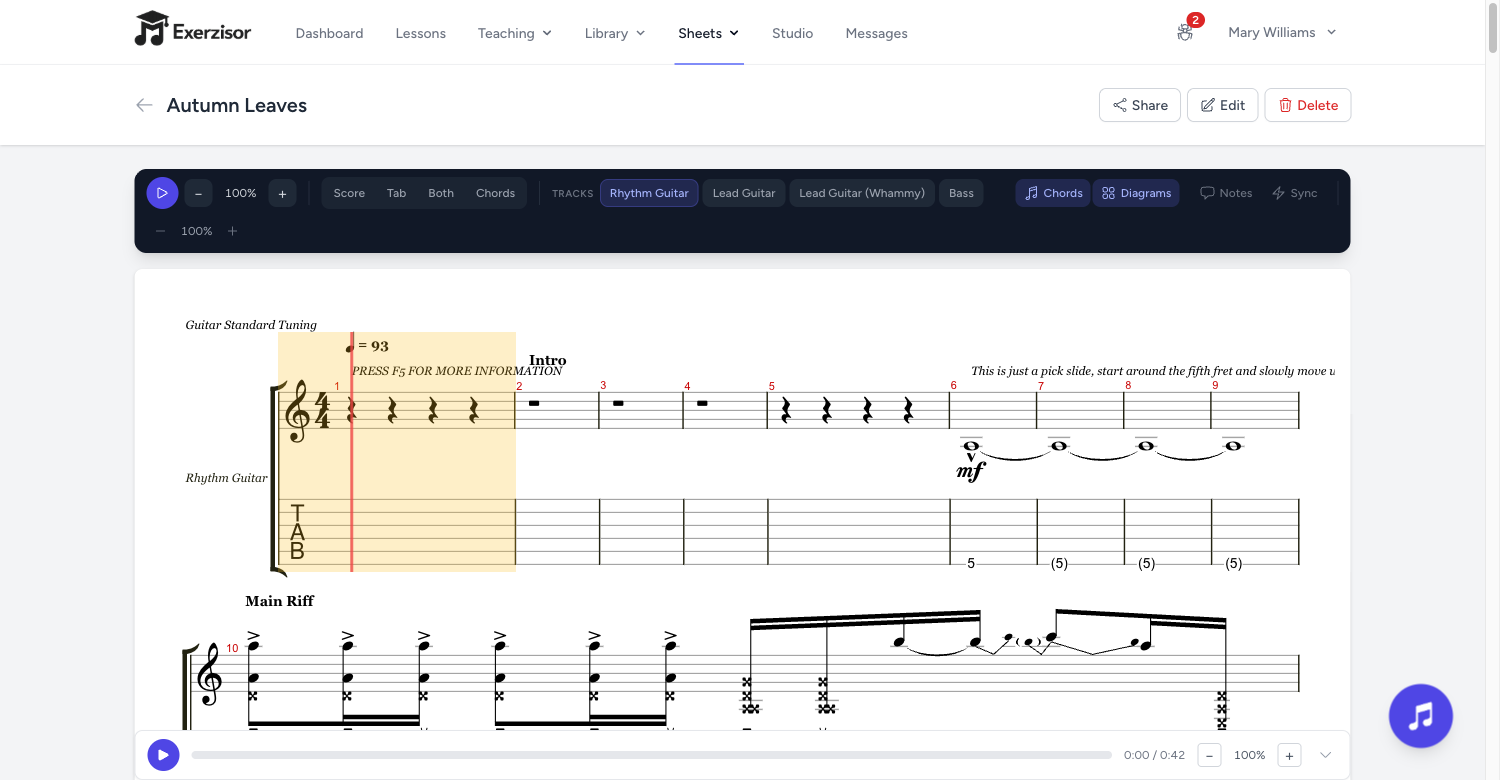
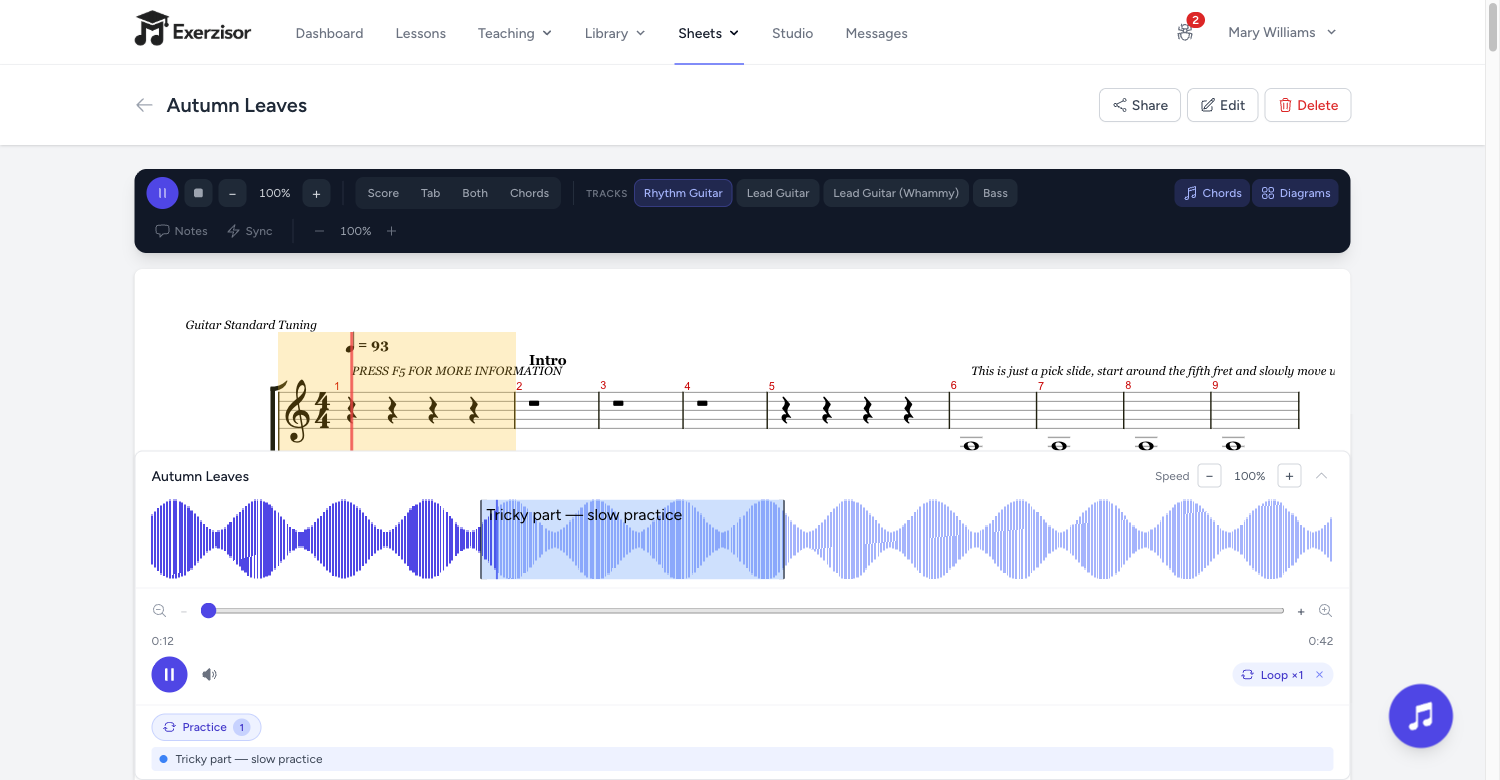
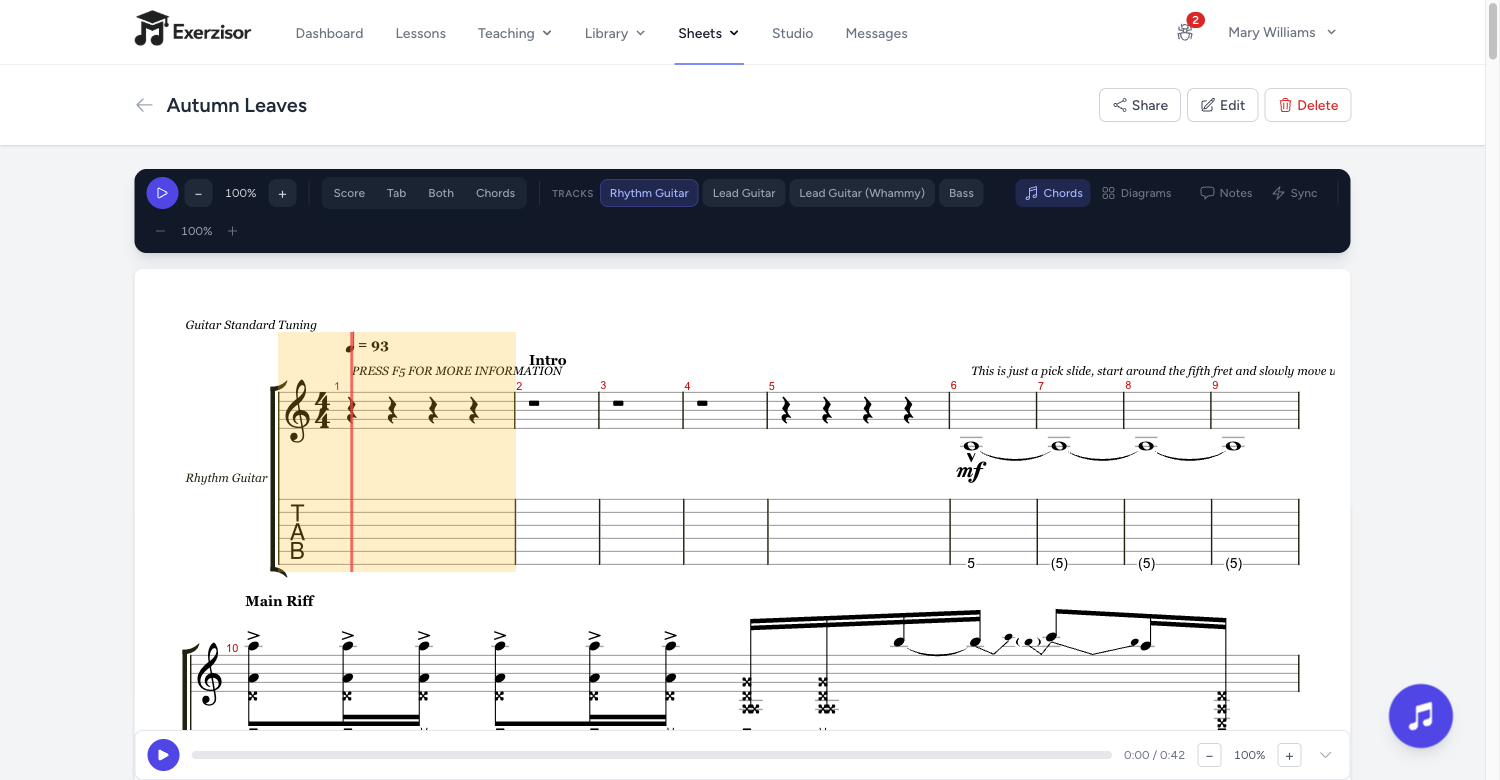
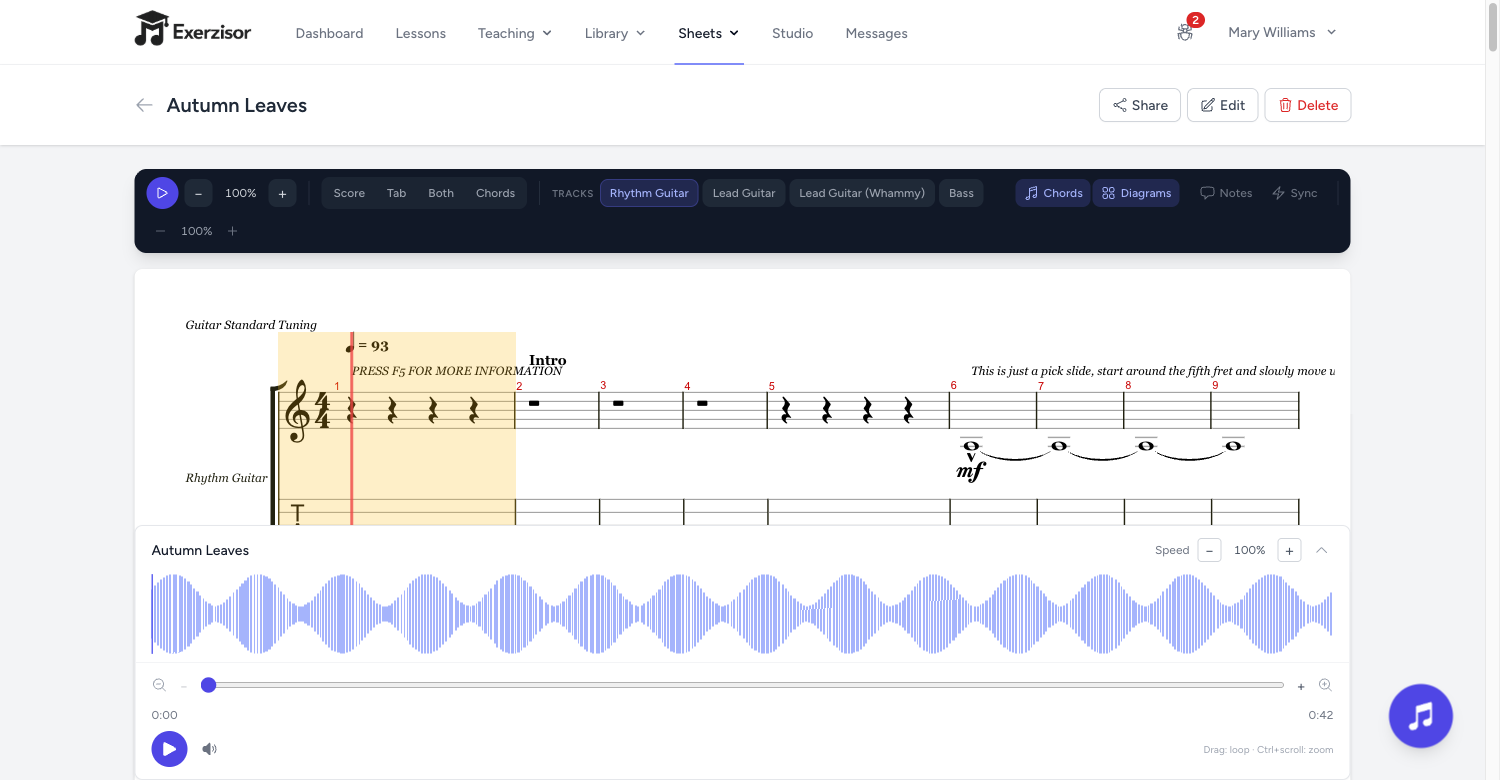
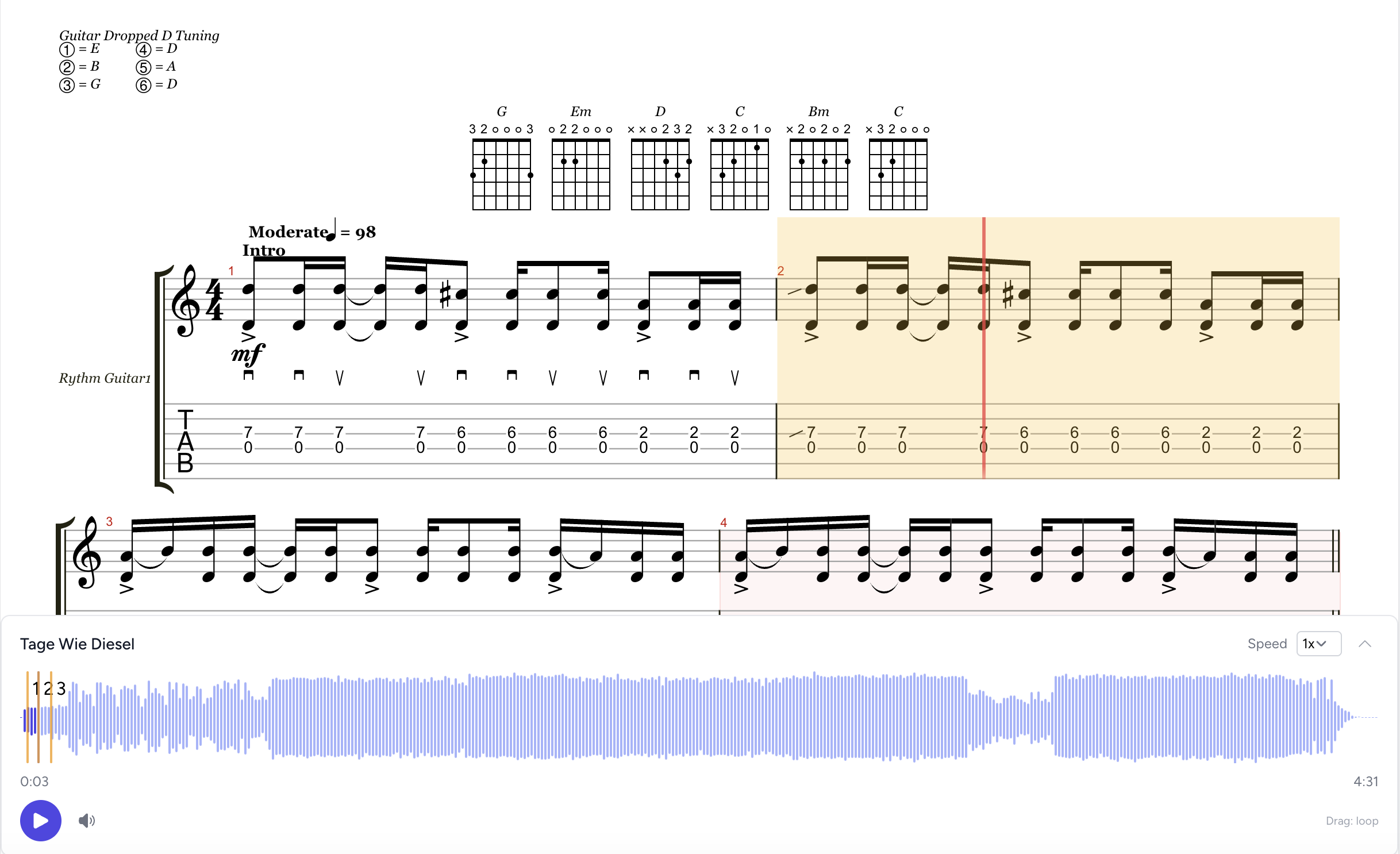
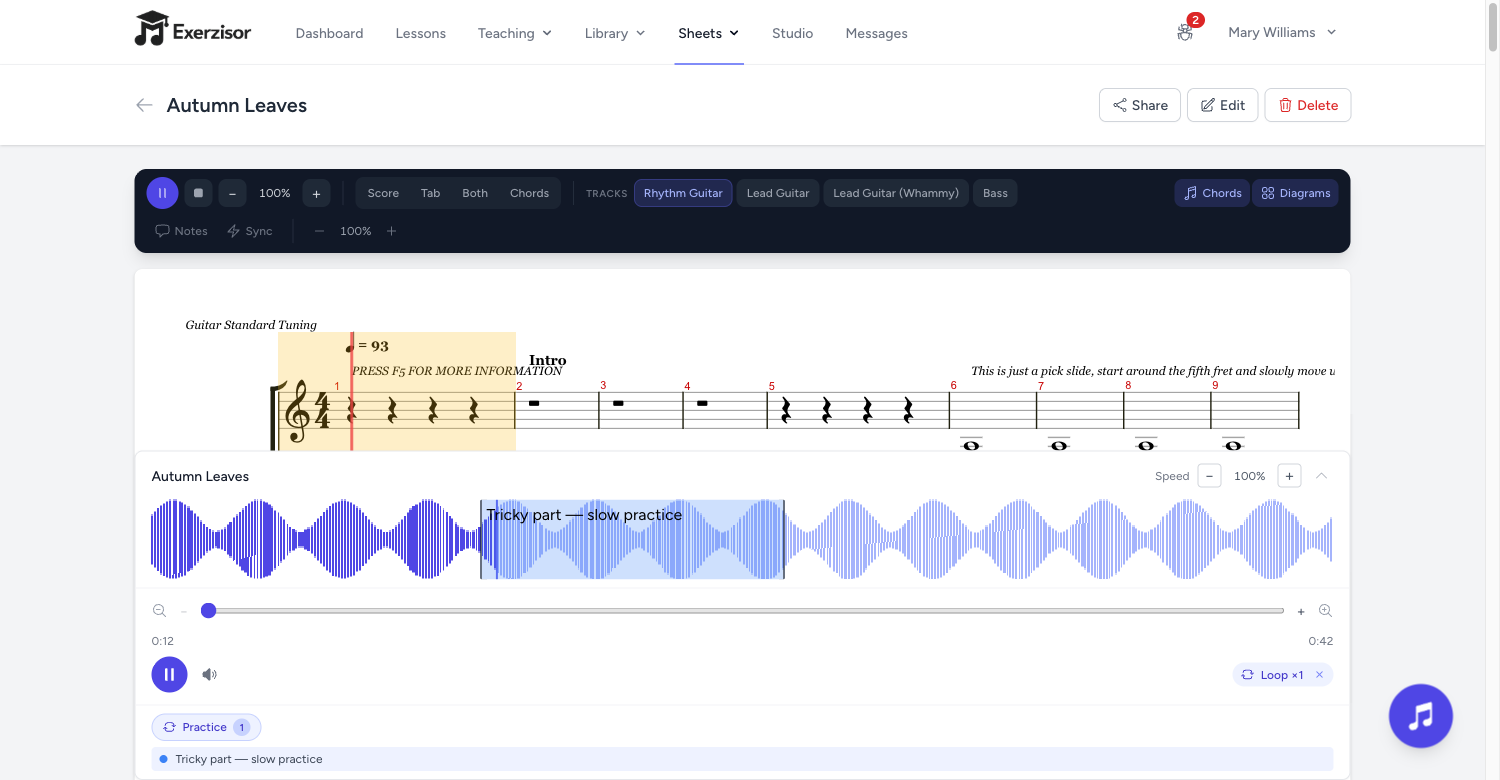
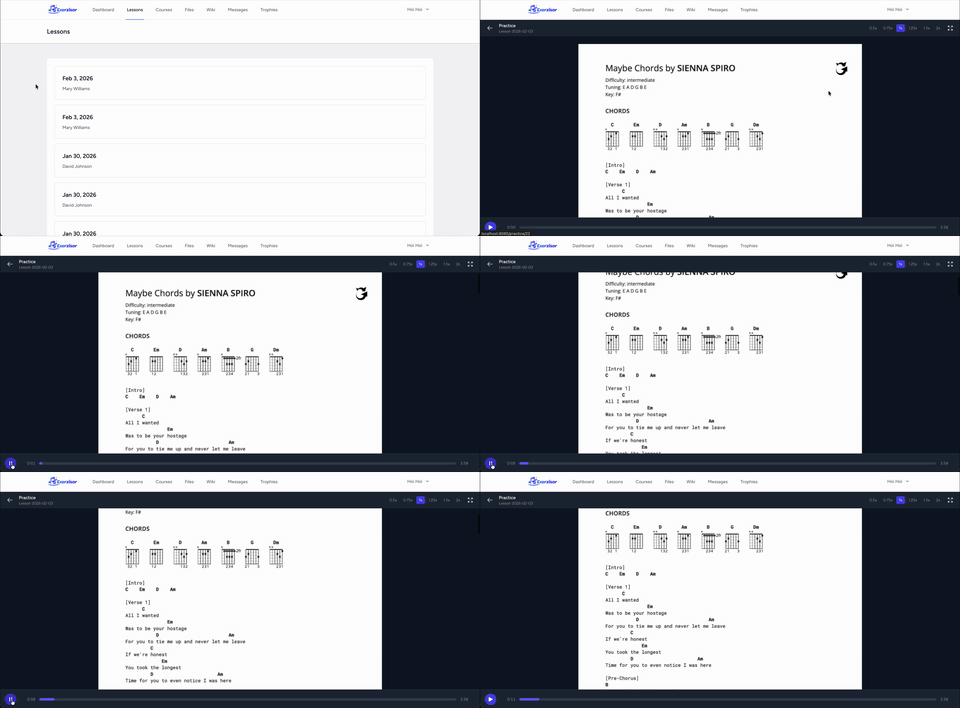
Upload Guitar Pro or MusicXML files and view them as interactive, rendered sheet music with tablature. Switch between score, tab, both, or chords view instantly.
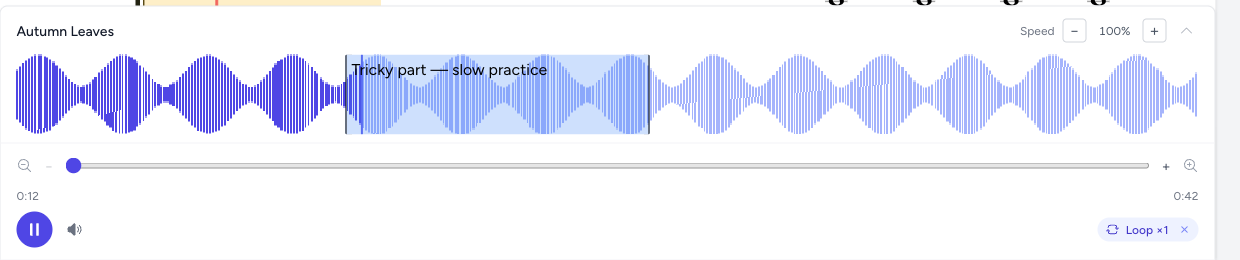
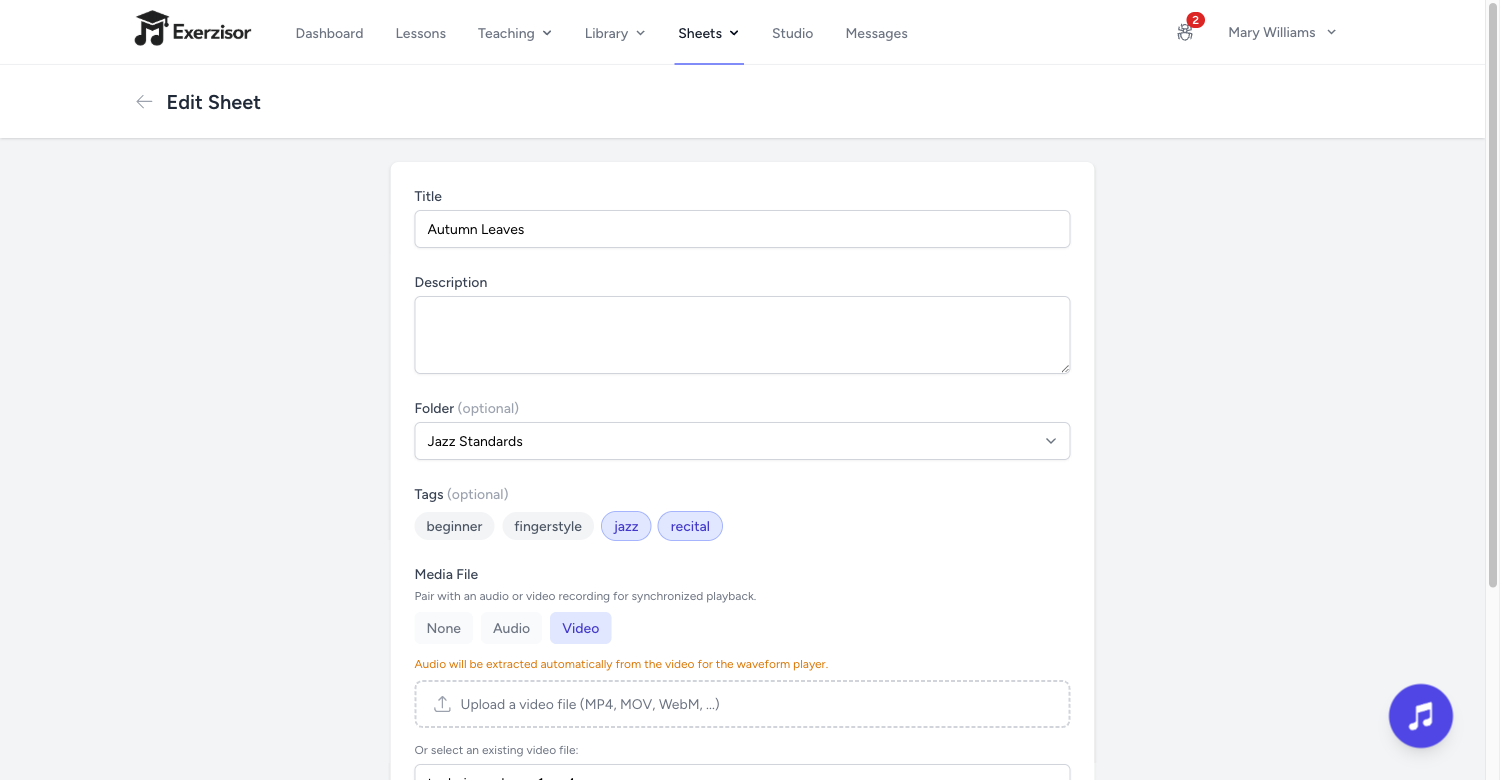
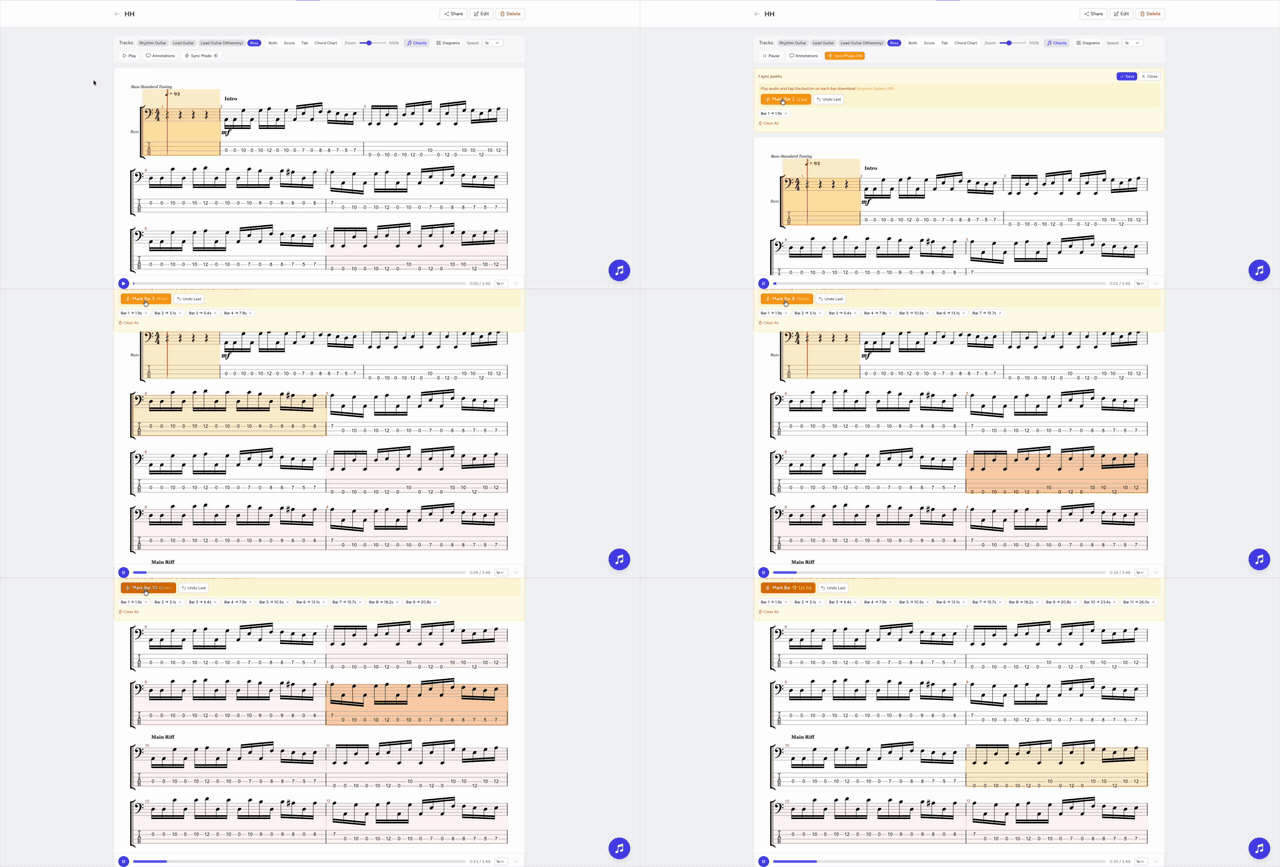
Audio sync: link any audio file to your sheet and watch the playback cursor follow along bar by bar.
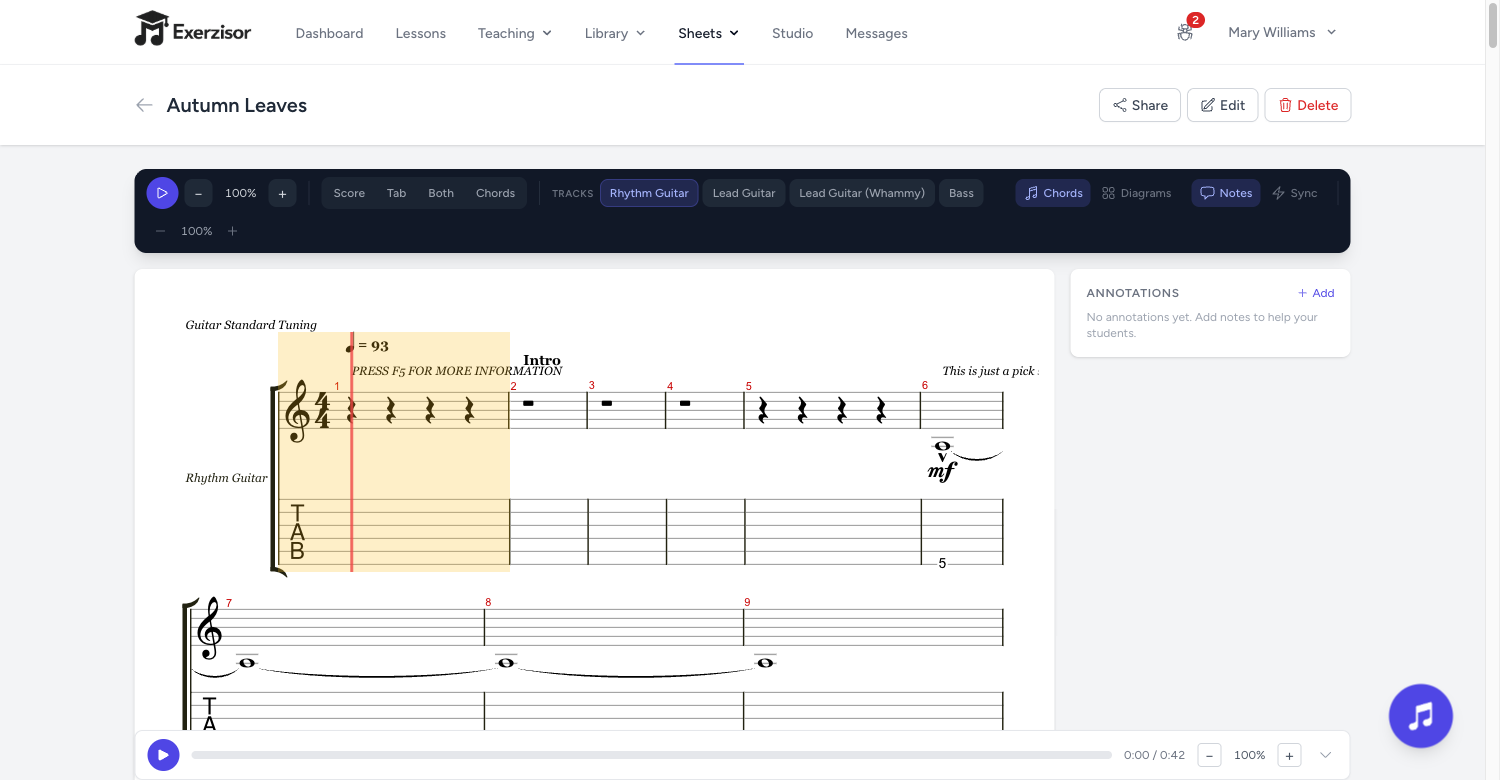
Annotations: leave notes on specific bars for your students to review during practice.
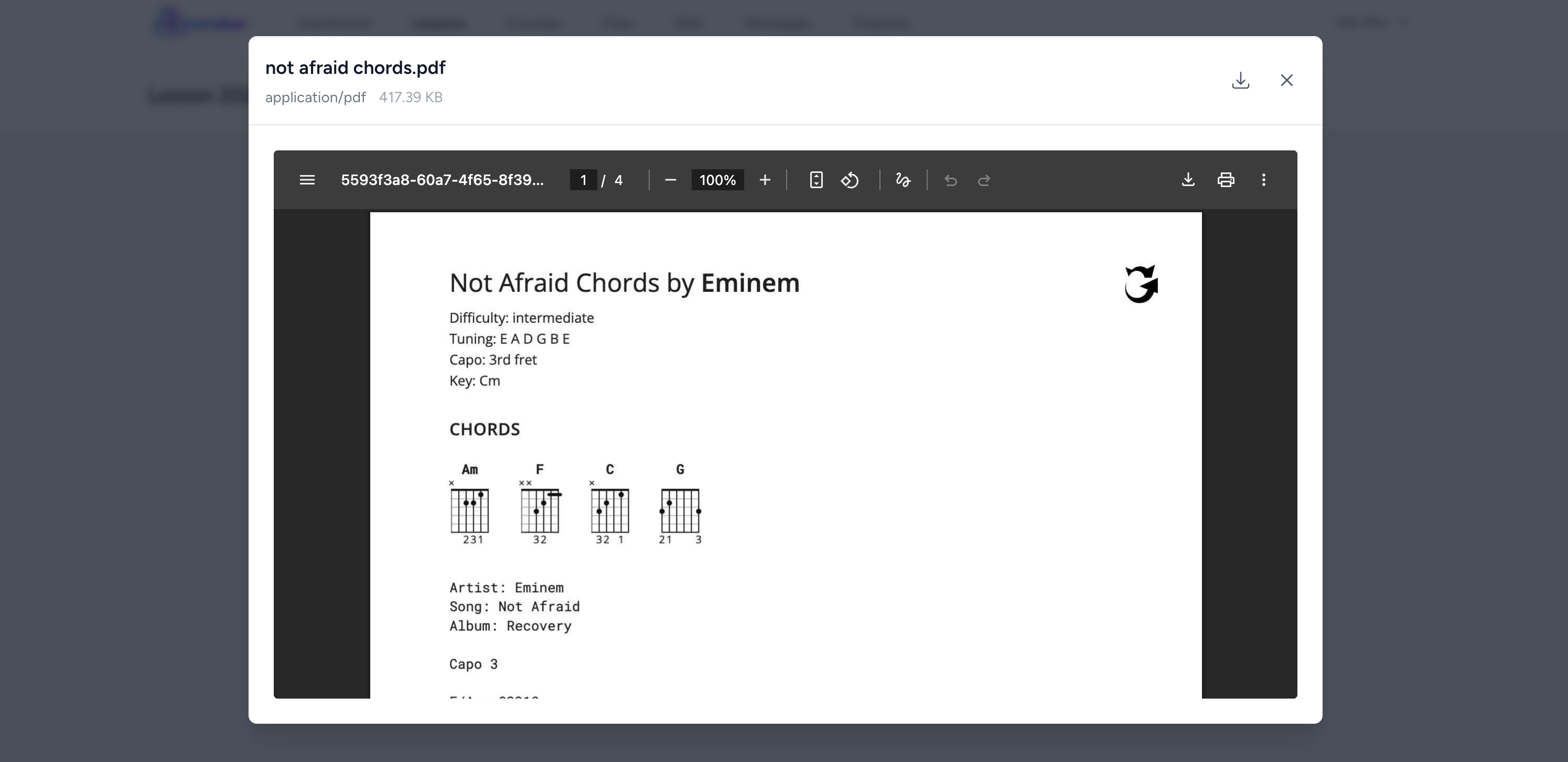
Chord diagrams: toggle chord diagram overlays to see fingerings at a glance.
Transpose & speed: shift the key up or down and adjust playback speed from 0.25x to 2x.
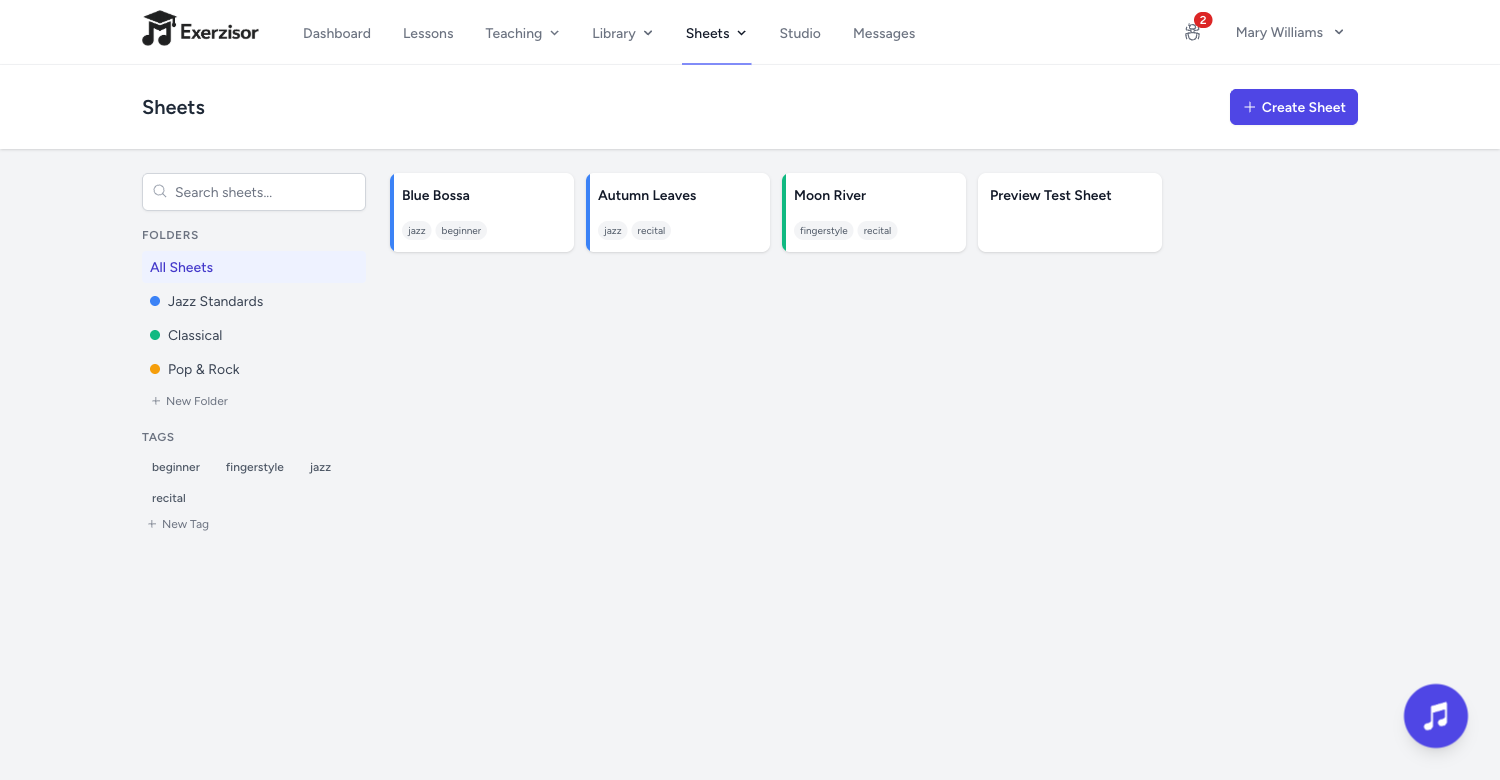
Folders, tags & search: organize your sheet library with color-coded folders, tags, and instant search — filter by title, description, or tag in real time.
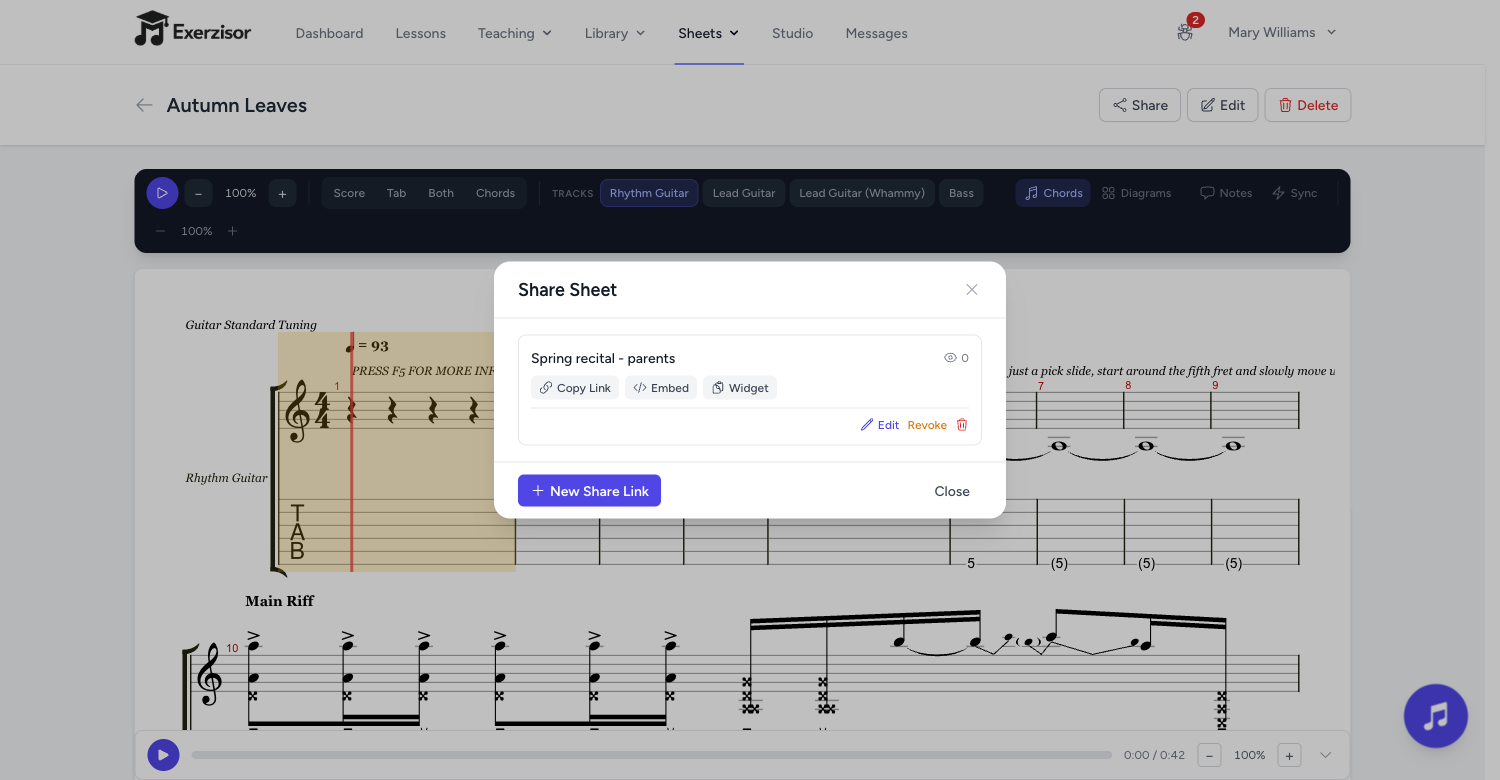
Share publicly: generate password-protected share links so students can view sheets without logging in.
Clean printing: print a sheet and only the music comes out — every menu, player and sidebar is left off the page, with an Exerzisor attribution footer.
Embed anywhere — for free: generate an embeddable widget for your blog or website. Give your visitors interactive sheet music right inside your posts. No account required for viewers.
Lyrics & Chords
Chord Sheets with Lyrics & Audio Sync
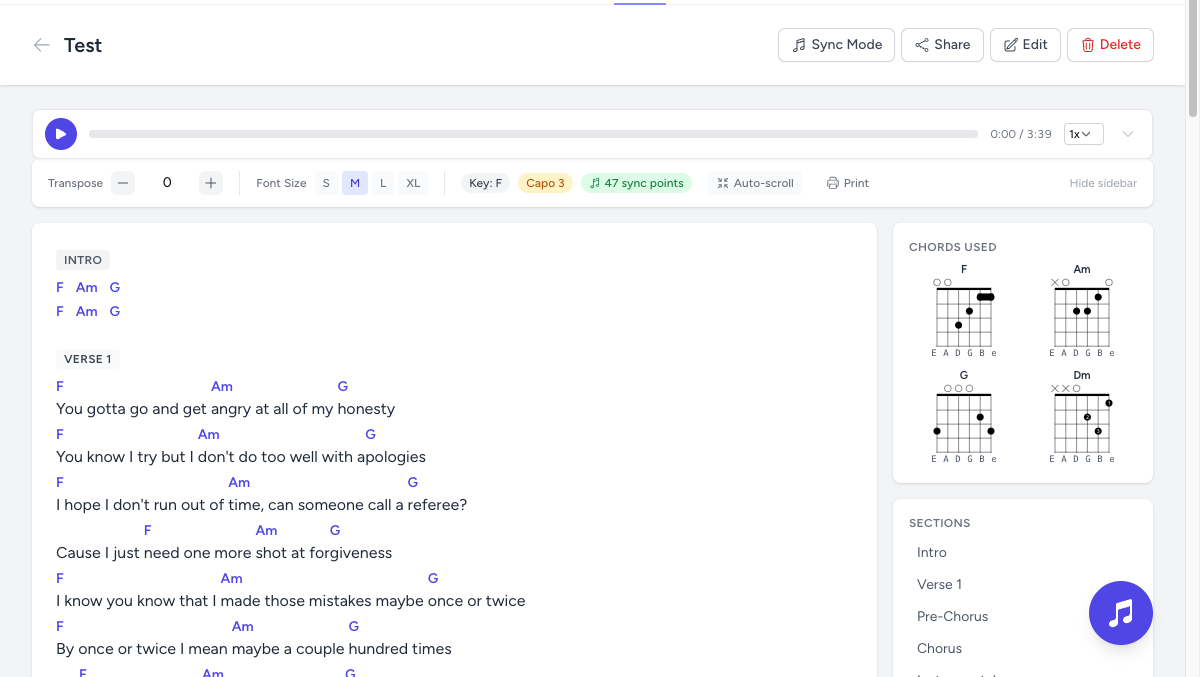
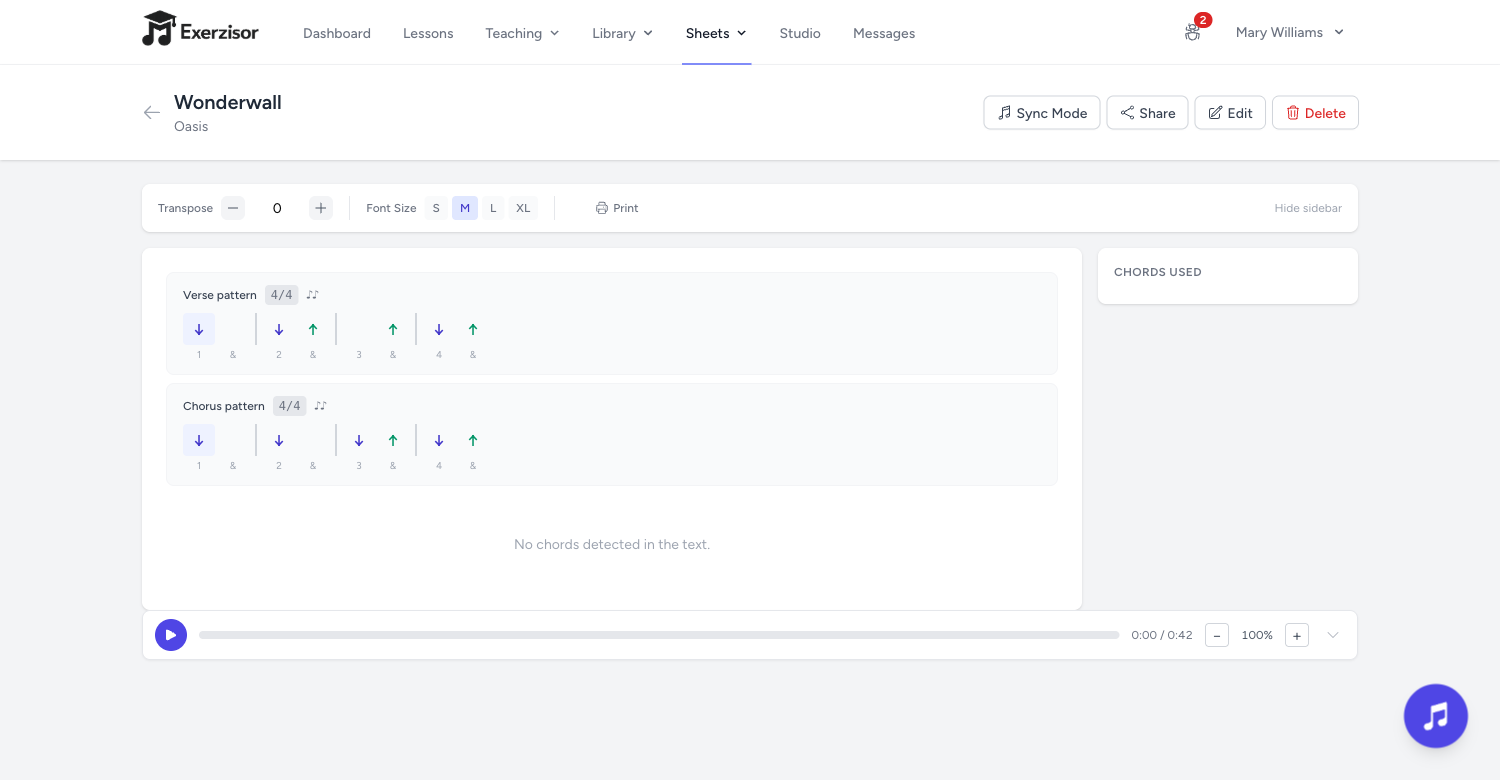
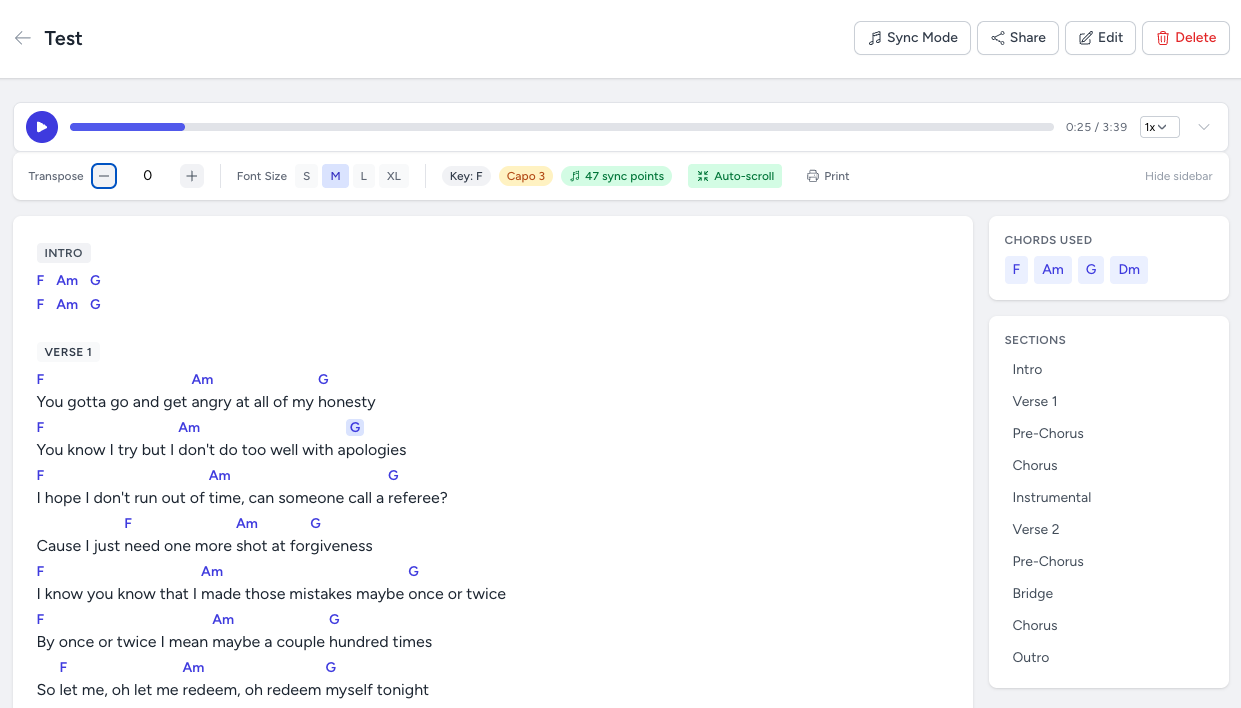
Paste any song lyrics with chords, attach an audio file, and sync them together. Students see chords inline above the lyrics while the audio plays along.
Section navigation: jump between Intro, Verse, Chorus, Bridge with one click from the sidebar.
Transpose on the fly: shift all chords up or down without editing the original.
Auto-scroll: hands-free scrolling that keeps pace with the audio.
Print-ready: clean print layout for offline practice.
Font sizes S/M/L/XL: make chords readable at any distance.
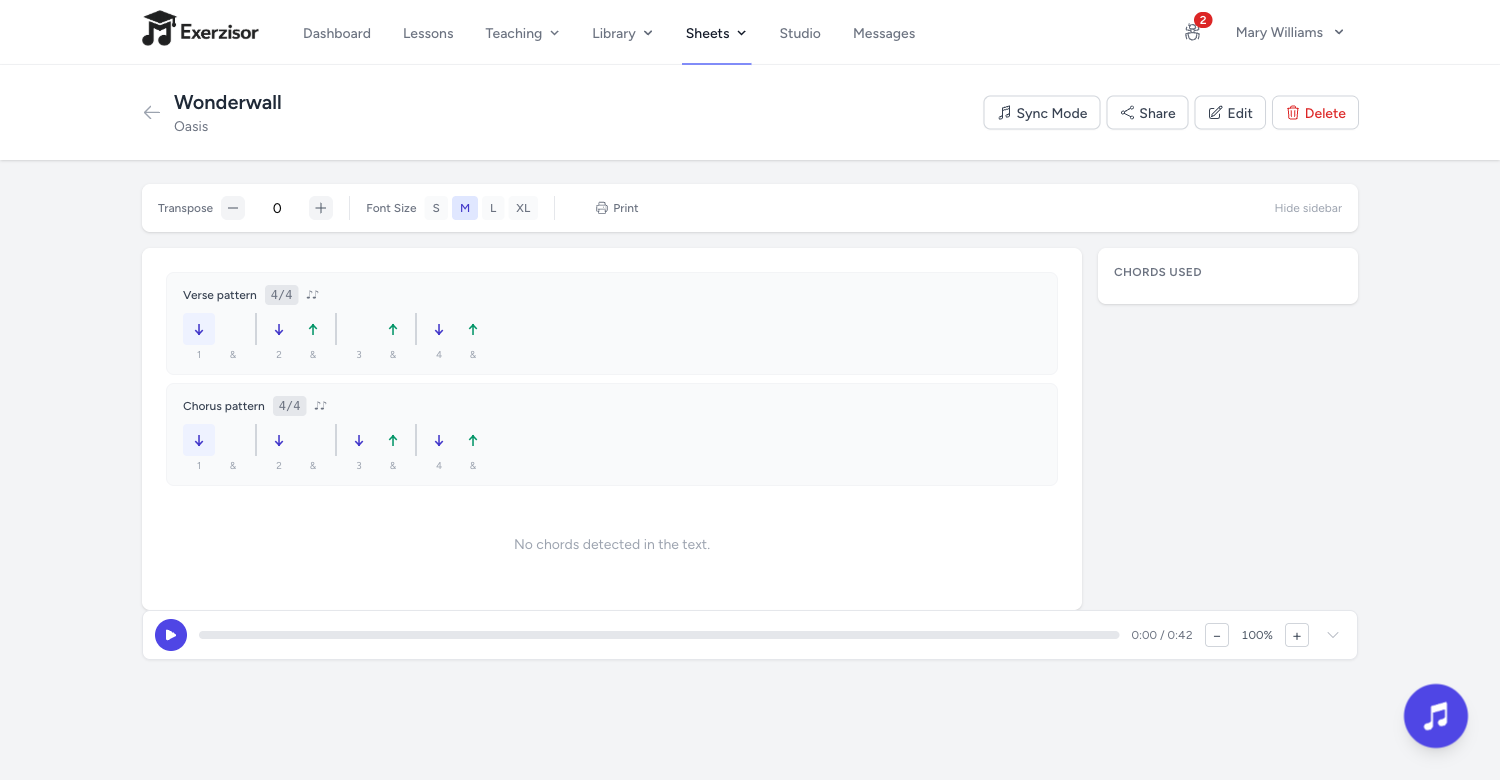
Strumming patterns: attach visual rhythm guides with configurable time signatures, subdivisions, and stroke types so students know exactly how to strum each section.
Embed for free: share chord sheets on your blog or website with a simple embed link. Perfect for music teachers who run their own site — no account needed for visitors.
Fretboard & Keyboard
Chord Diagram Library
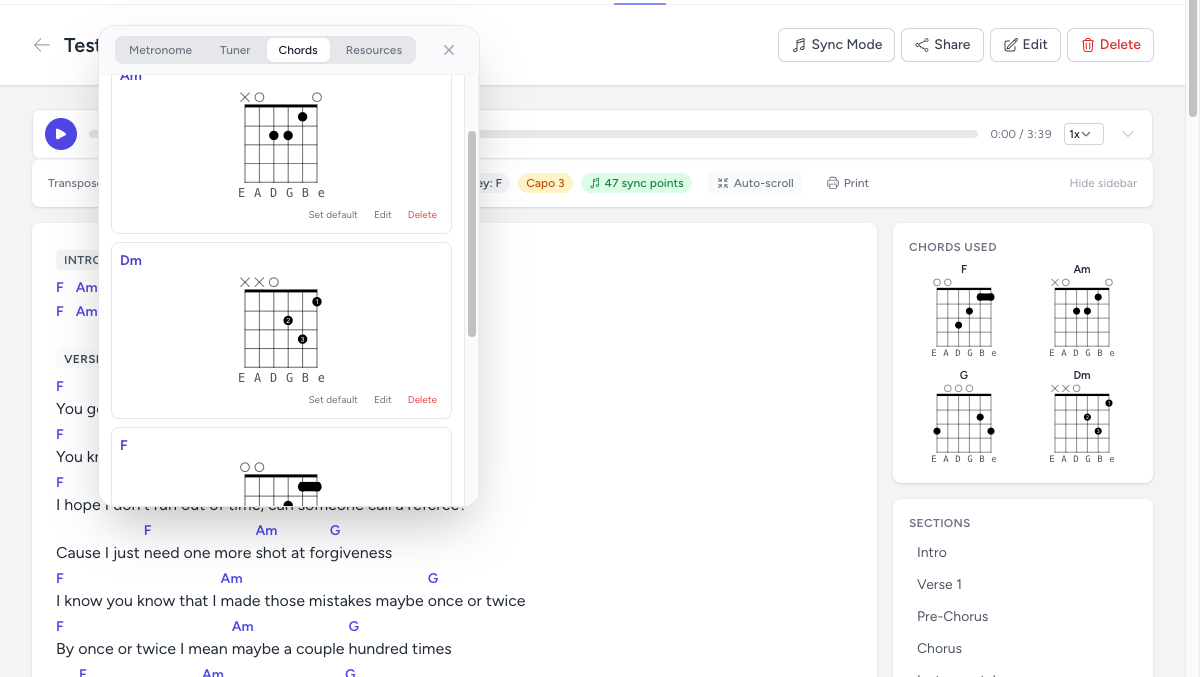
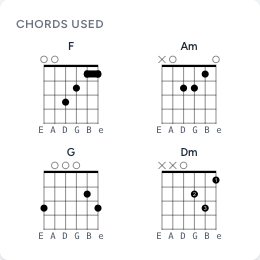
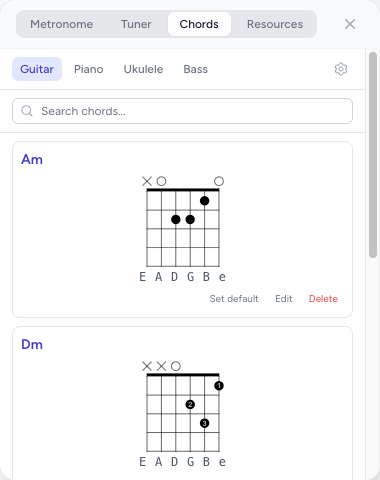
Build a visual chord library with SVG-rendered diagrams for guitar, ukulele, bass, and piano. Diagrams appear automatically on chord sheets and in the Music Toolbox.
Visual editor: set finger placements, barre chords, open/muted strings, and custom tuning labels.
Auto-fill on transpose: change the key and matching diagrams are fetched instantly.
Multiple voicings: store up to 10 voicings per chord — pick which one students see by default.
Toolbox & sidebar: browse, search, and edit diagrams from the Music Toolbox or the chord sheet sidebar. Students automatically see the diagrams for the chords in their assigned sheets.
Shared & embedded views: chord diagrams show up on public share links and embedded chord sheets too.
Recording
Multi-Track Recording Studio
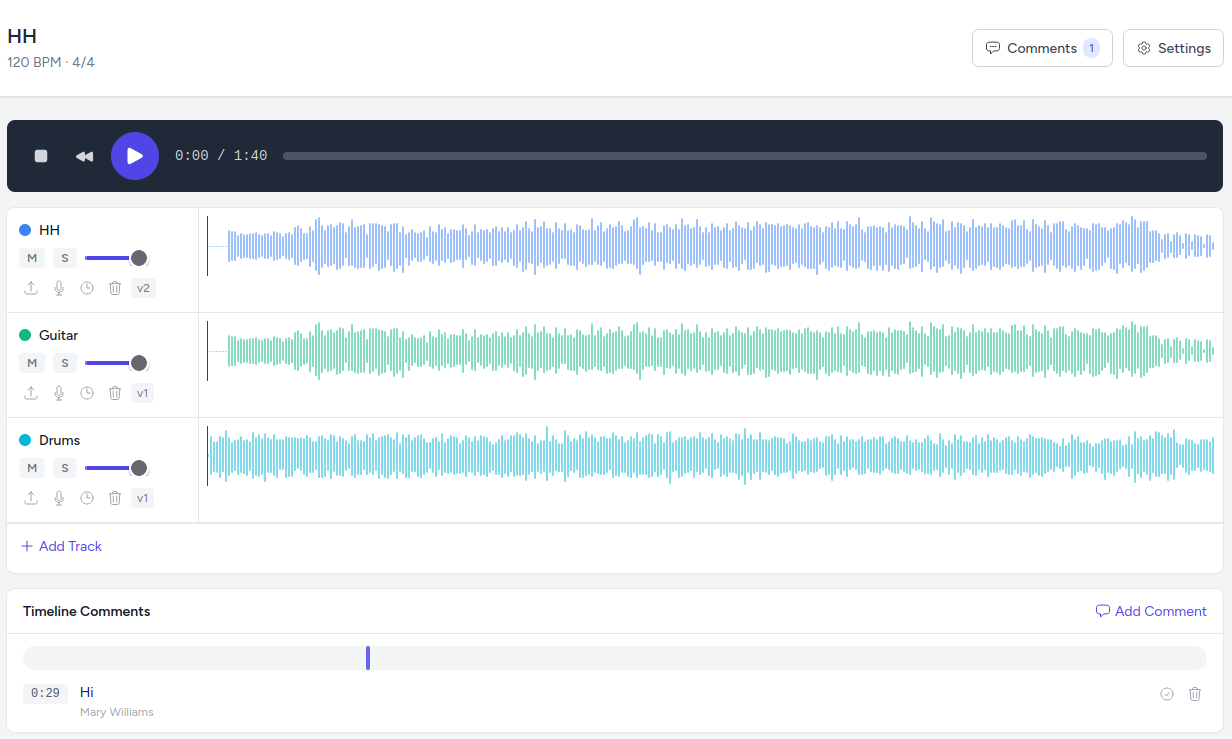
A full digital audio workstation built right into Exerzisor. Create music projects, record audio tracks, and give timestamped feedback — all without leaving the platform.
Multi-track recording: add unlimited tracks with individual volume, pan, mute, and solo controls — record from your microphone or upload audio files.
Version history: every track keeps a full history of uploads so you can restore any previous version at any time.
Timeline comments: leave timestamped feedback at specific points in a recording — click a comment to jump straight to that moment.
Collaboration roles: invite students as viewers, commenters, uploaders, or editors — assign individual tracks for focused practice.
Lesson integration: attach a recording project to any lesson and students are automatically added as members.
Teaching
Rich Lesson Builder
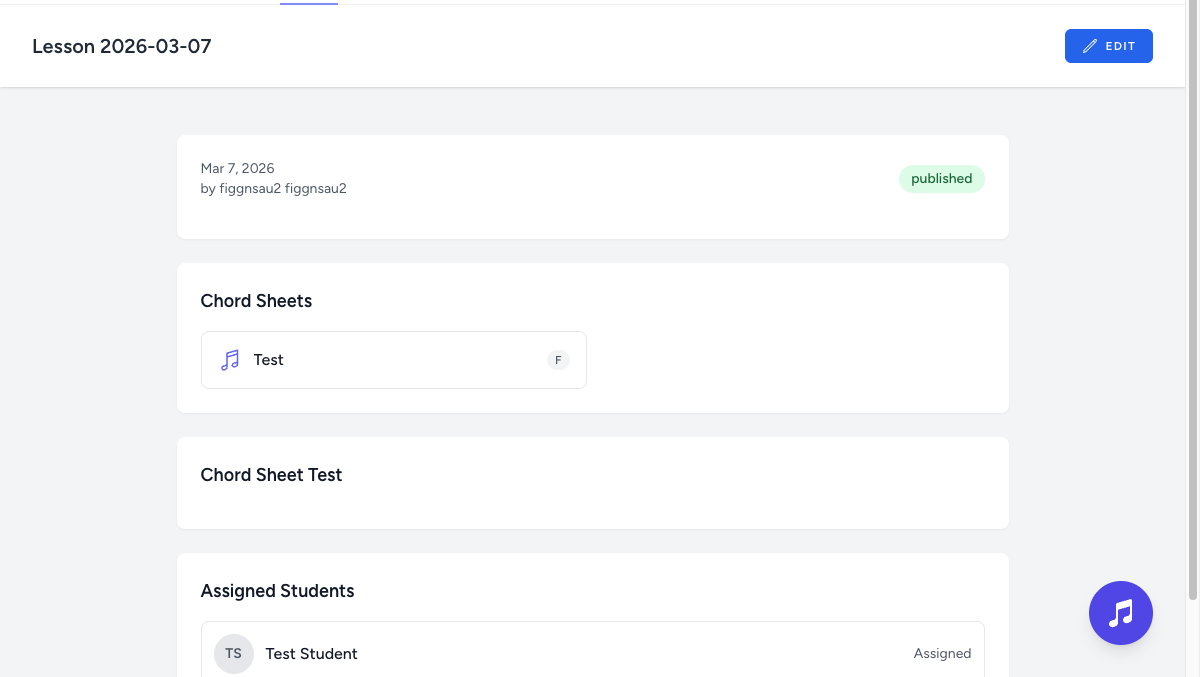
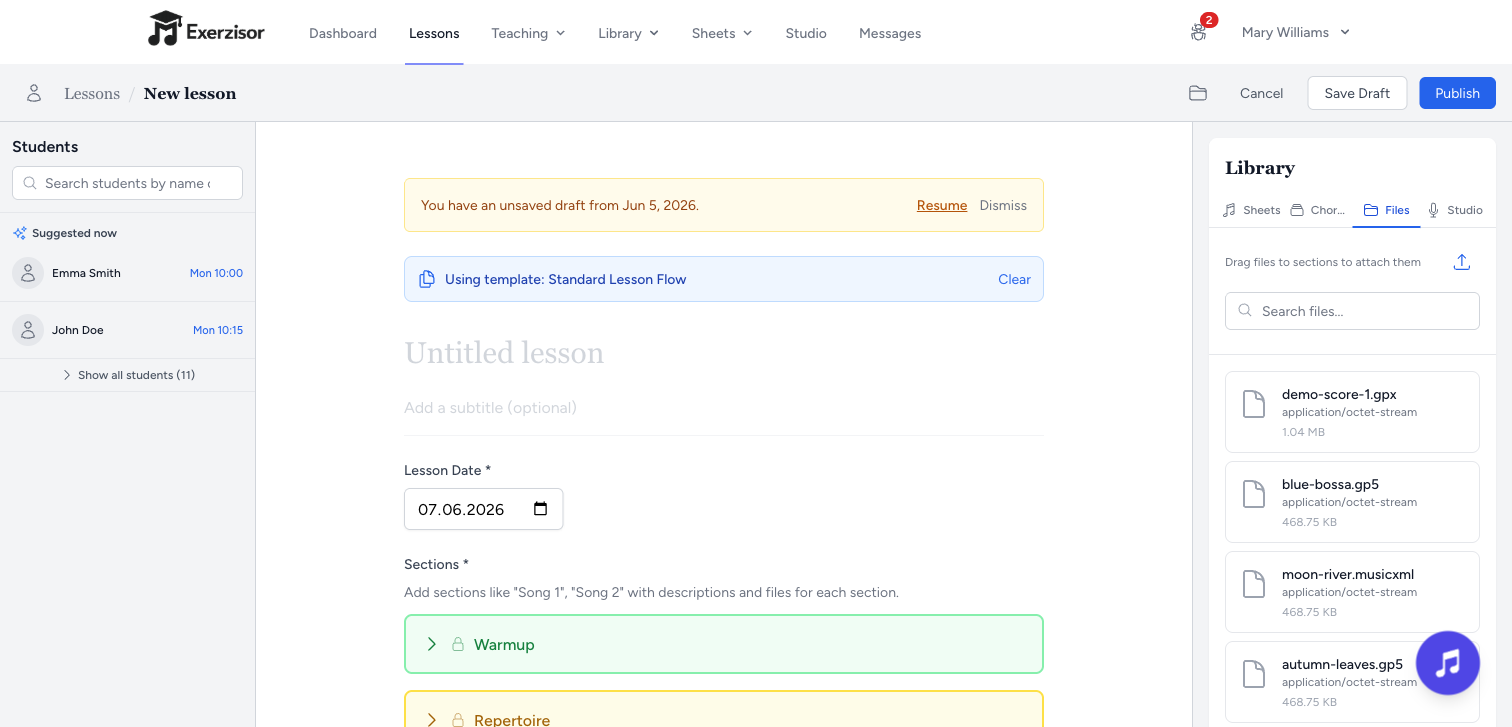
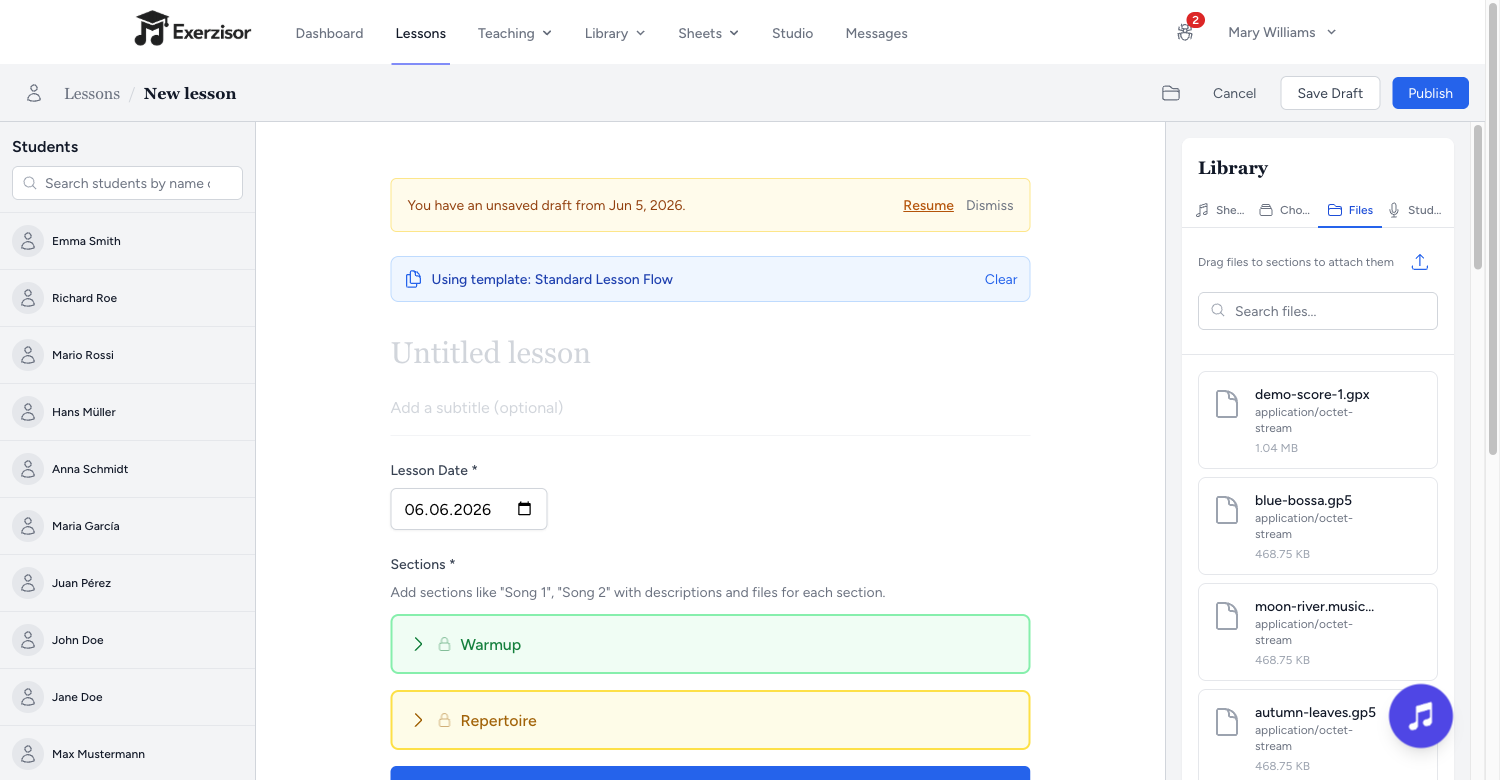
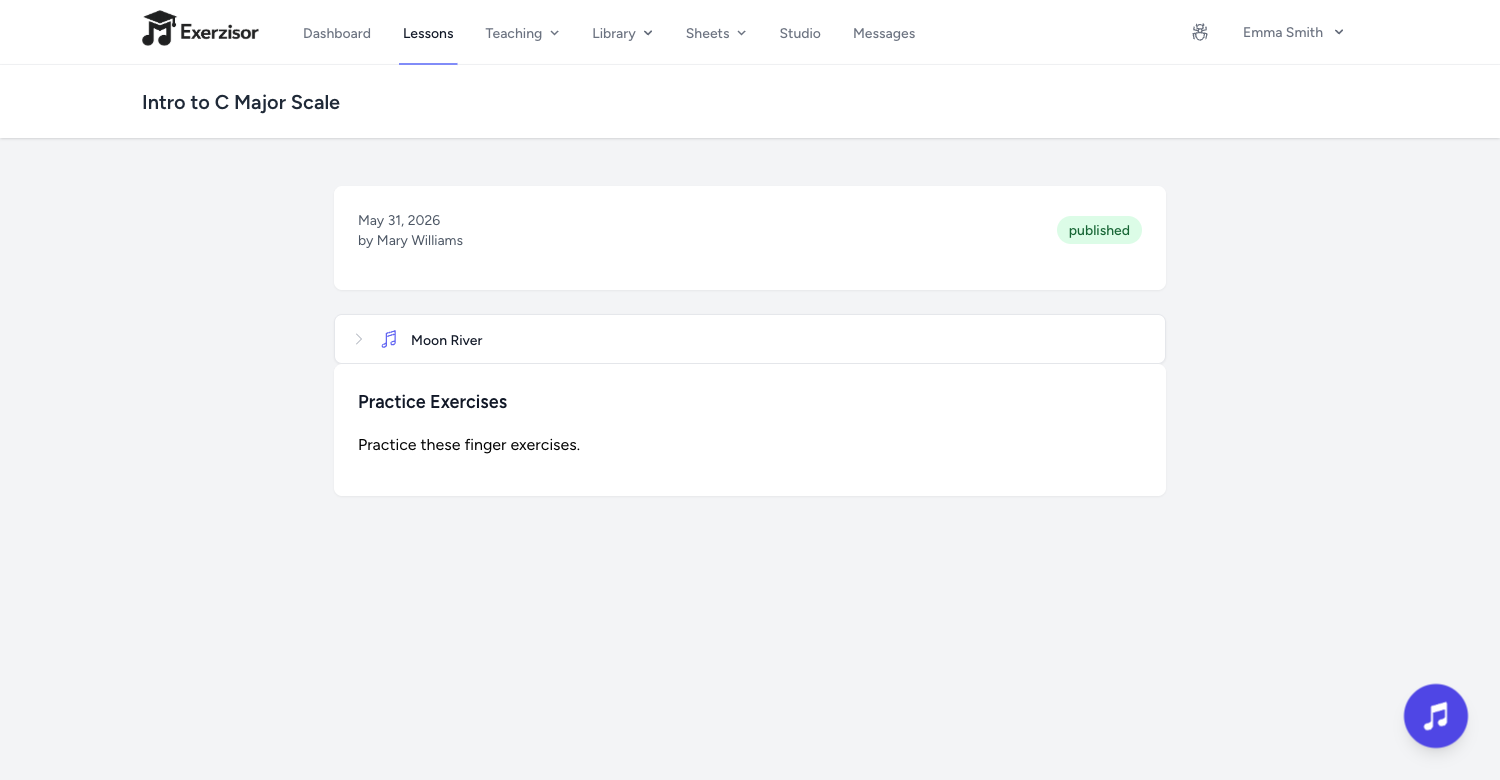
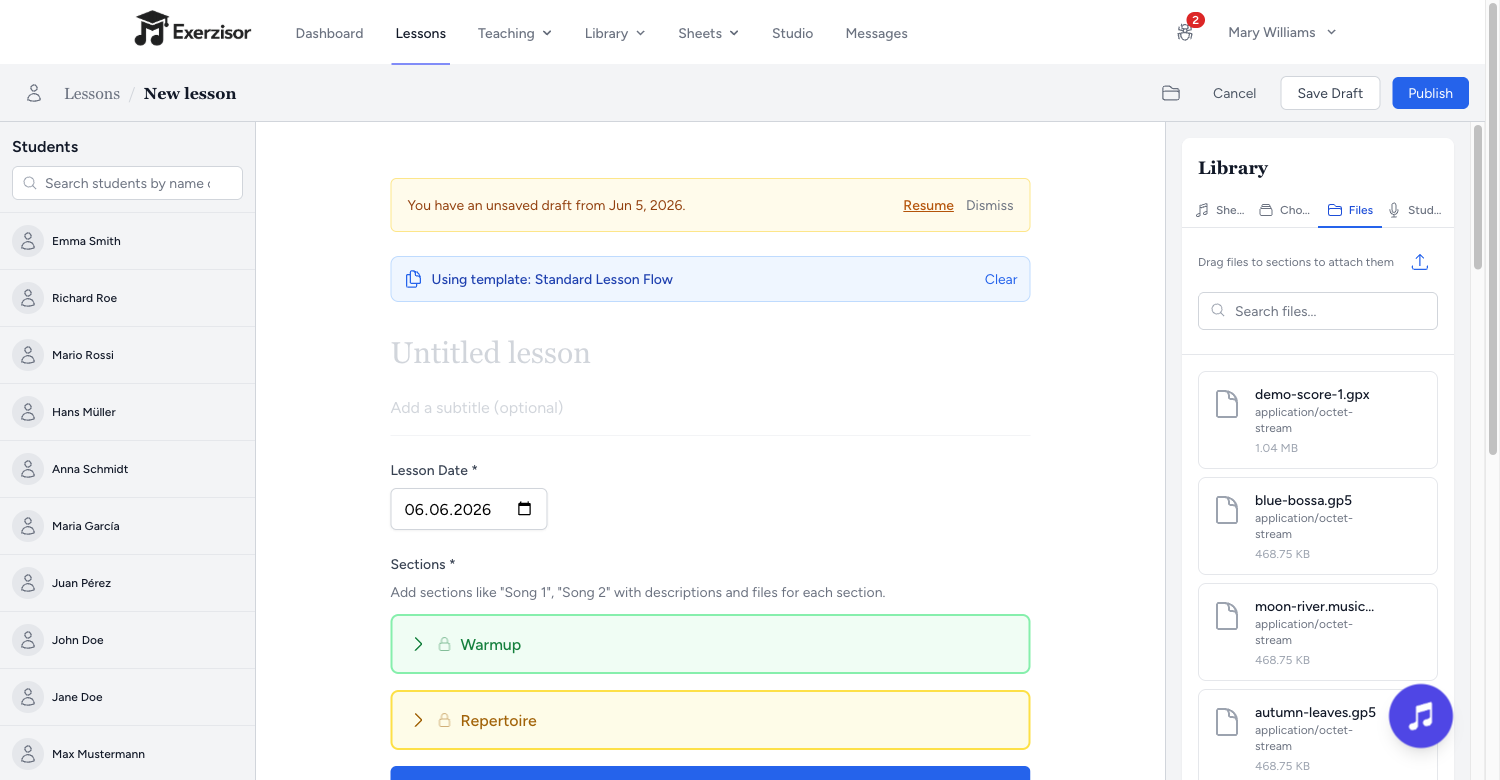
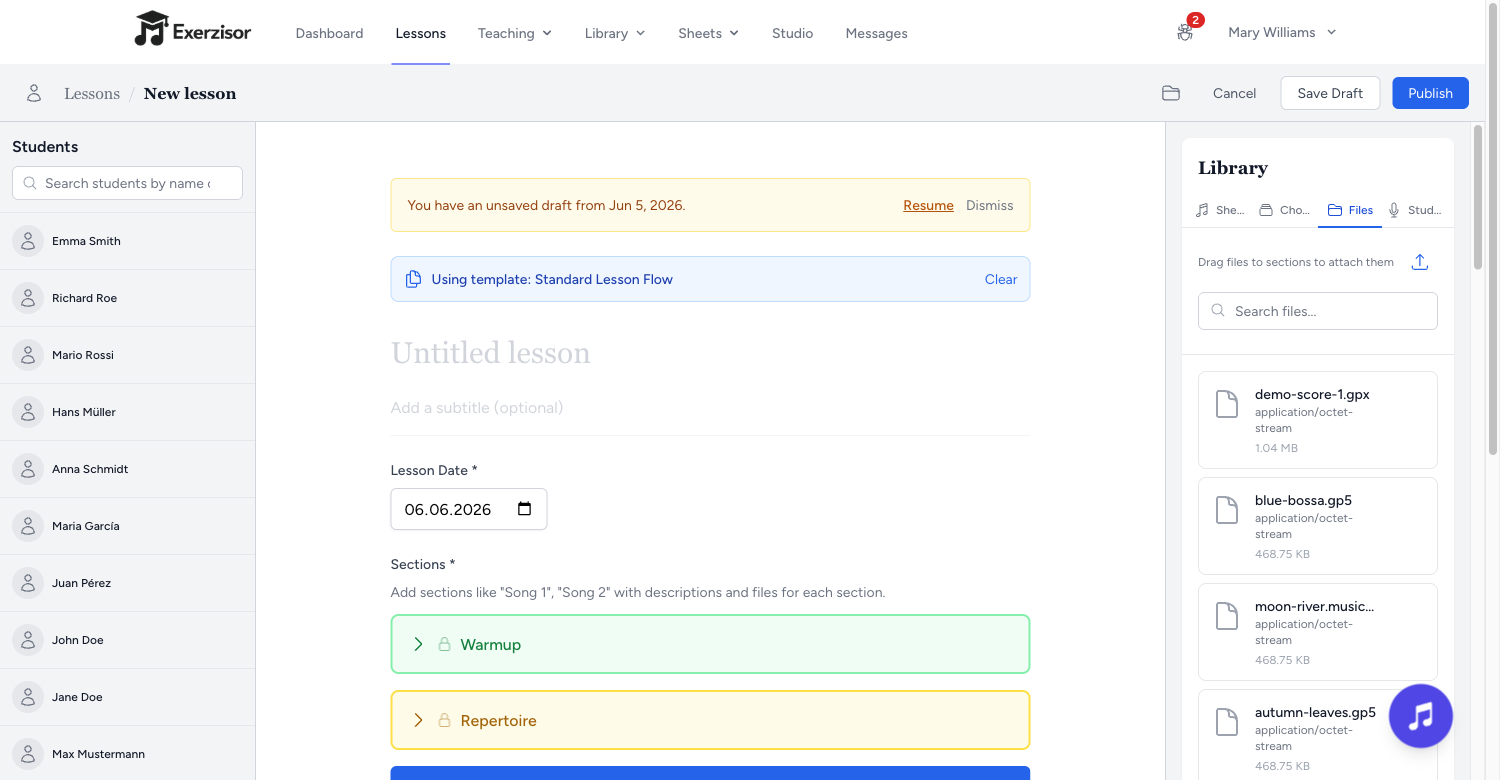
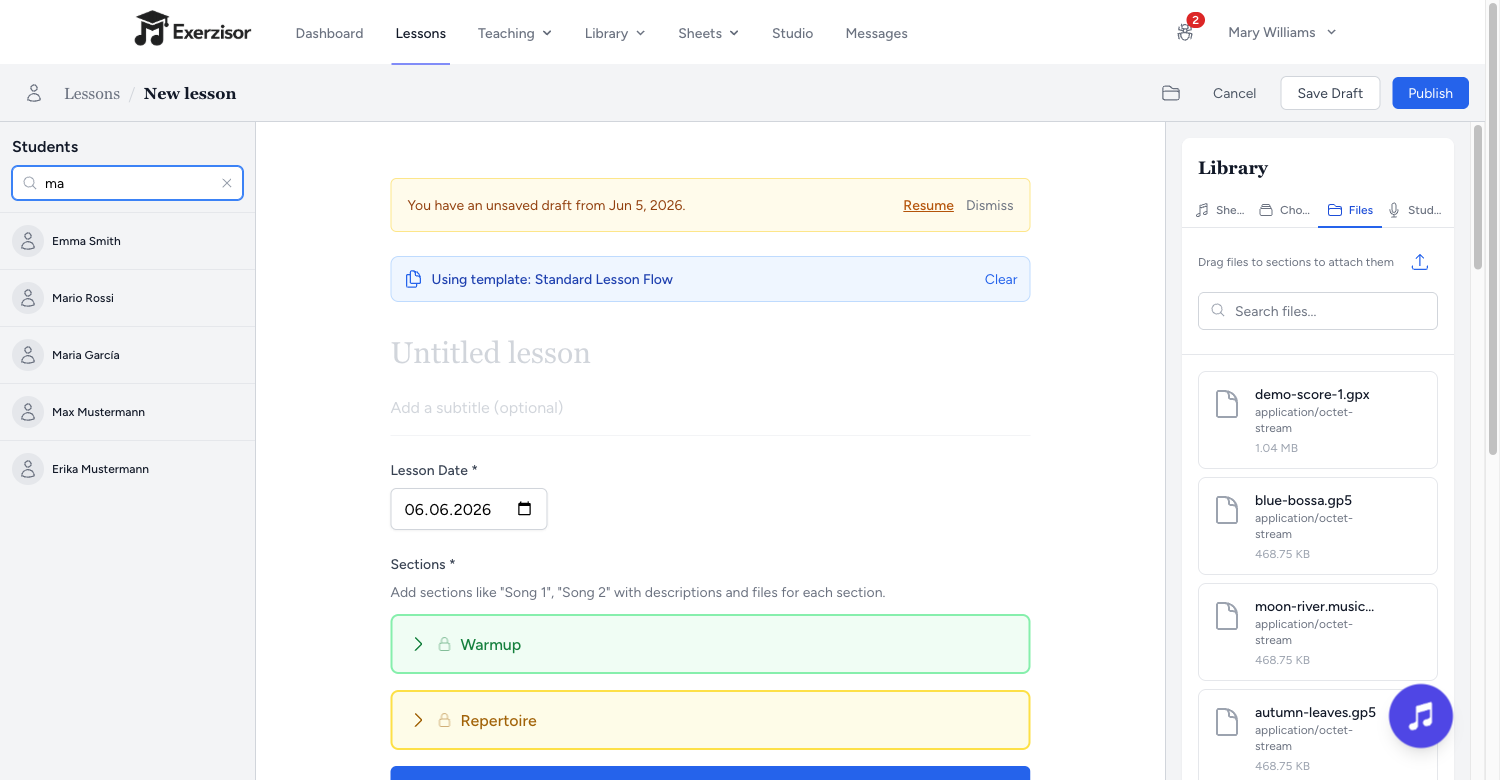
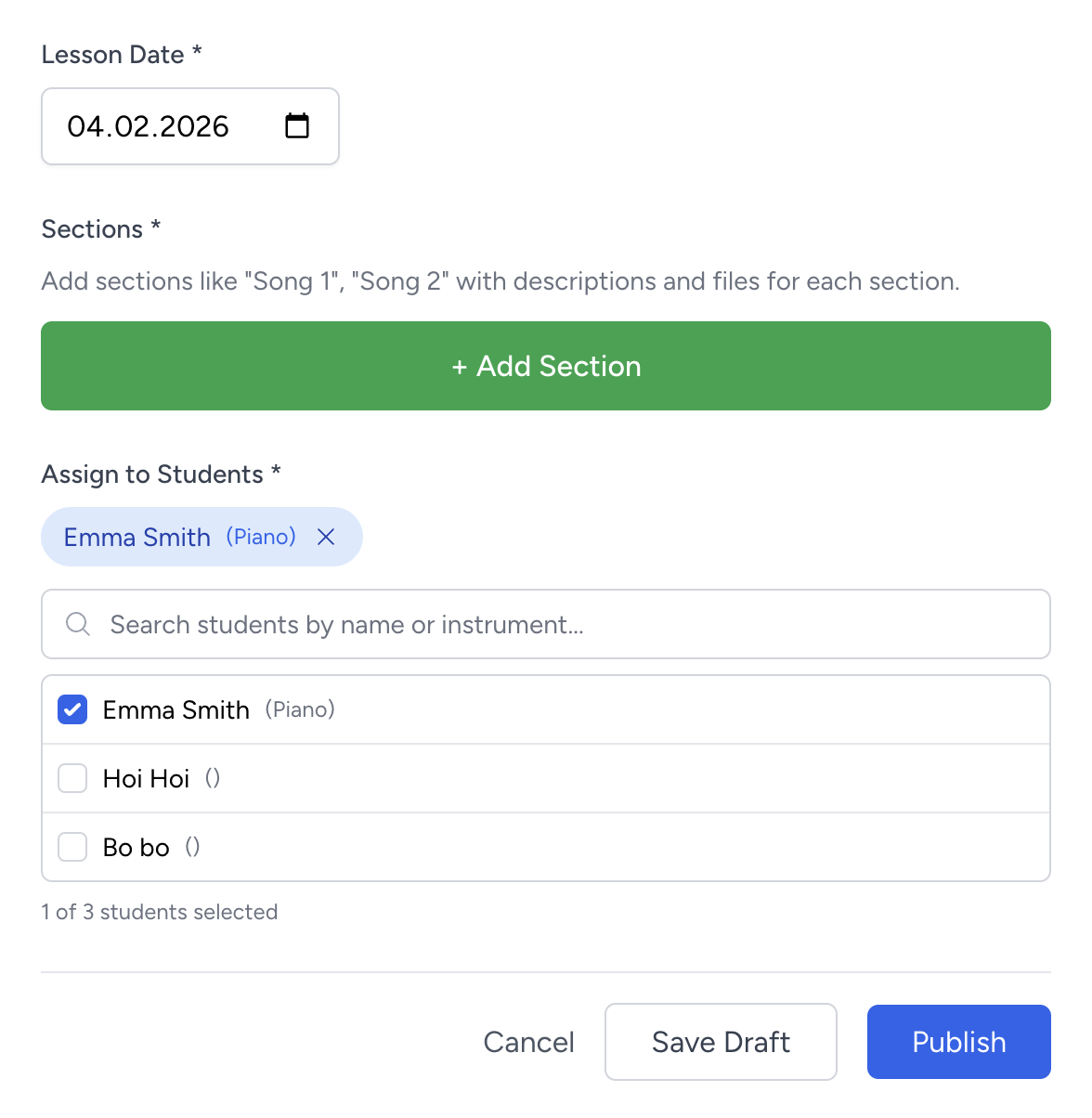
Create structured lessons with a rich-text editor, attach files, embed sheet music and chord sheets, and assign them to individual students or groups.
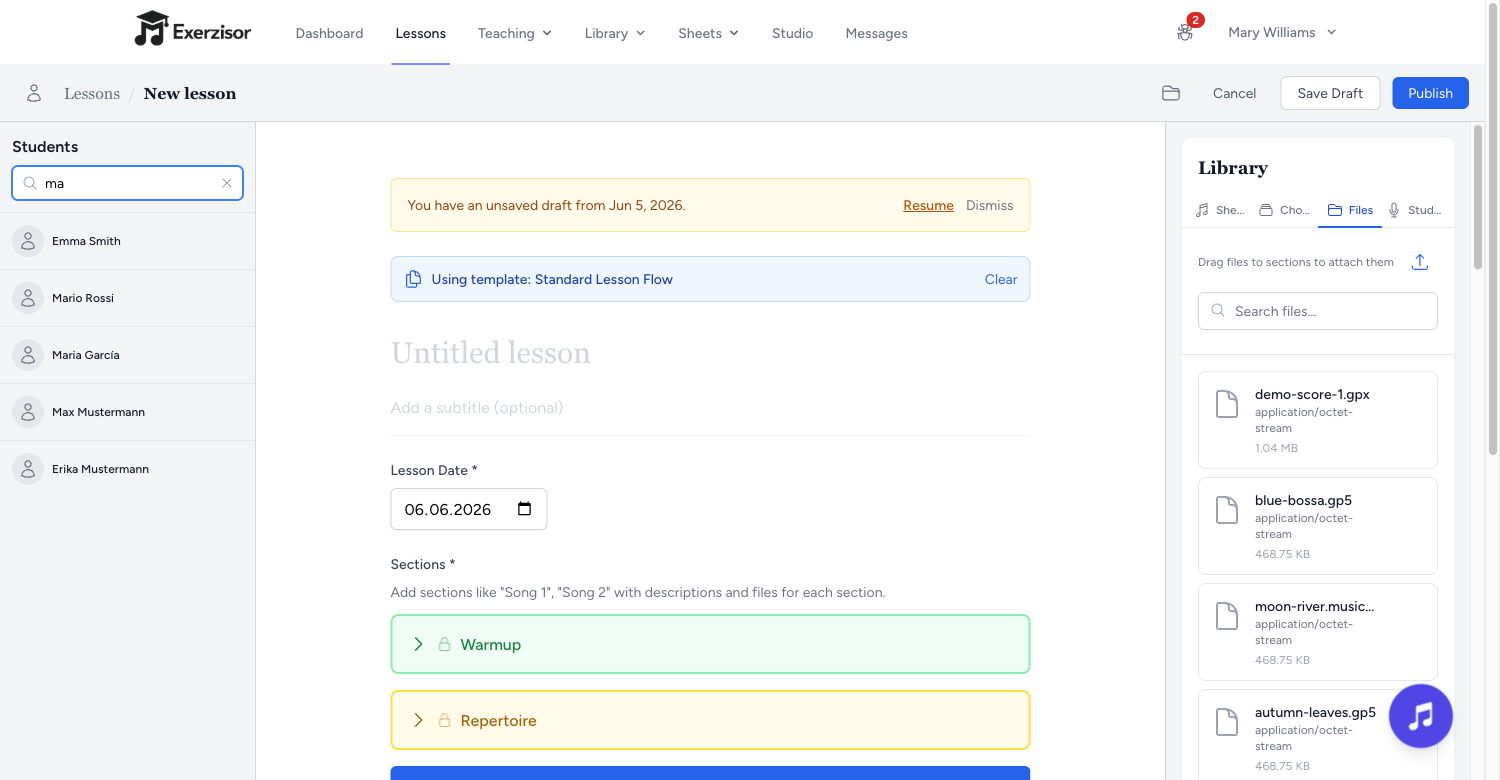
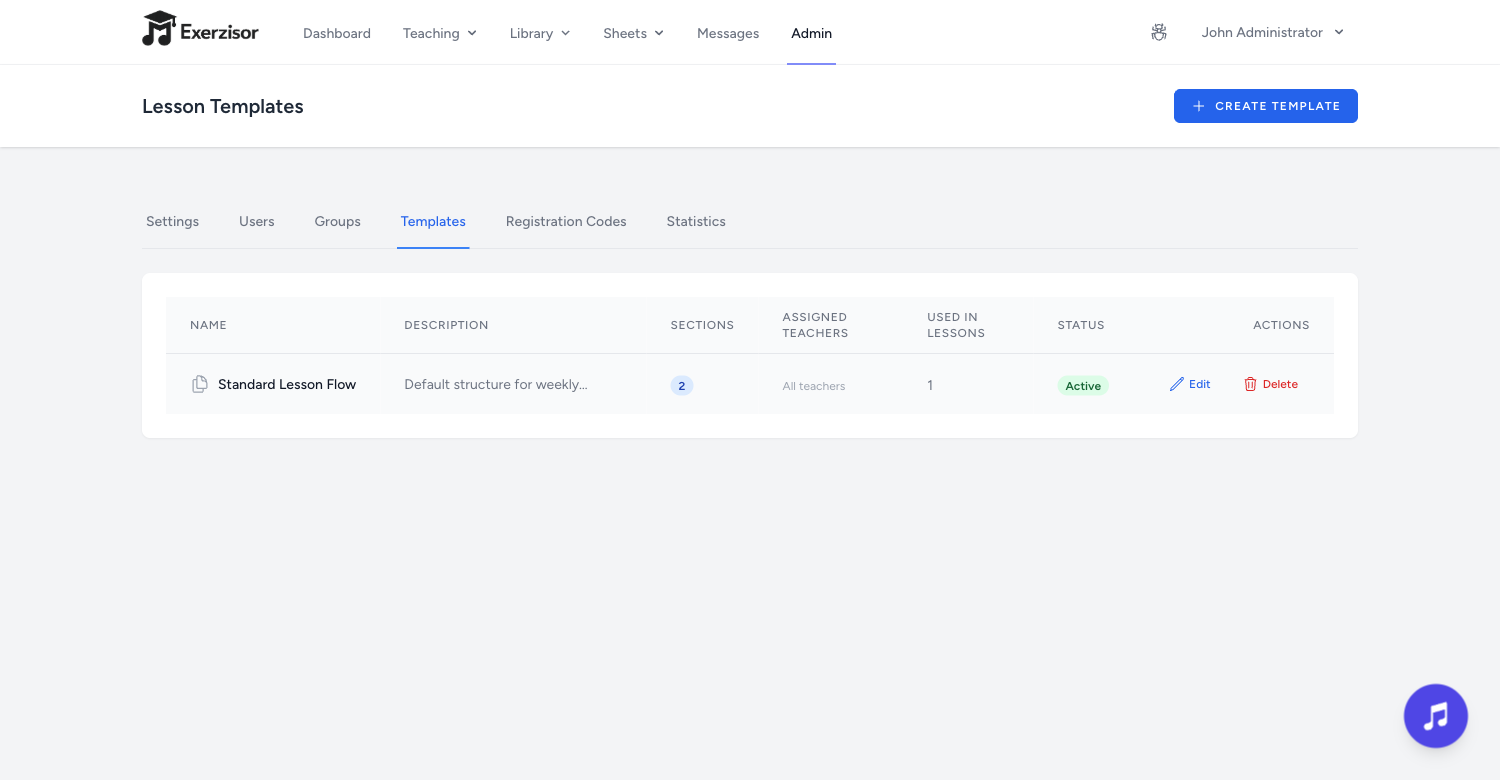
Templates: pre-built lesson structures with required and optional sections so every lesson follows your curriculum.
Draft & publish: work on lessons privately, then publish when ready. Autosave keeps your drafts safe.
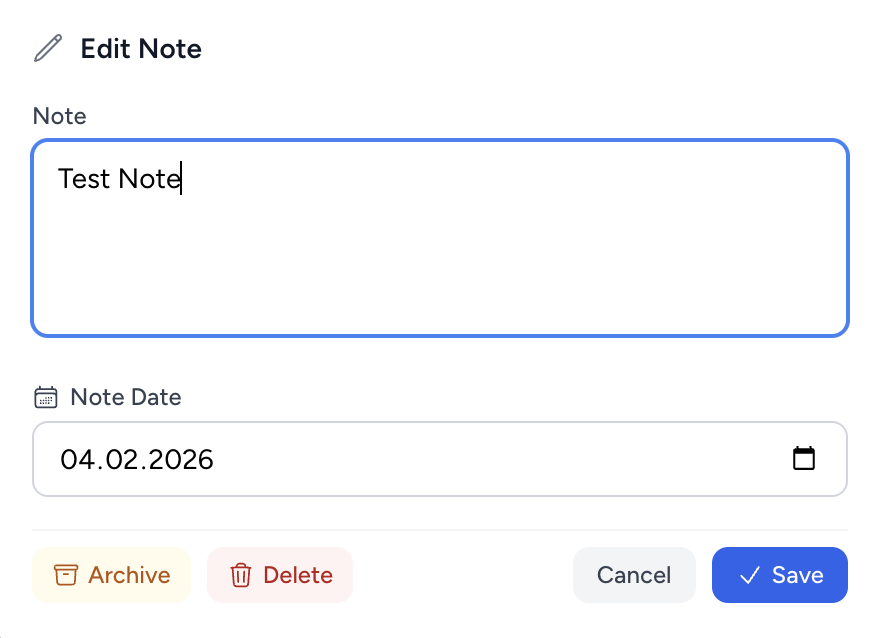
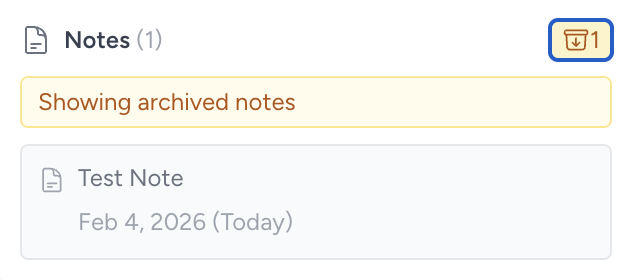
Student notes: students can write their own notes per section, visible only to them and their teacher.
Section completion: students request section sign-off; teachers confirm with one click.
File attachments: attach PDFs, audio, video, or images directly inside any lesson section.
Curriculum
Courses & Progress Tracking
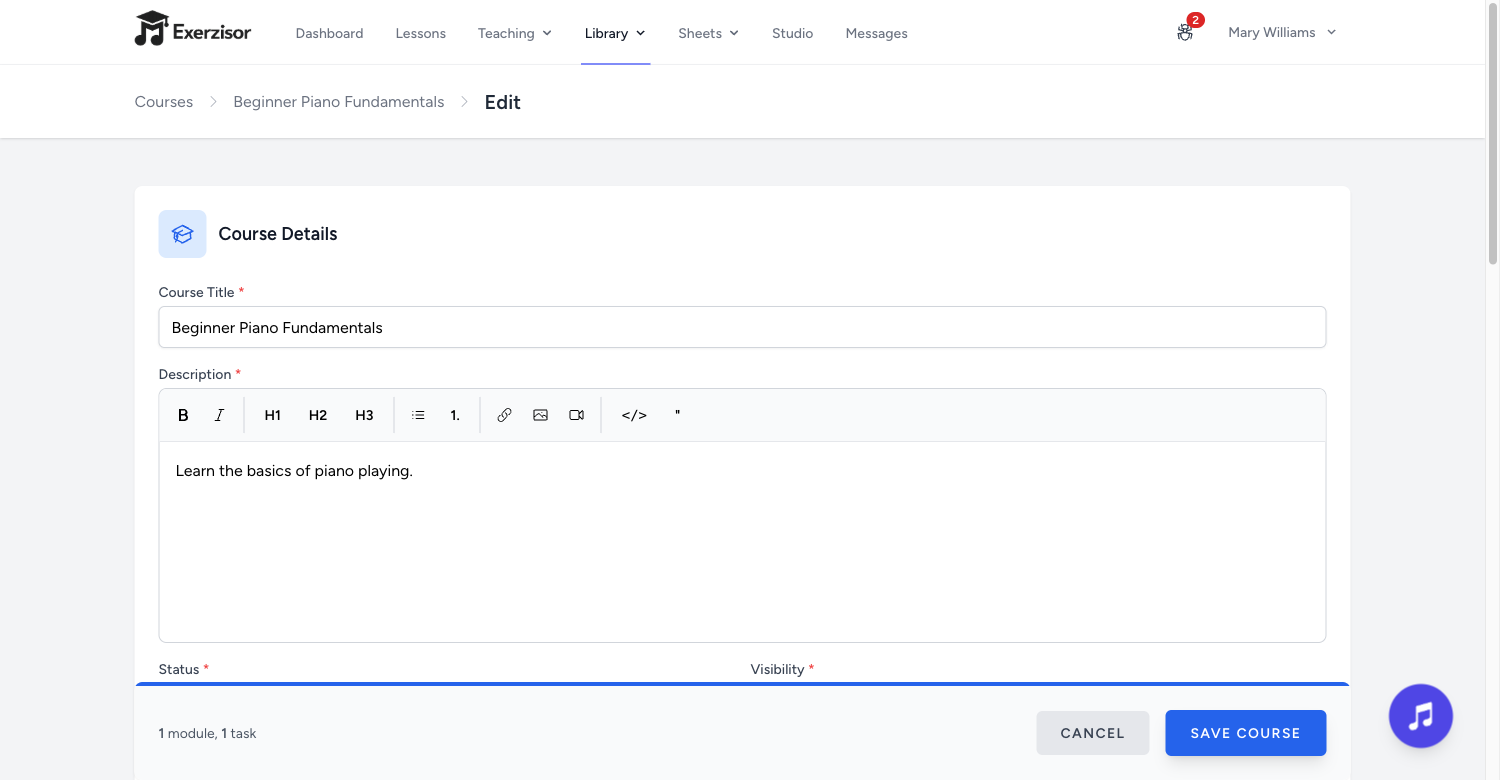
Organize lessons into multi-module courses with difficulty levels and estimated durations. Track each student’s progress through the curriculum.
Modular structure: group lessons into ordered modules that students work through sequentially.
Enrollment tracking: see which students are enrolled, their completion percentage, and time spent.
Difficulty levels: tag courses as beginner, intermediate, or advanced so students find the right fit.
Draft, published, archived: control course visibility with a clear lifecycle workflow.
File Management
Google Drive-Style File Manager
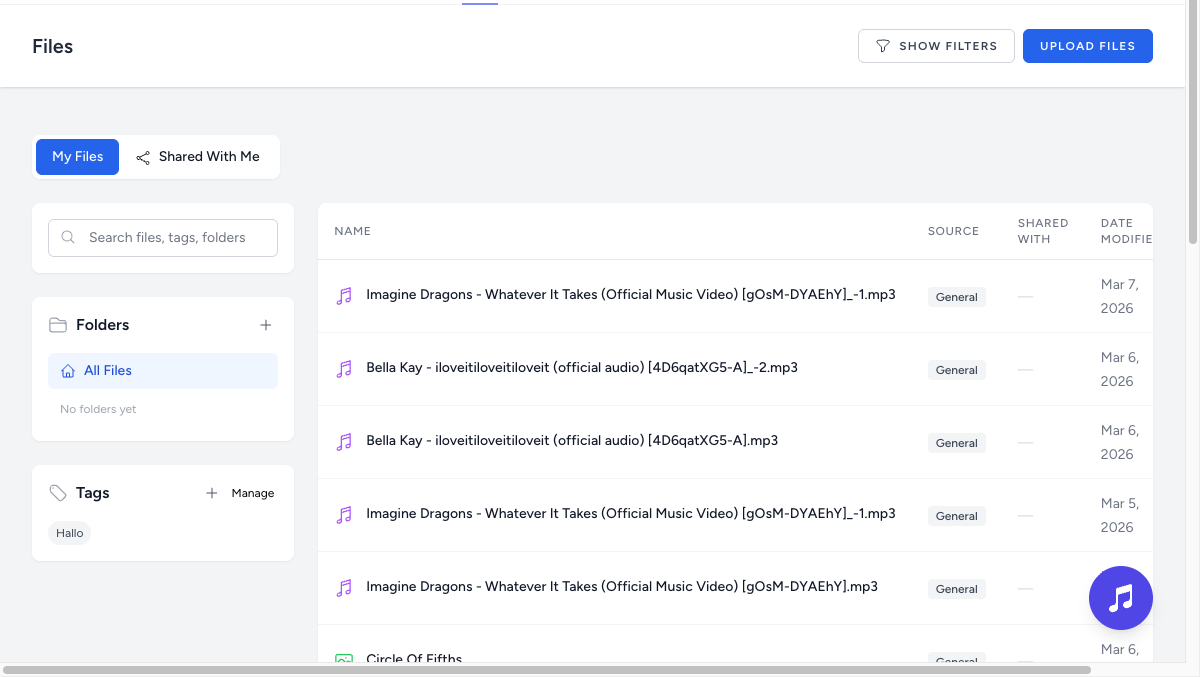
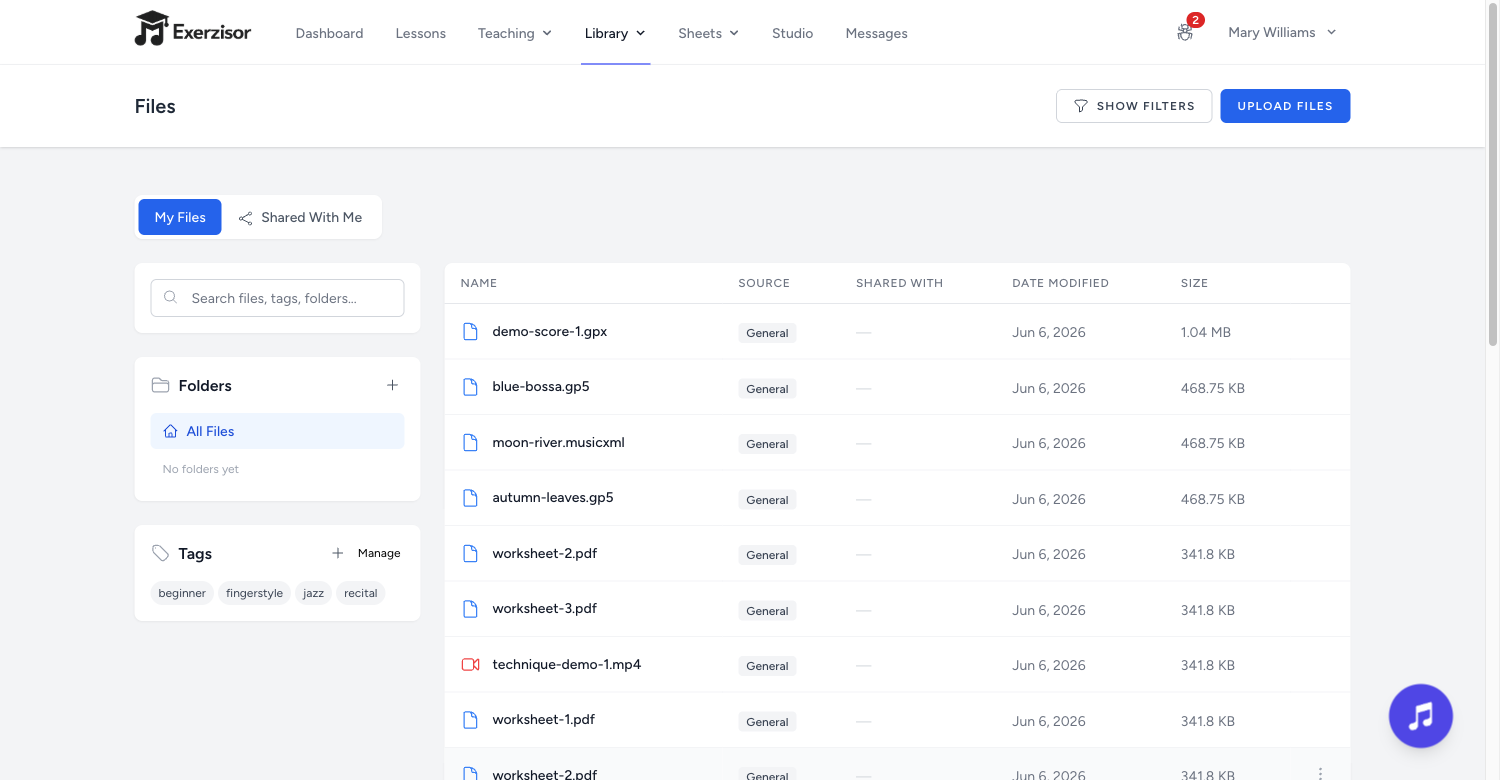
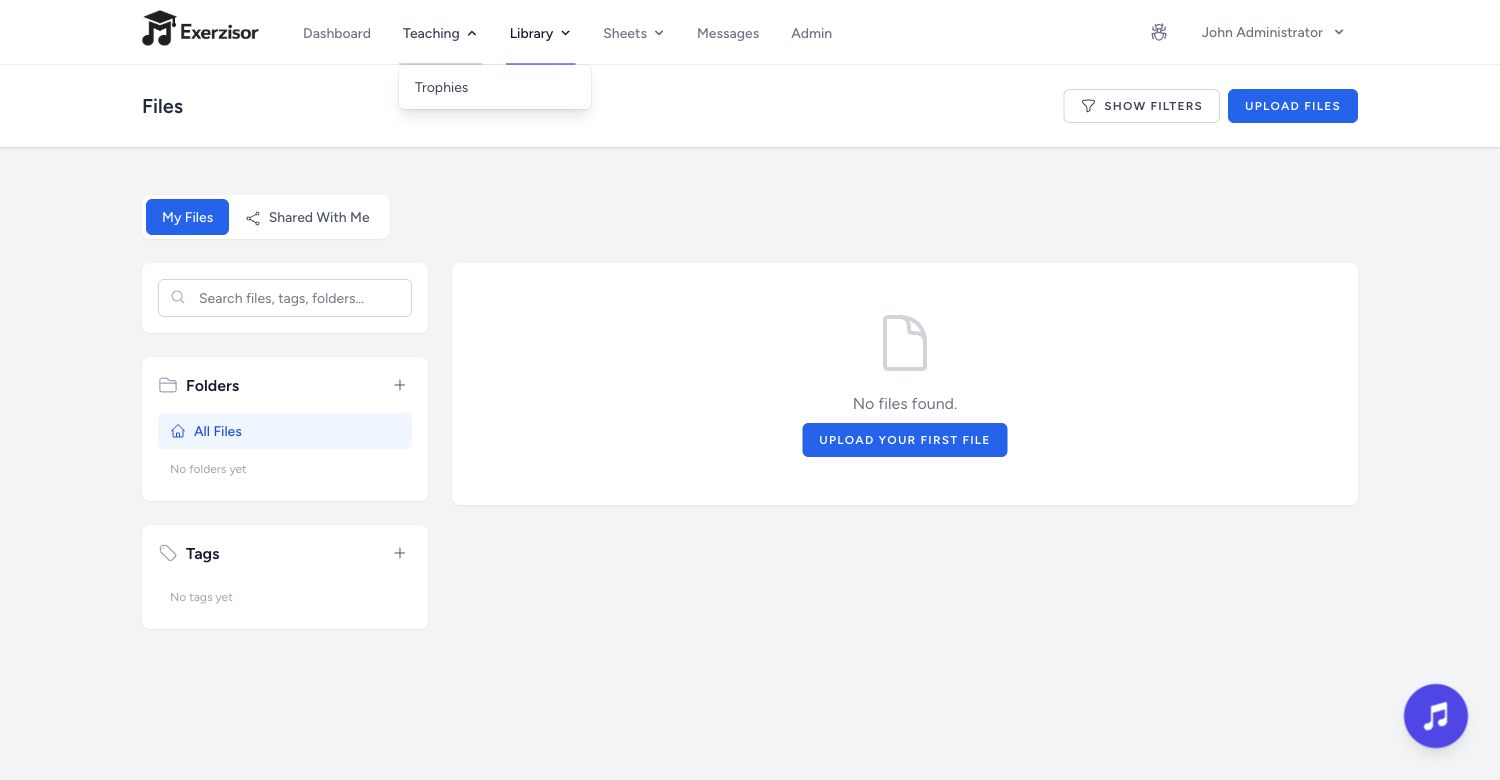
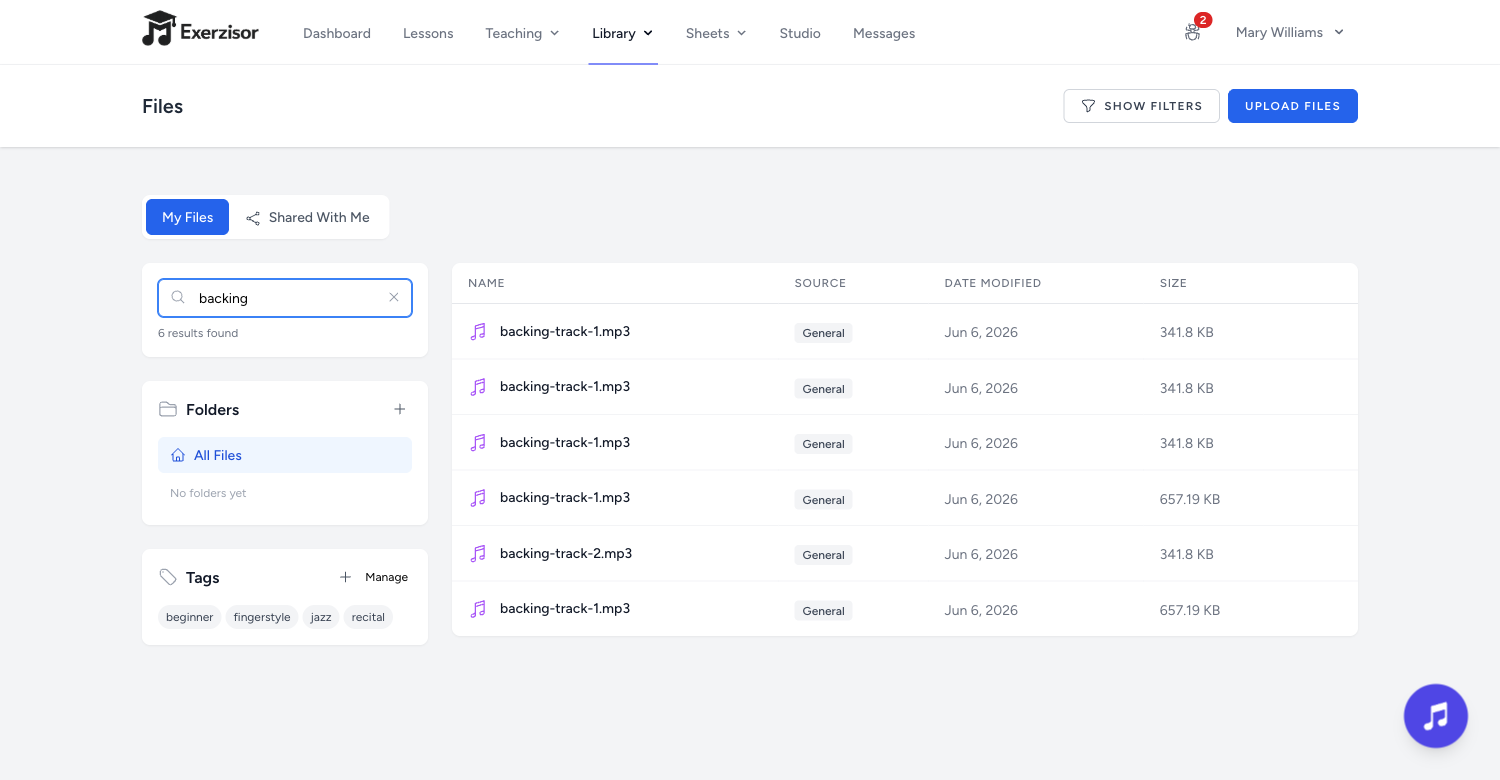
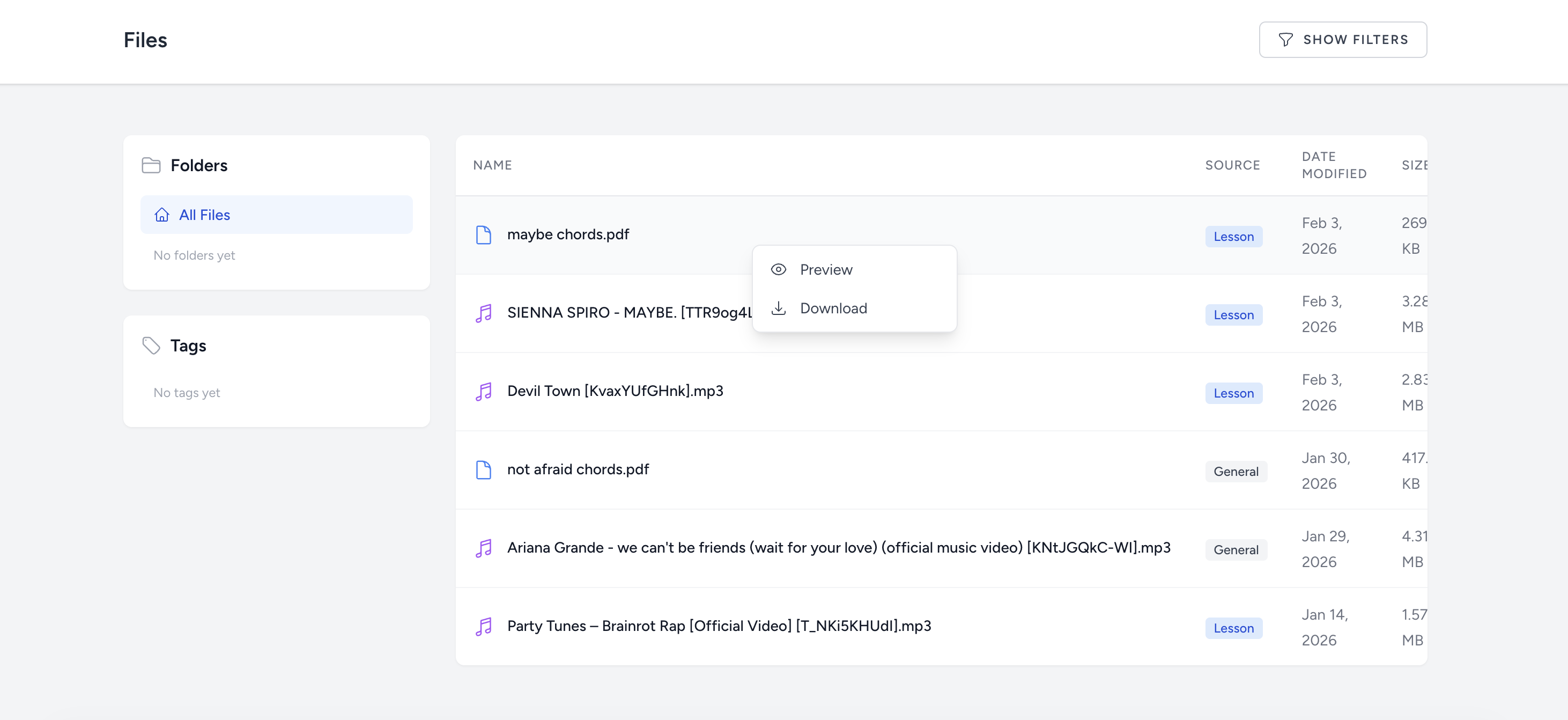
Upload audio, video, PDFs, images, and Guitar Pro files into a familiar table layout with folders, tags, search, and sharing controls.
Auto-conversion: uploaded audio is auto-converted to MP3 (320 kbps), video to MP4 (720p) — no manual encoding needed.
Folders & tags: organize files into folders and apply custom tags for quick filtering.
Sharing: share individual files with specific students or make them available school-wide.
Inline preview: preview PDFs, images, audio, and video without leaving the page.
Trash & recovery: deleted files go to a 30-day trash bin before permanent removal.
Practice Tools
Built-in Music Toolbox
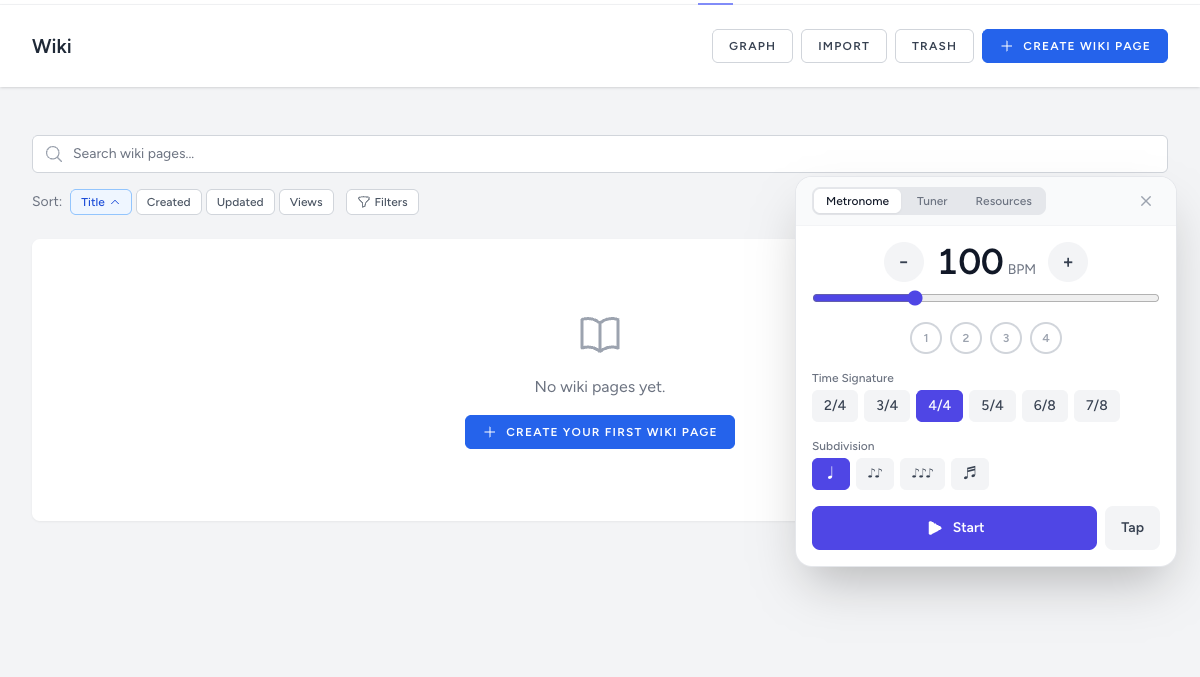
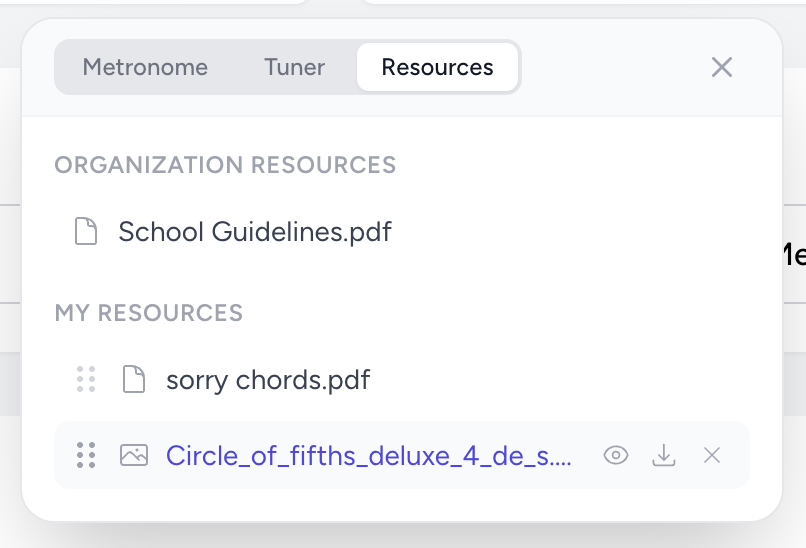
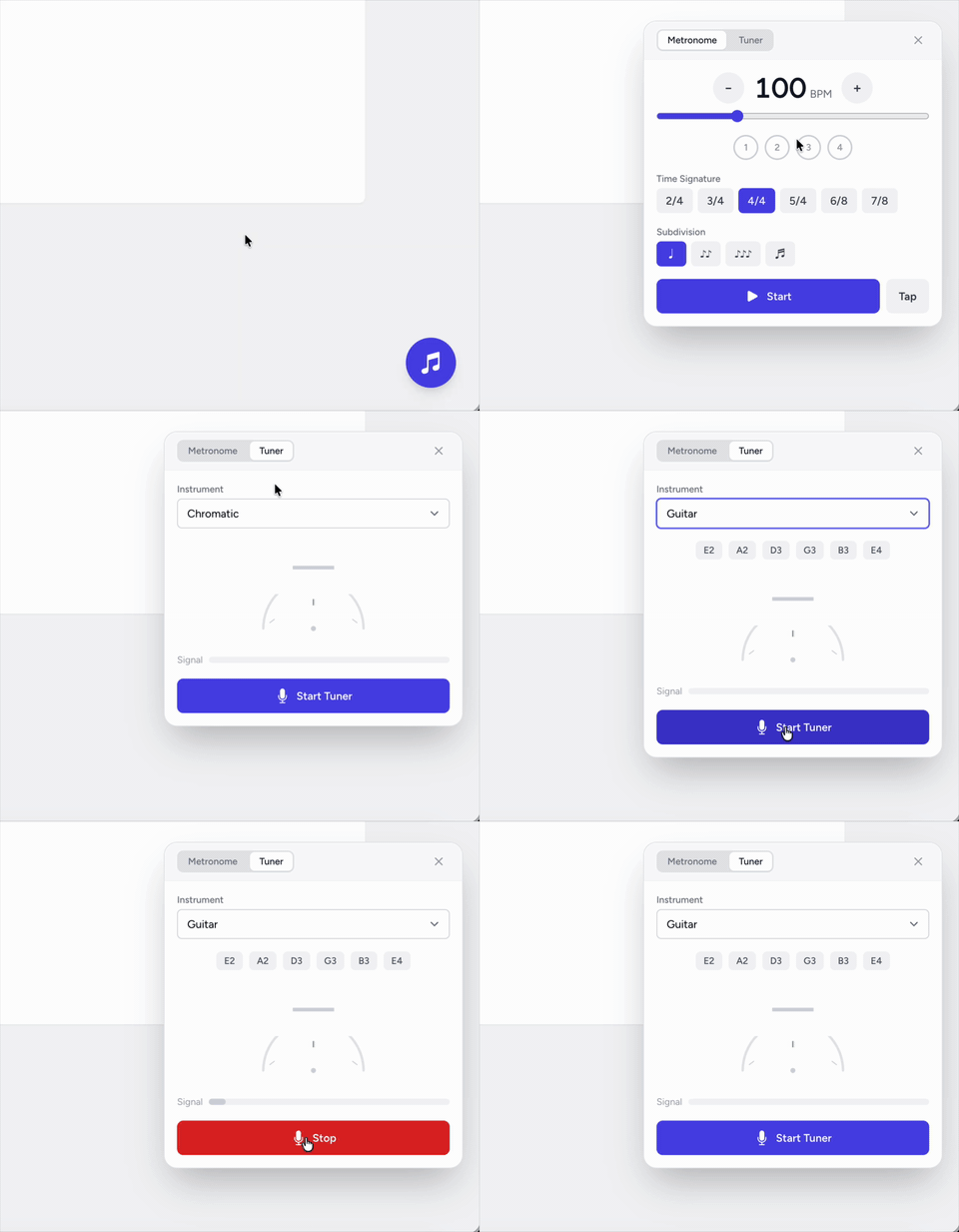
A floating toolbox available on every page with a metronome, chromatic tuner, and pinned resource shortcuts — so students always have what they need.
Metronome: adjustable BPM, time signatures (2/4 through 7/8), subdivisions, and a tap-tempo button.
Chromatic tuner: microphone-based tuner with visual frequency display, powered by Web Audio API.
Pinned resources: pin frequently-used files, sheets, or links for one-click access from any page.
Games & Drills
Practice Games — Starting with Sight Reading
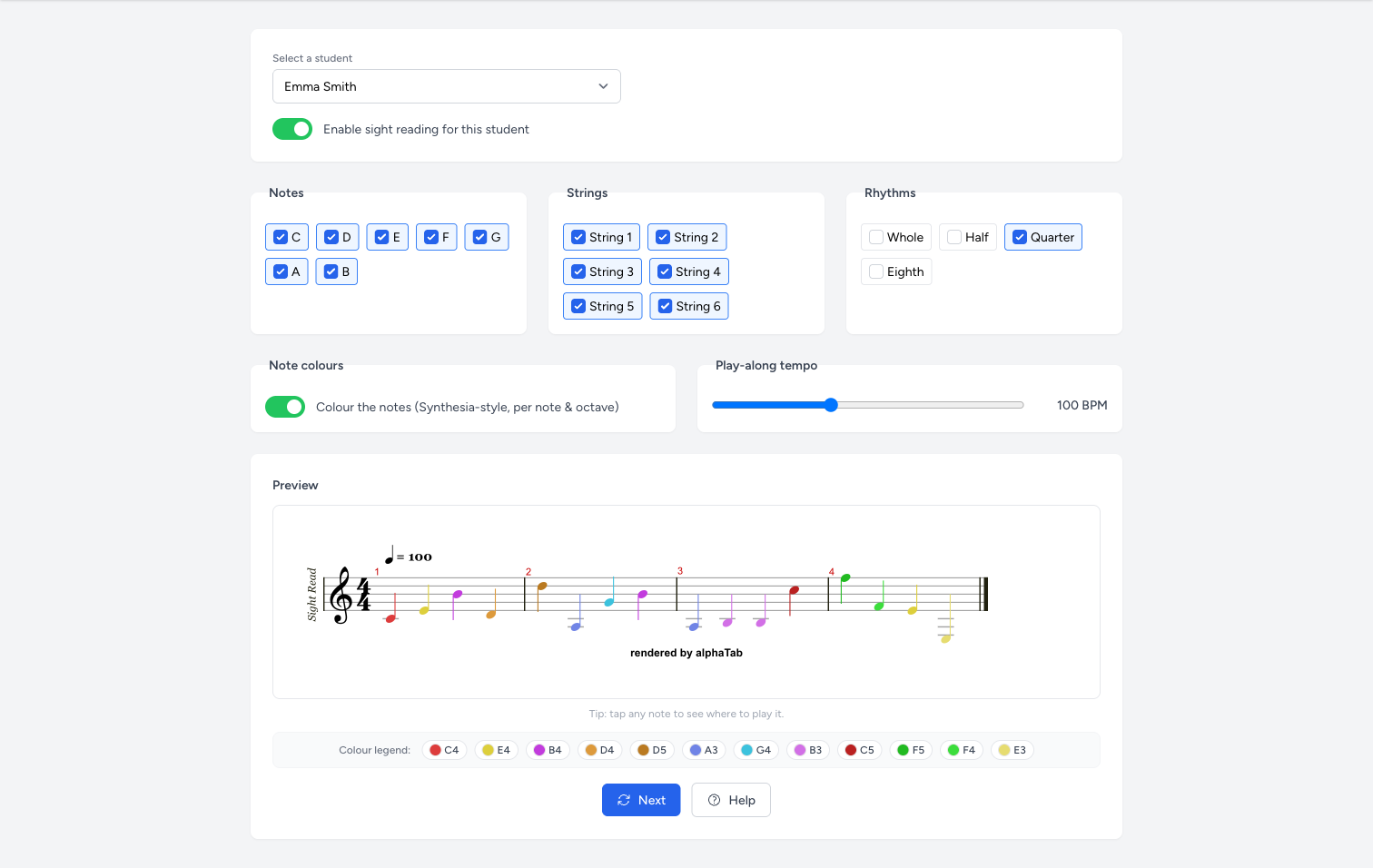
A dedicated Tools menu hosts built-in practice games. The first is Sight Reading: endless, randomized note-reading exercises rendered as real notation, fully configured by the teacher per student.
Teacher-controlled: off until you switch it on, then pick exactly which notes, strings, and rhythms each student practises — from open strings and whole notes up to the full fretboard.
Endless fresh exercises: each drill is a brand-new four-bar phrase — hit Next for another, so no two sessions are alike.
Play-along & colour-coding: a Play button counts in and plays the exercise note by note at your chosen tempo, with optional Synthesia-style note colours that shade by octave.
Built-in help: tap any note to see its name, octave, fretboard position, and hear it played — the game teaches instead of frustrating.
Counts as practice: time spent flows into each student’s statistics under a new Games category, and the timer pauses on inactivity so idle tabs never inflate the numbers.
Room to grow: the Tools menu is built to host more games and trainers over time — Sight Reading is just the first.
Insights
Statistics & Practice Insights
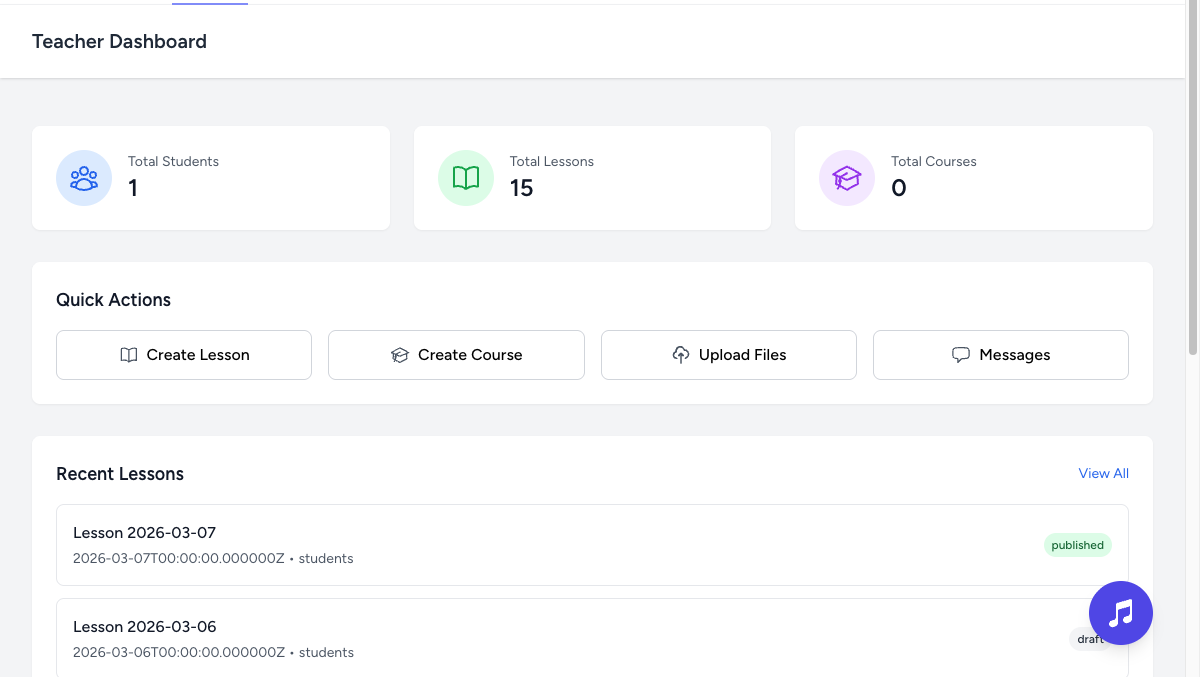
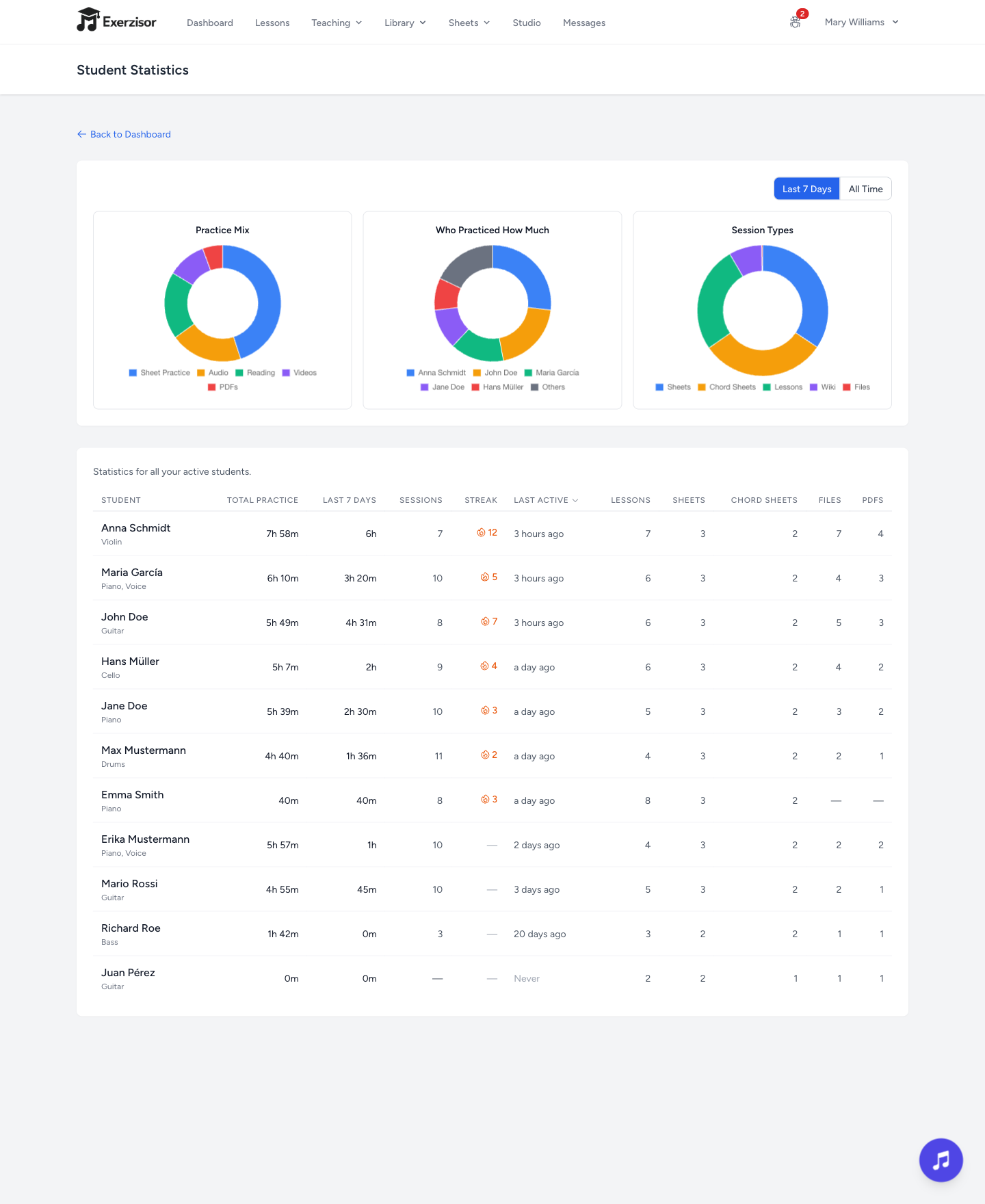
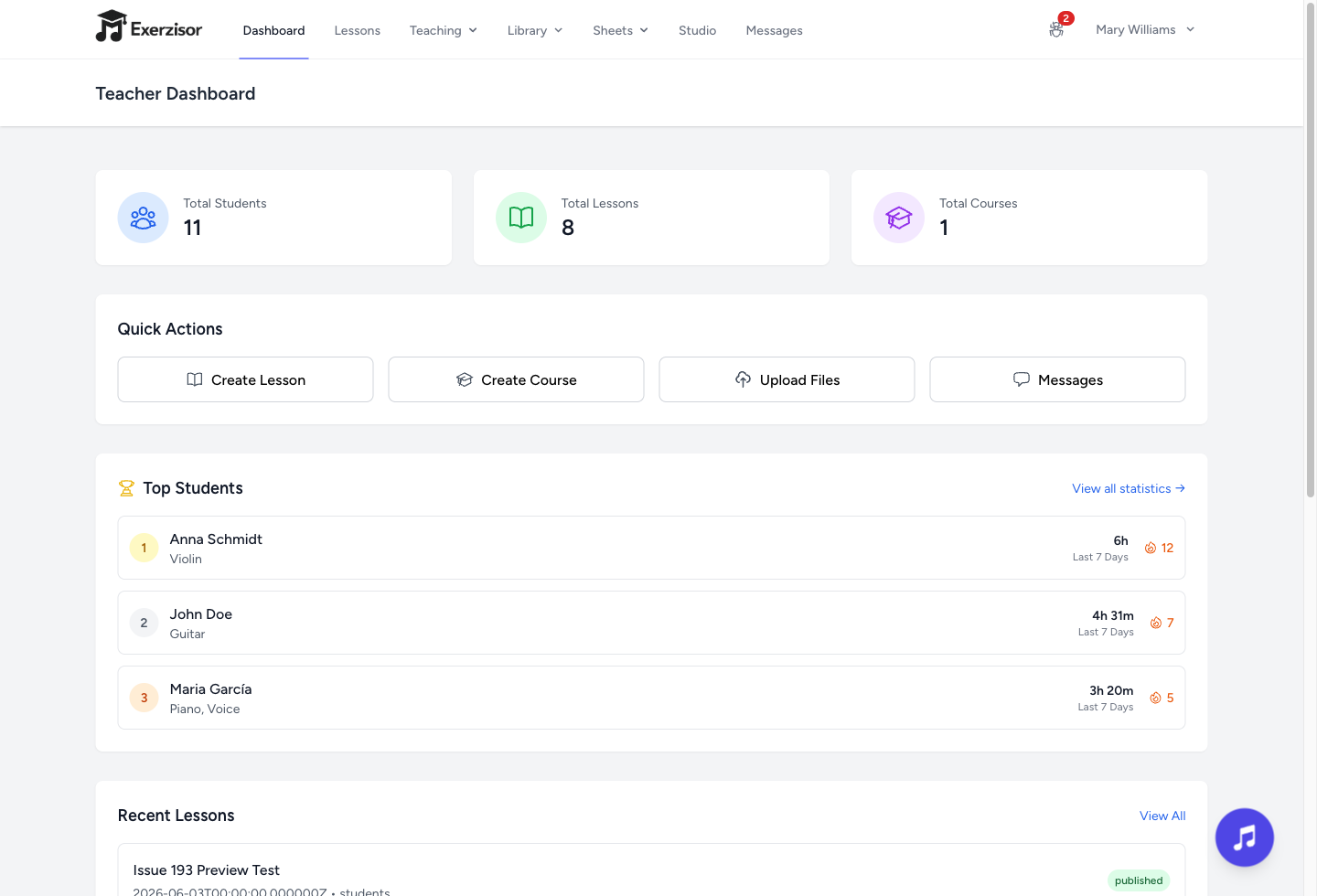
See how your students are really doing. A Top Students widget sits on the teacher dashboard, and a full Statistics page breaks practice down with clear charts — by activity type, by student, and over time.
Top Students at a glance: the dashboard widget surfaces your most active students for the period you choose.
Practice mix: donut charts show how time splits across lessons, sheets, chord sheets, recordings, and games.
Per-student detail: drill into any student’s timeline to see exactly what they practised and when.
Always accurate: practice minutes are tracked precisely and survive refreshes, so the numbers you act on are trustworthy.
Engagement
XP, Trophies & Streaks
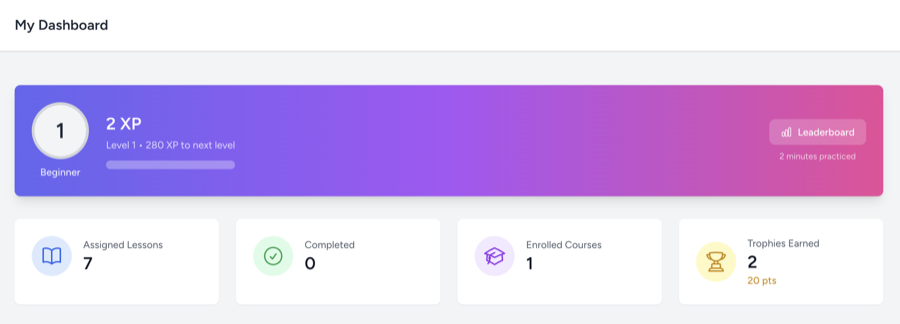
Keep students motivated with a built-in gamification system. Students earn experience points for every minute of practice, unlock trophies, and build daily streaks.
XP system: 1 XP per minute of active engagement, with level progression up to level 50.
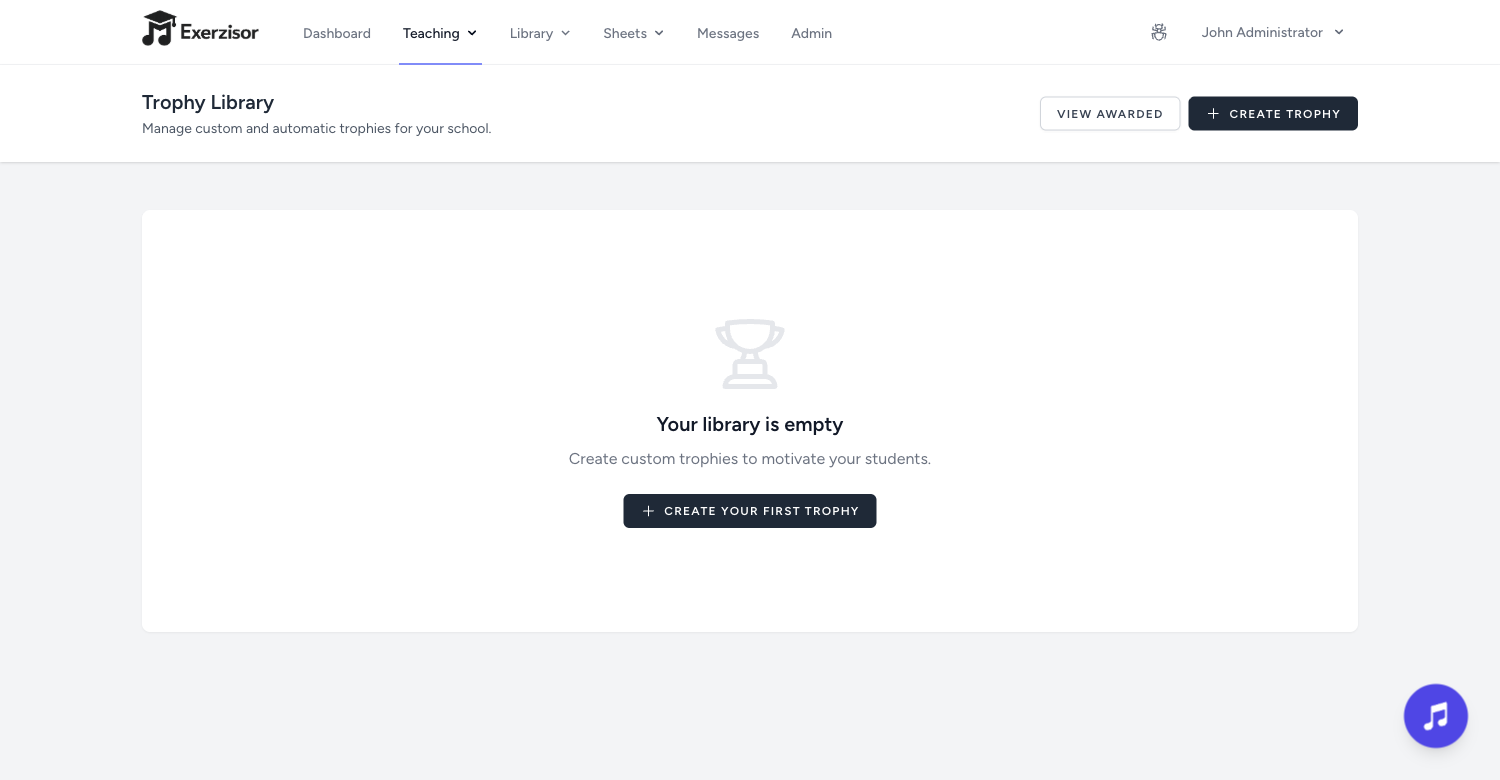
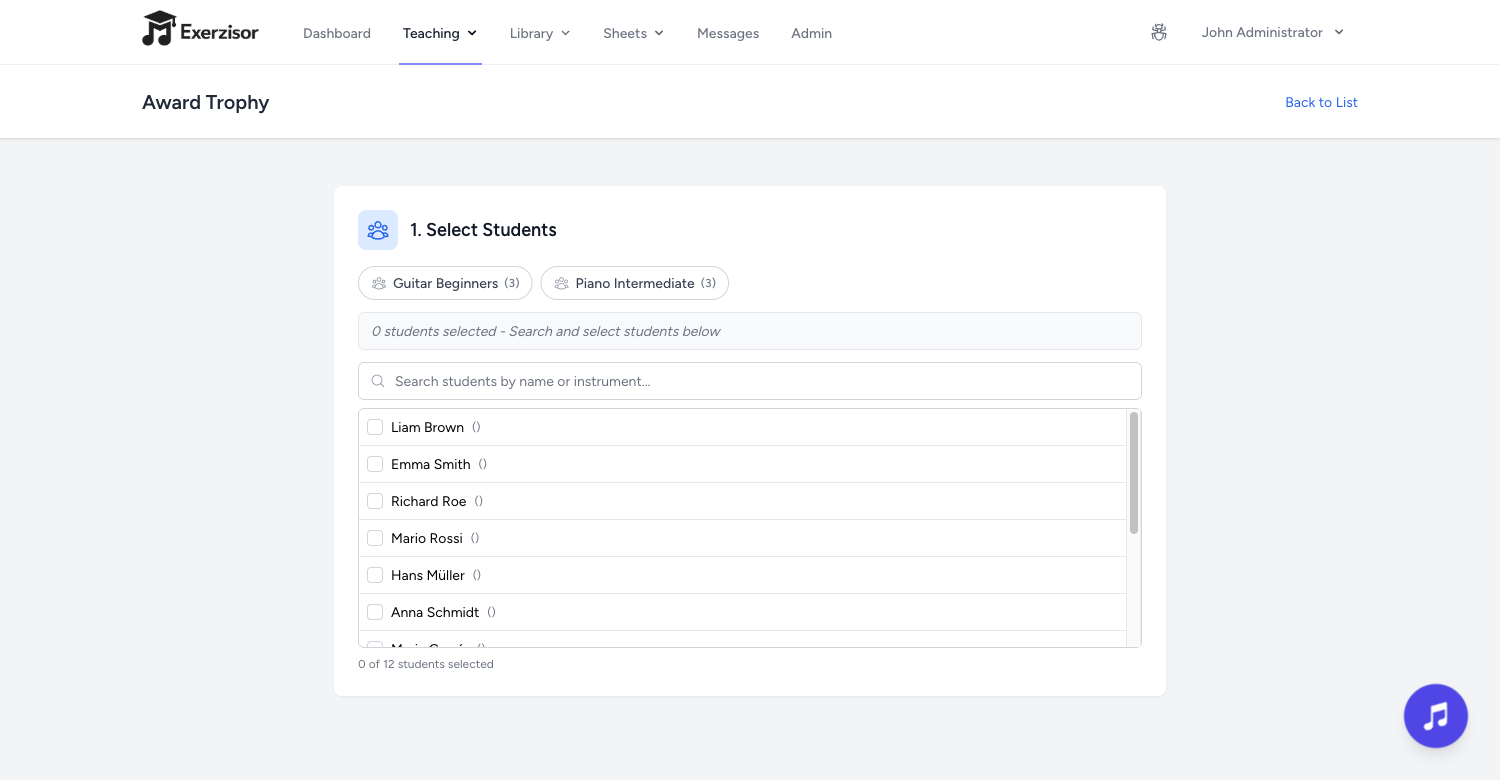
Trophies: award trophies manually or set automatic triggers — lesson milestones, streak achievements, or XP levels.
Day streaks: track current and longest streak to encourage daily practice habits.
Leaderboard: optional student ranking by XP with time-based filtering (weekly, monthly, all-time).
Knowledge Base
Wiki & Internal Knowledge Base
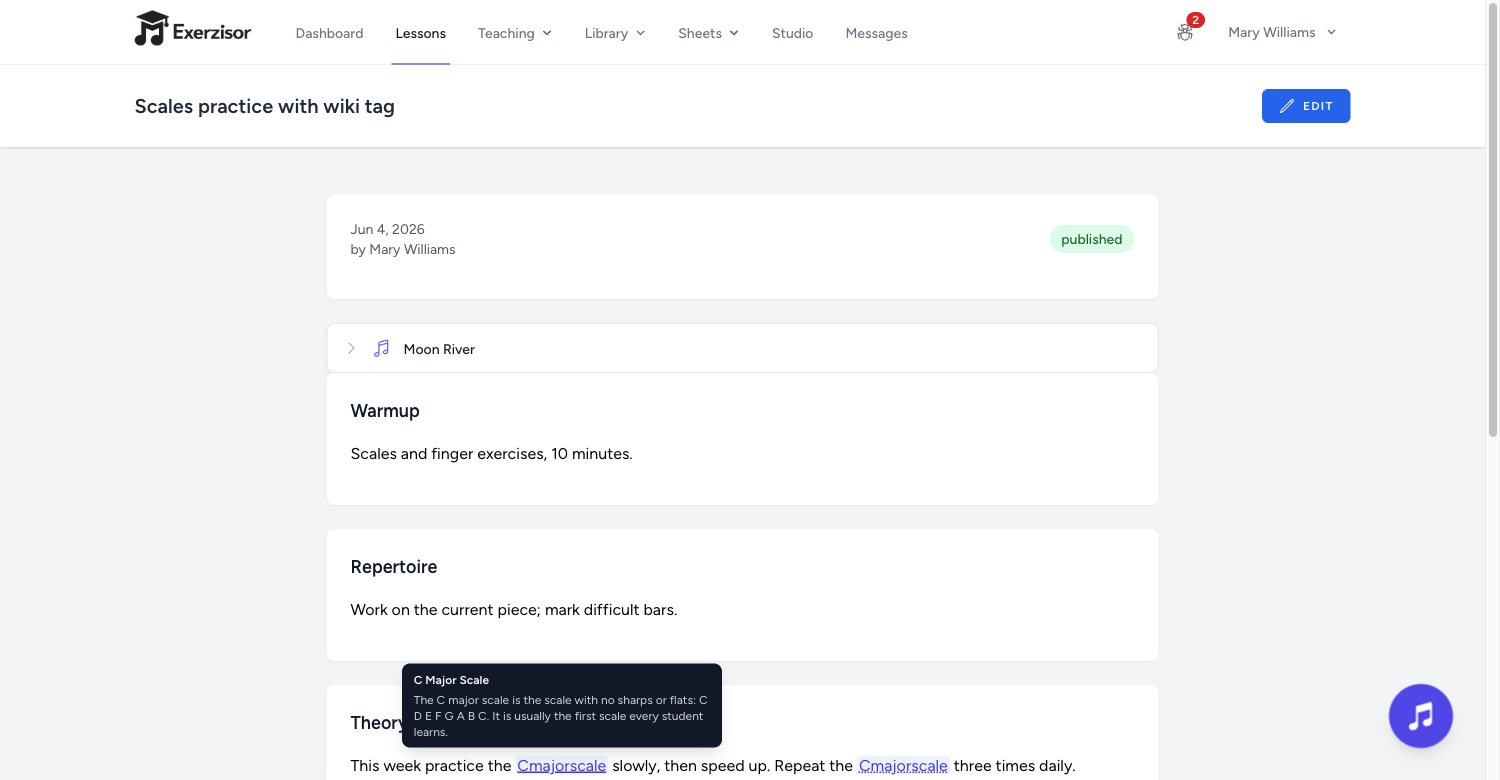
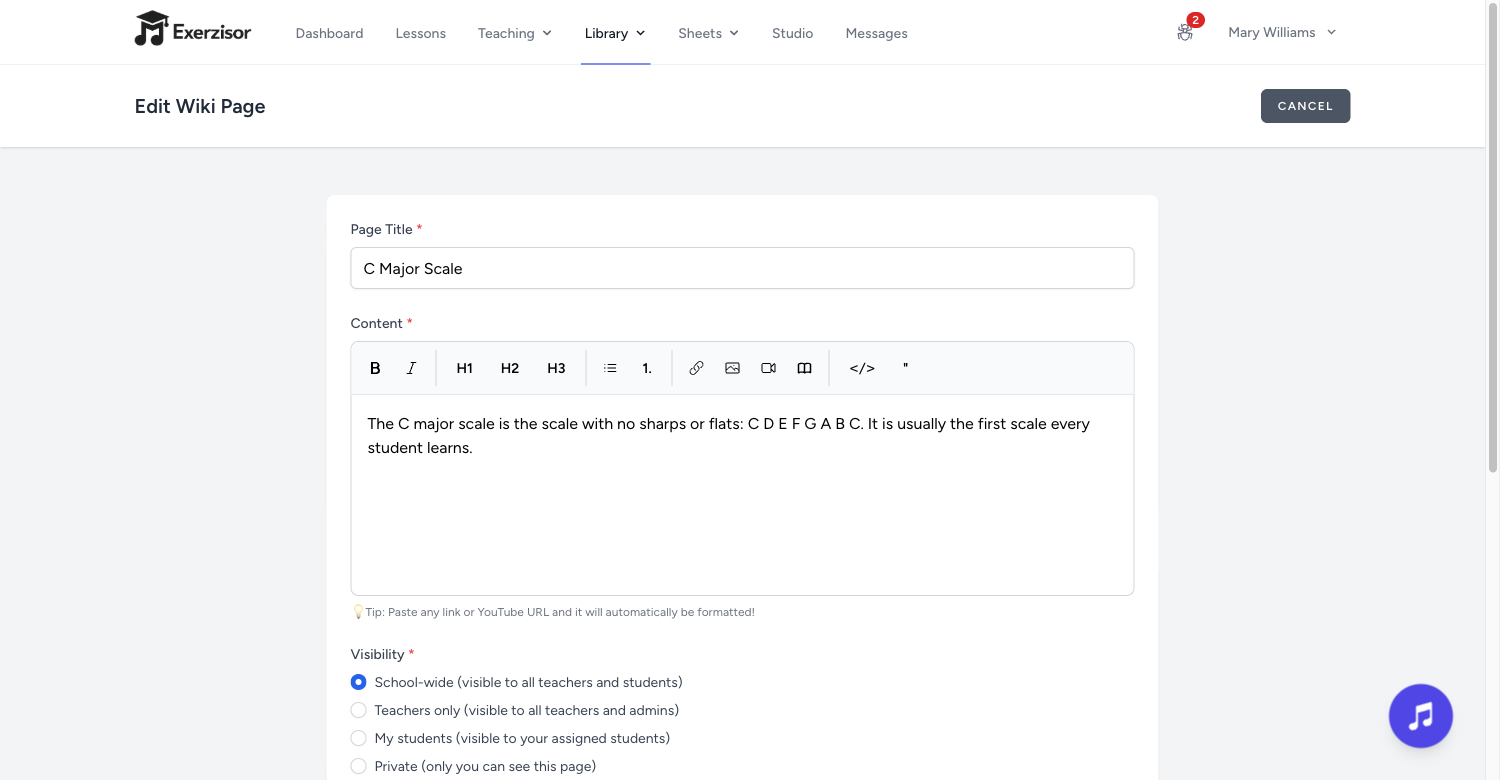
Build a searchable knowledge base for your school. Create rich-text wiki pages with version history, cross-references, and granular visibility controls.
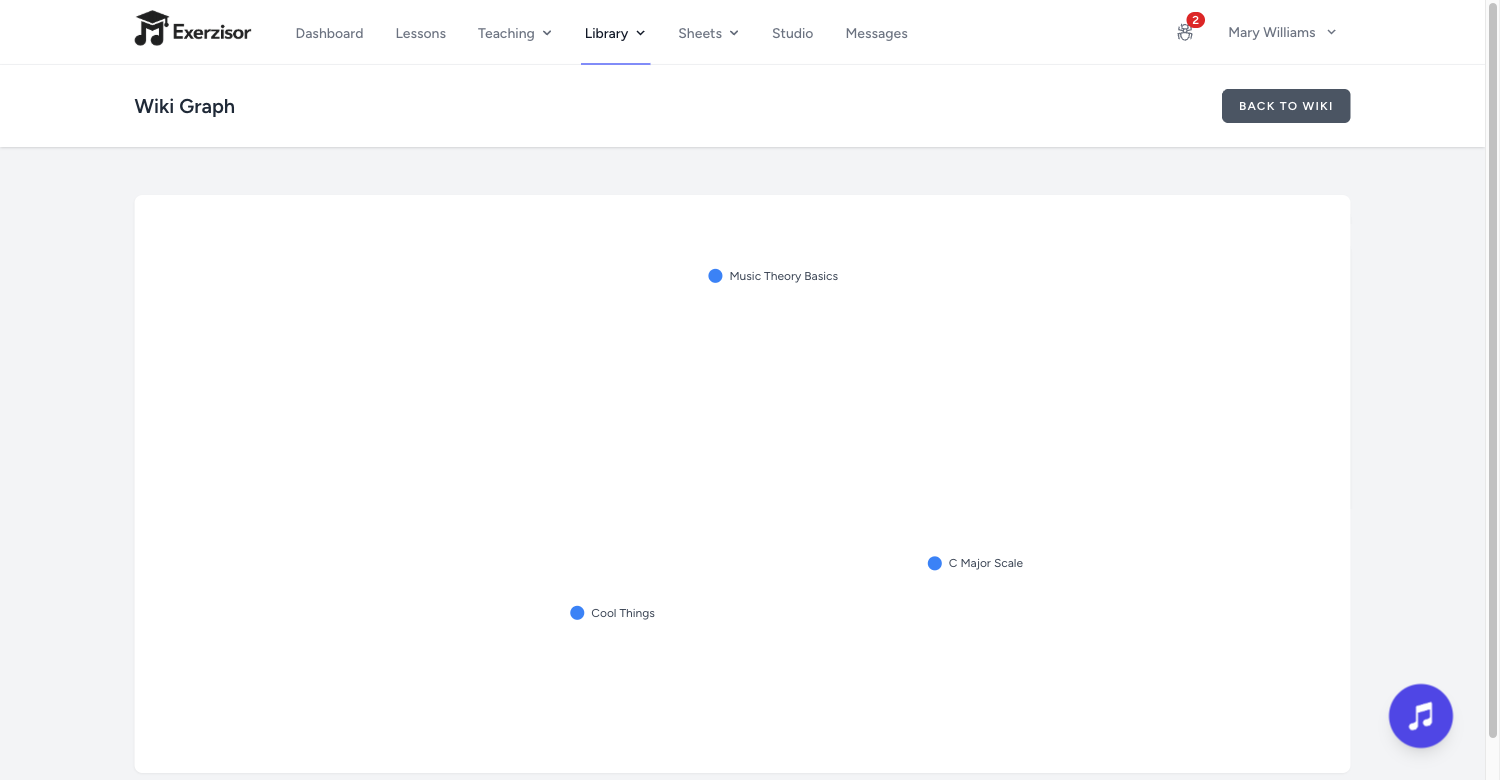
Wikilinks: link pages together and visualize the connection graph.
Version history: full versioning with restore capability for every page.
Visibility controls: private, school-wide, teachers-only, or limited to your students.
Markdown import: bring in existing documentation from Markdown files.
📚
Wiki with graph view, version history & full-text search
Communication
Messaging & Parent Portal
Built-in messaging keeps communication inside the platform. The parent portal gives guardians read-only access to their child’s lessons, trophies, and progress.
Direct messages: one-on-one conversations between teachers, students, and parents, right from the Music Toolbox — and from the parent portal for guardians.
Parent portal: parents see their child’s dashboard, lessons, courses, trophies, and XP — read-only, no setup needed.
Spidey-Sense alerts: an optional built-in helper messages teachers when a student hasn’t practised for a while or their practice time drops — thresholds are set by your admin.
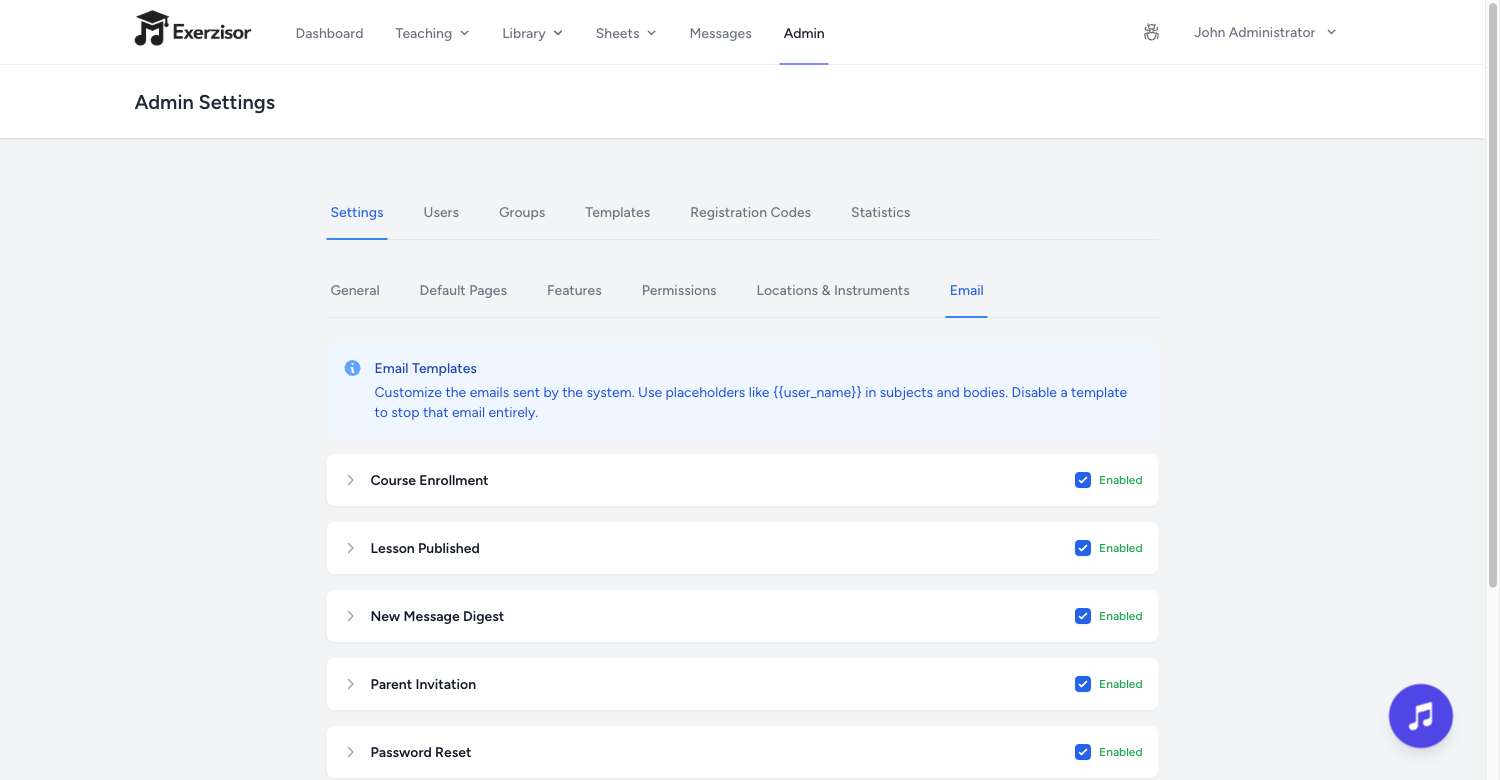
Email templates: customizable email templates for password resets, notifications, and invitations.
💬
Messaging, parent portal & email notifications
Administration
Powerful Admin Console
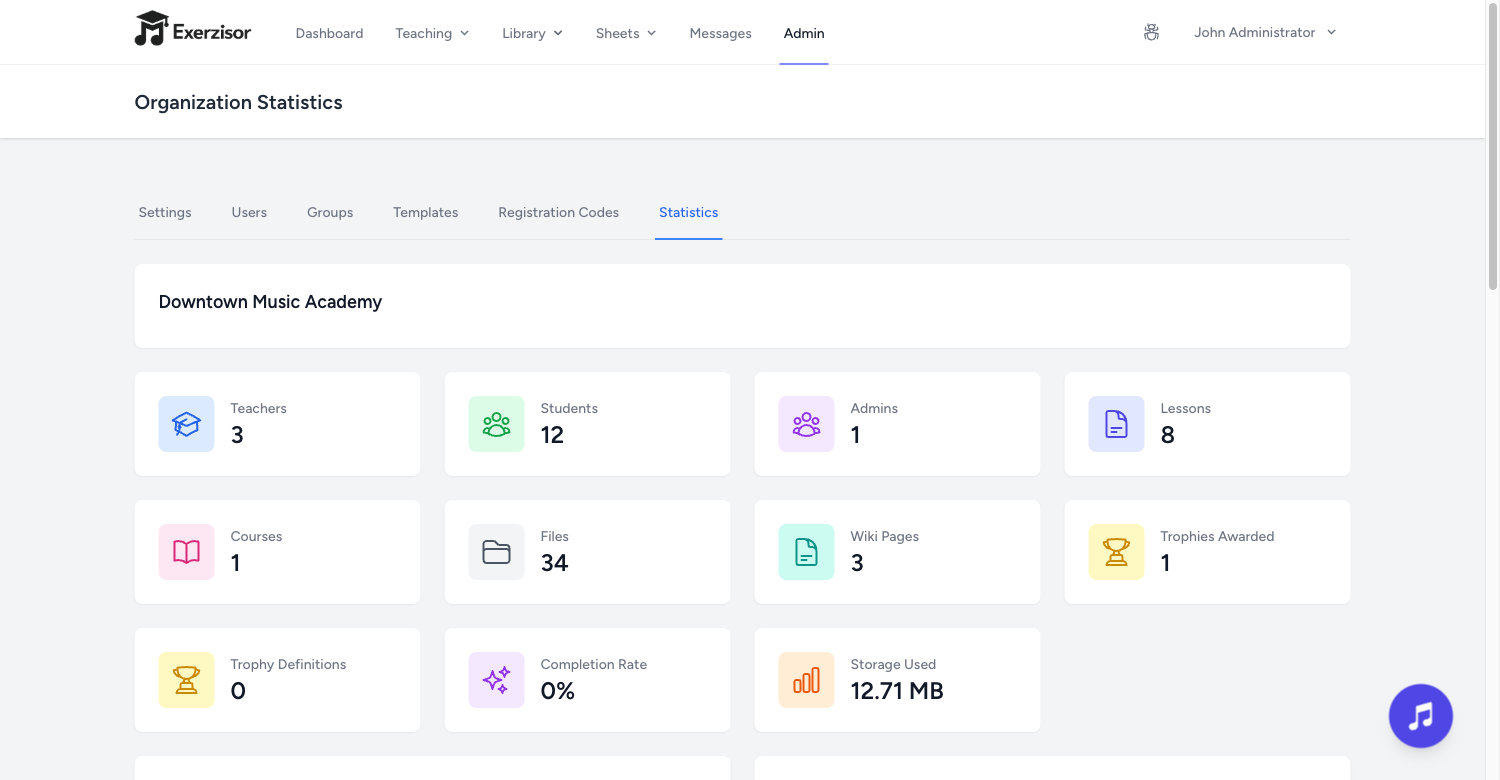
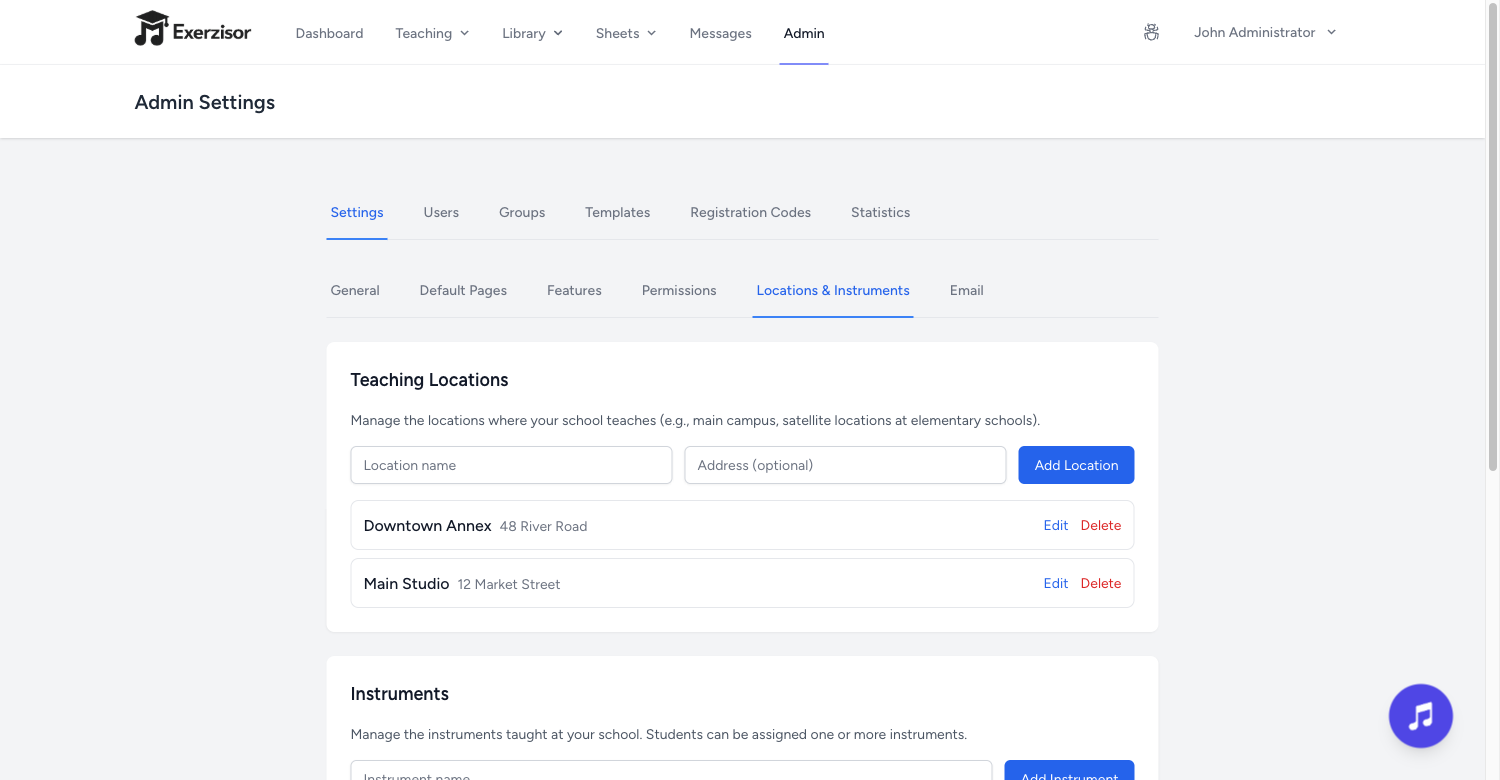
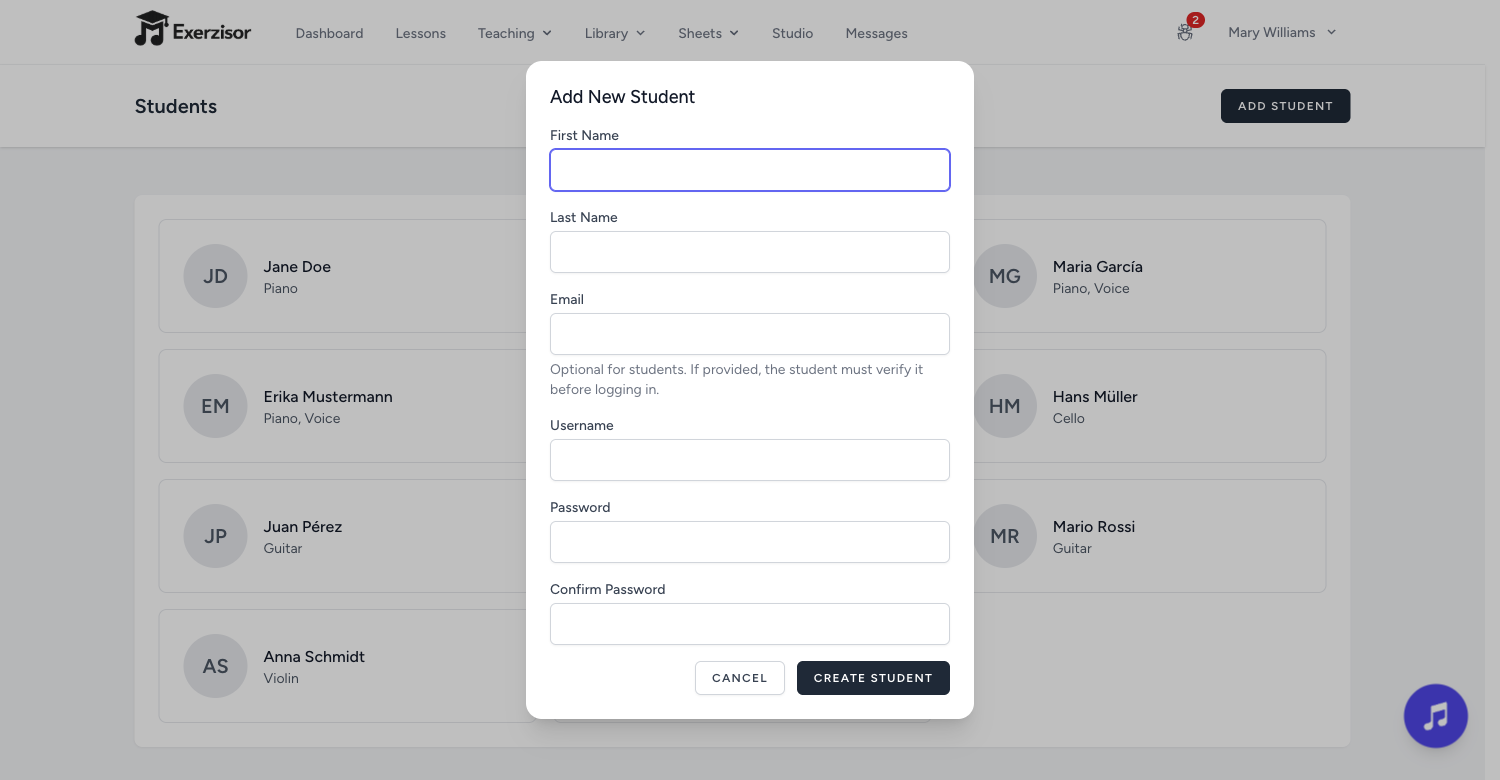
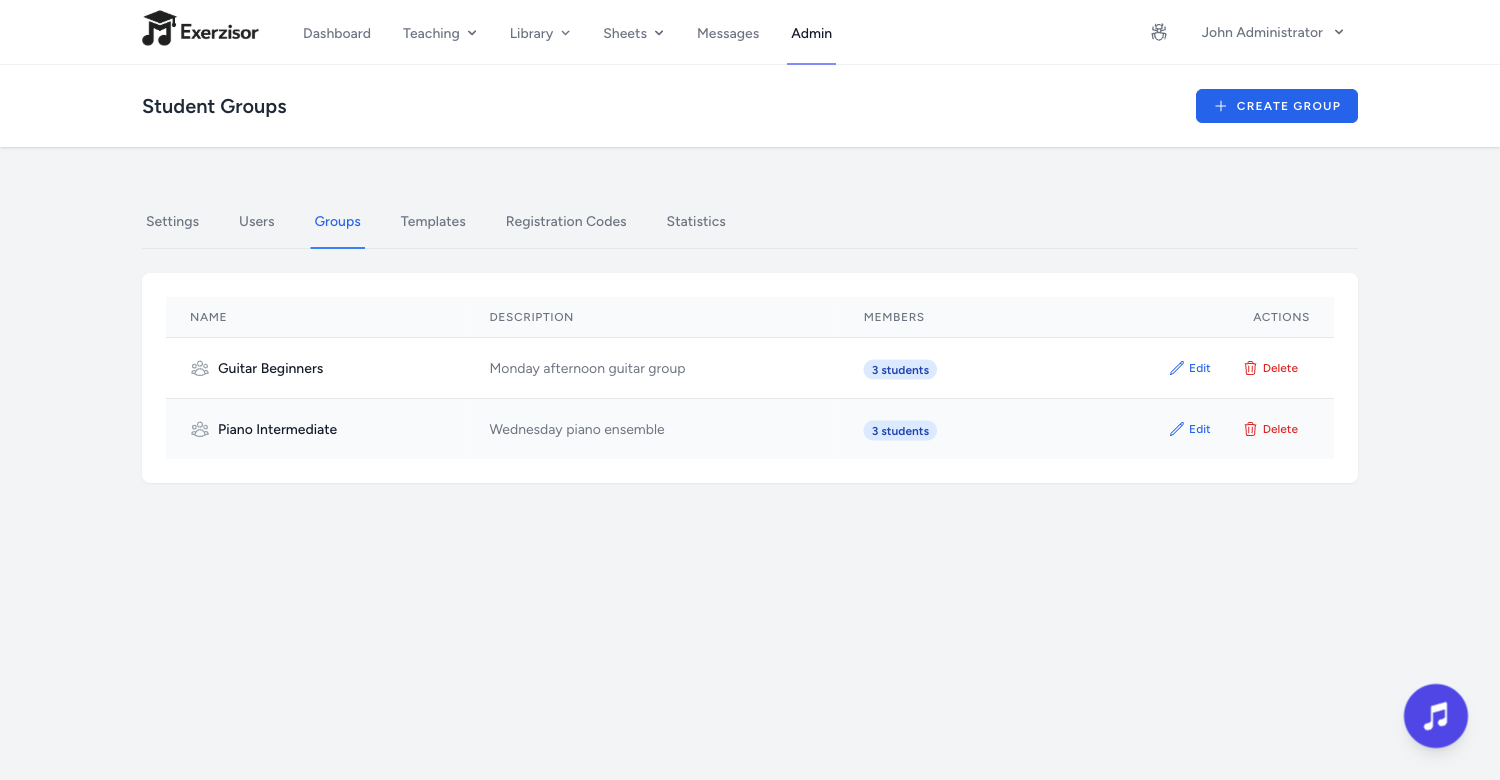
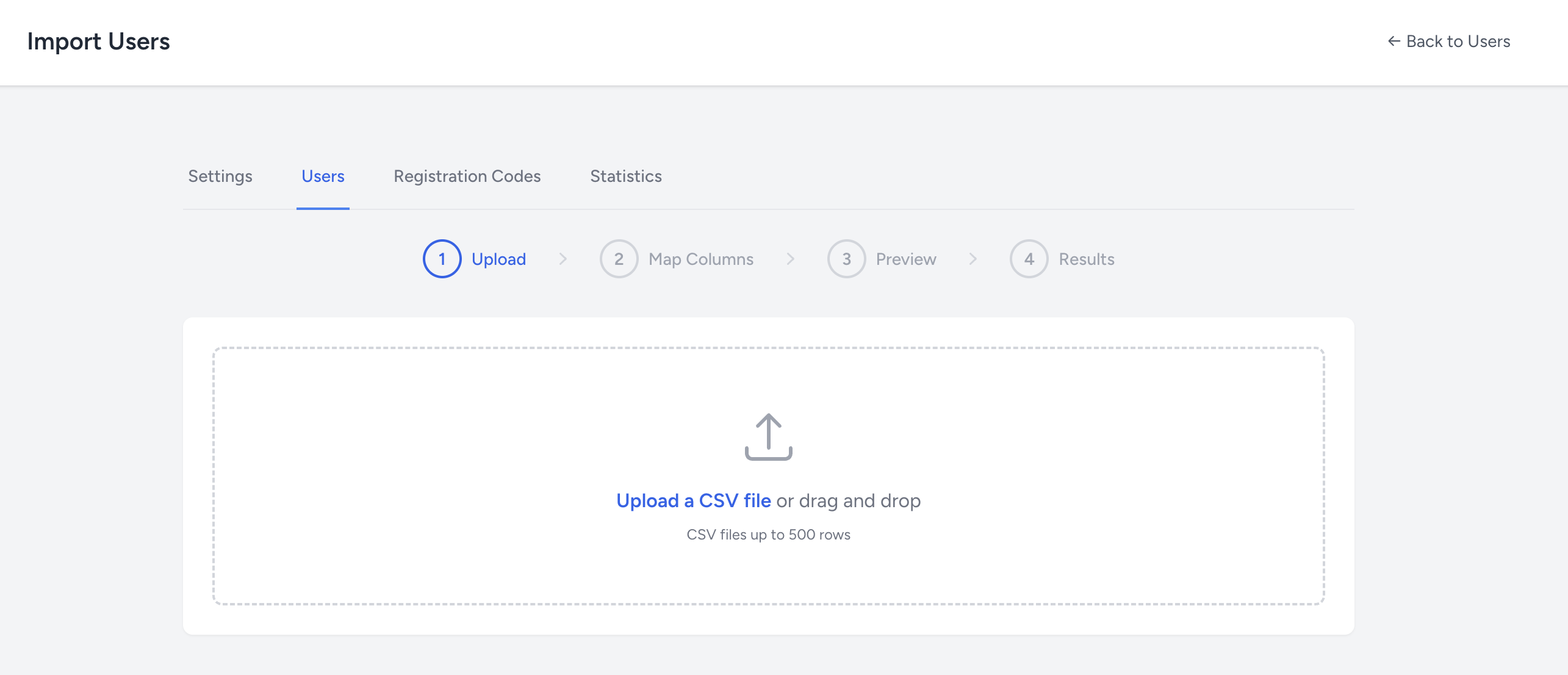
Manage users, groups, instruments, teaching locations, email templates, and feature flags from a single dashboard. Bulk-import students via CSV.
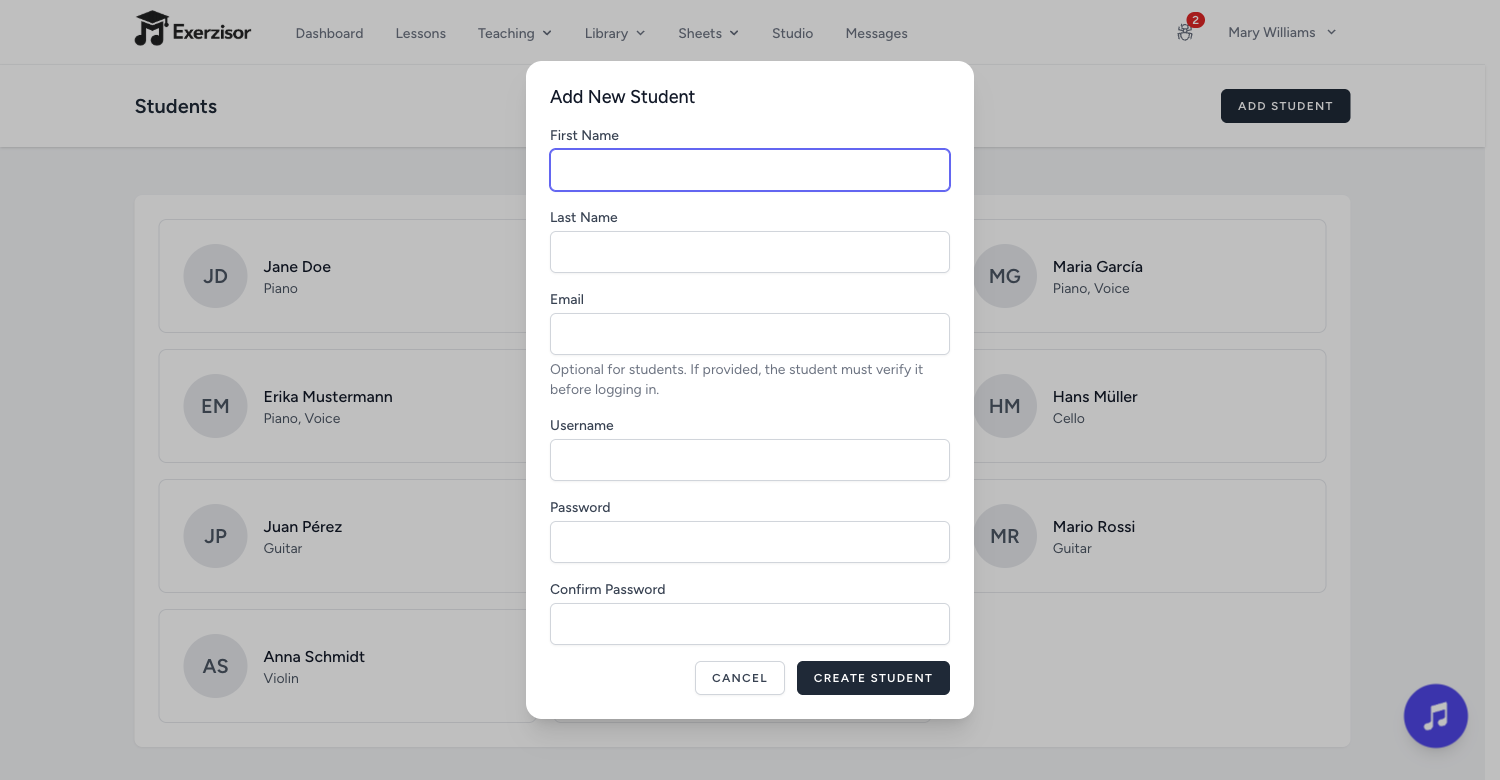
User management: create accounts individually or bulk-import via CSV. Assign roles, instruments, and locations.
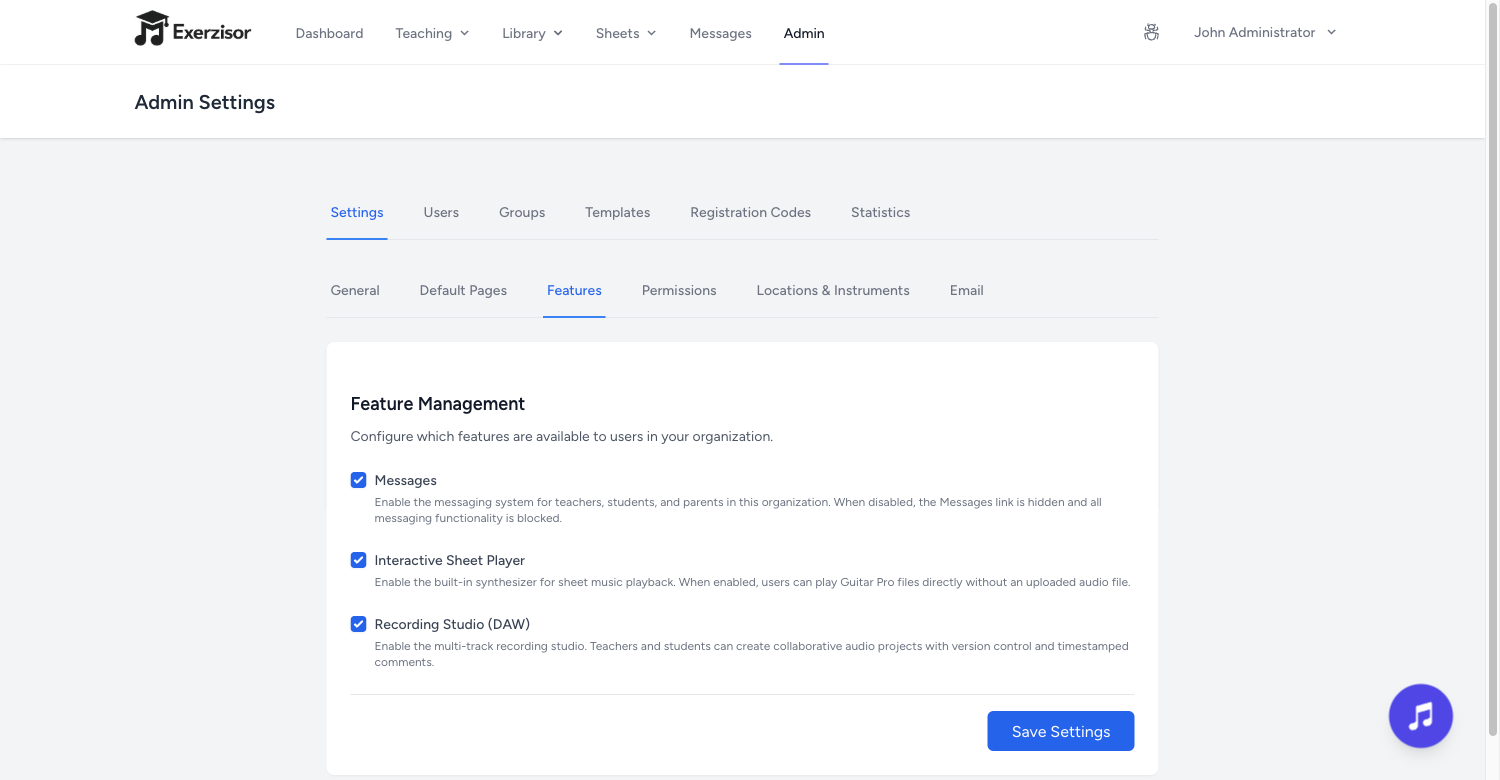
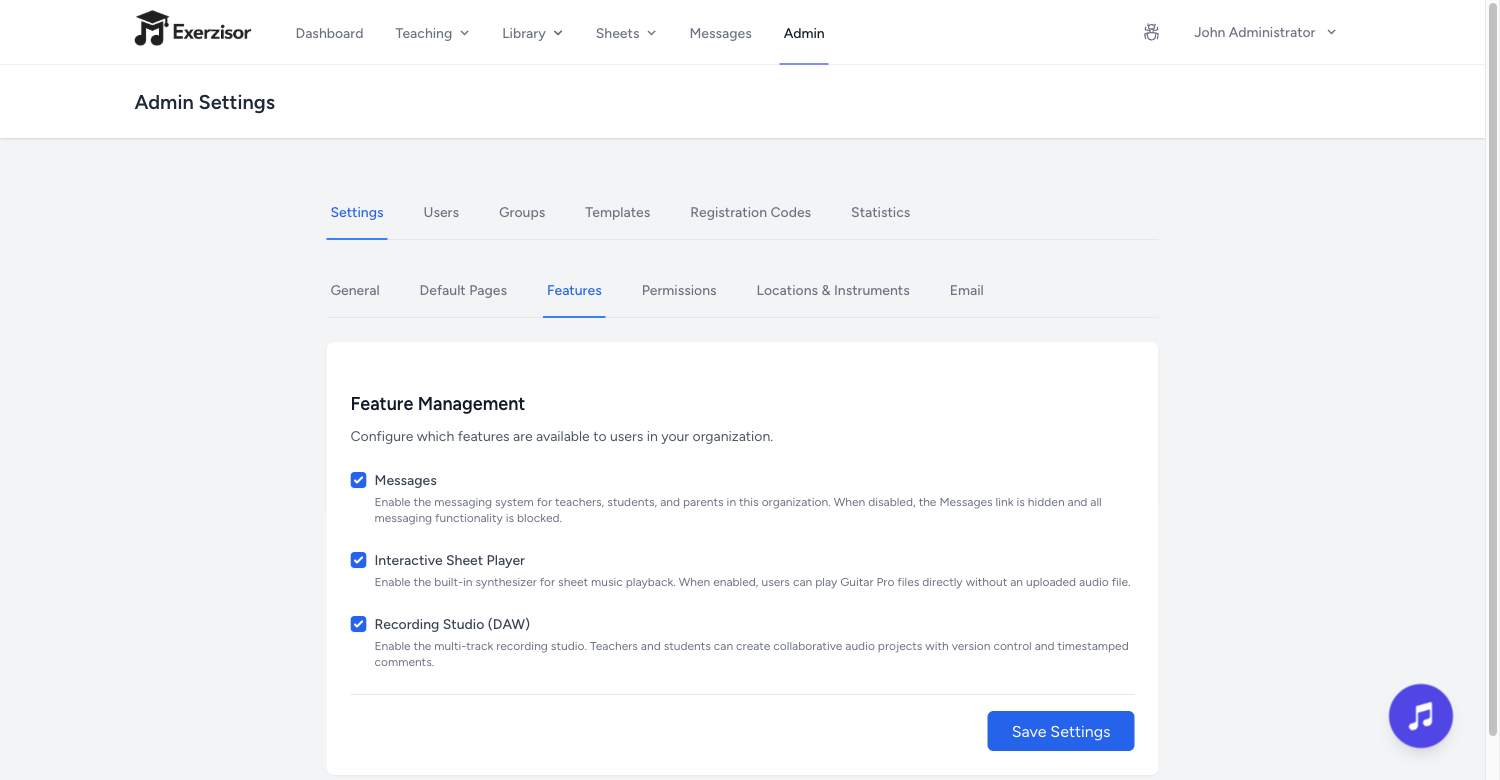
Feature flags: toggle courses, wiki, chat, trophies, streaks, XP, sheets, and more per organization.
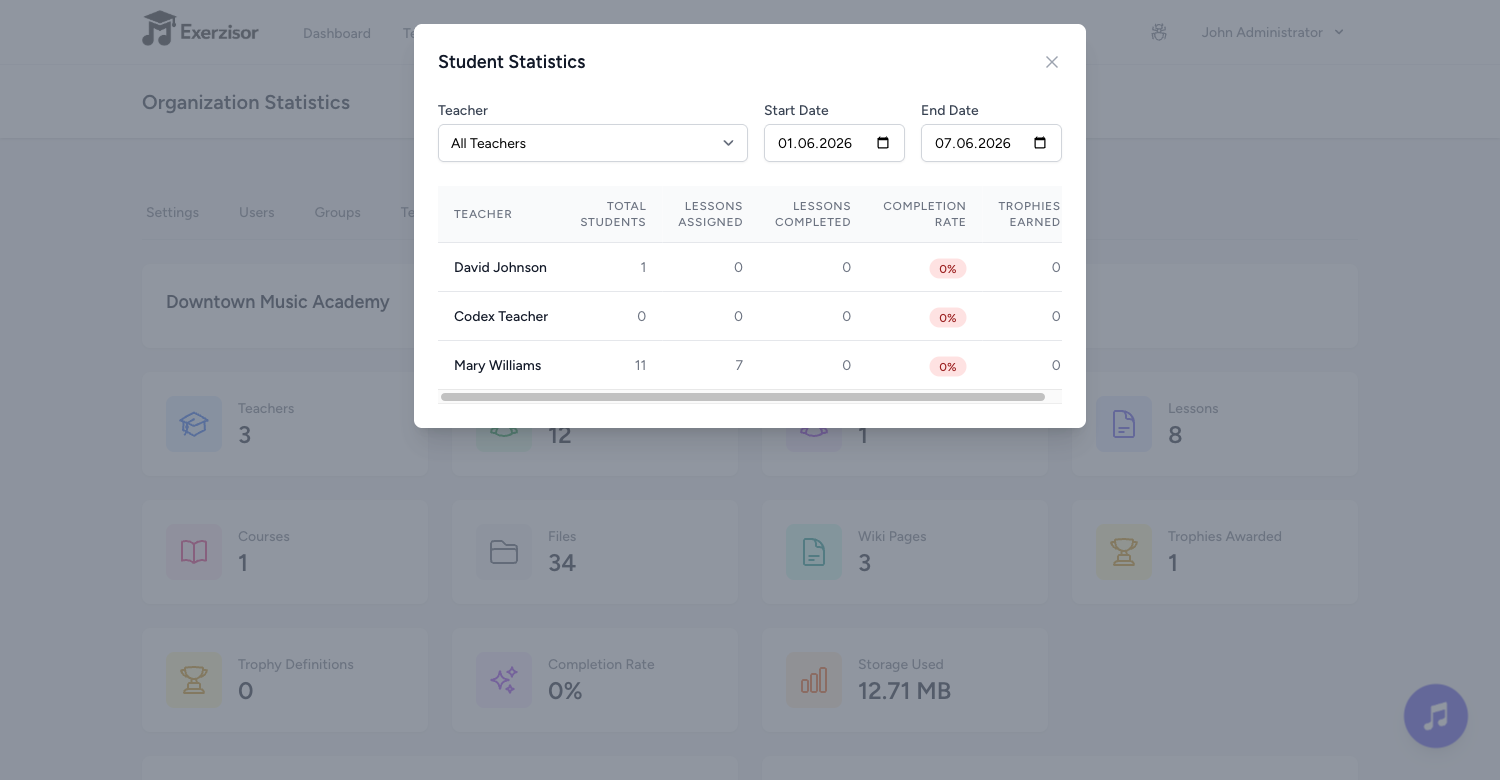
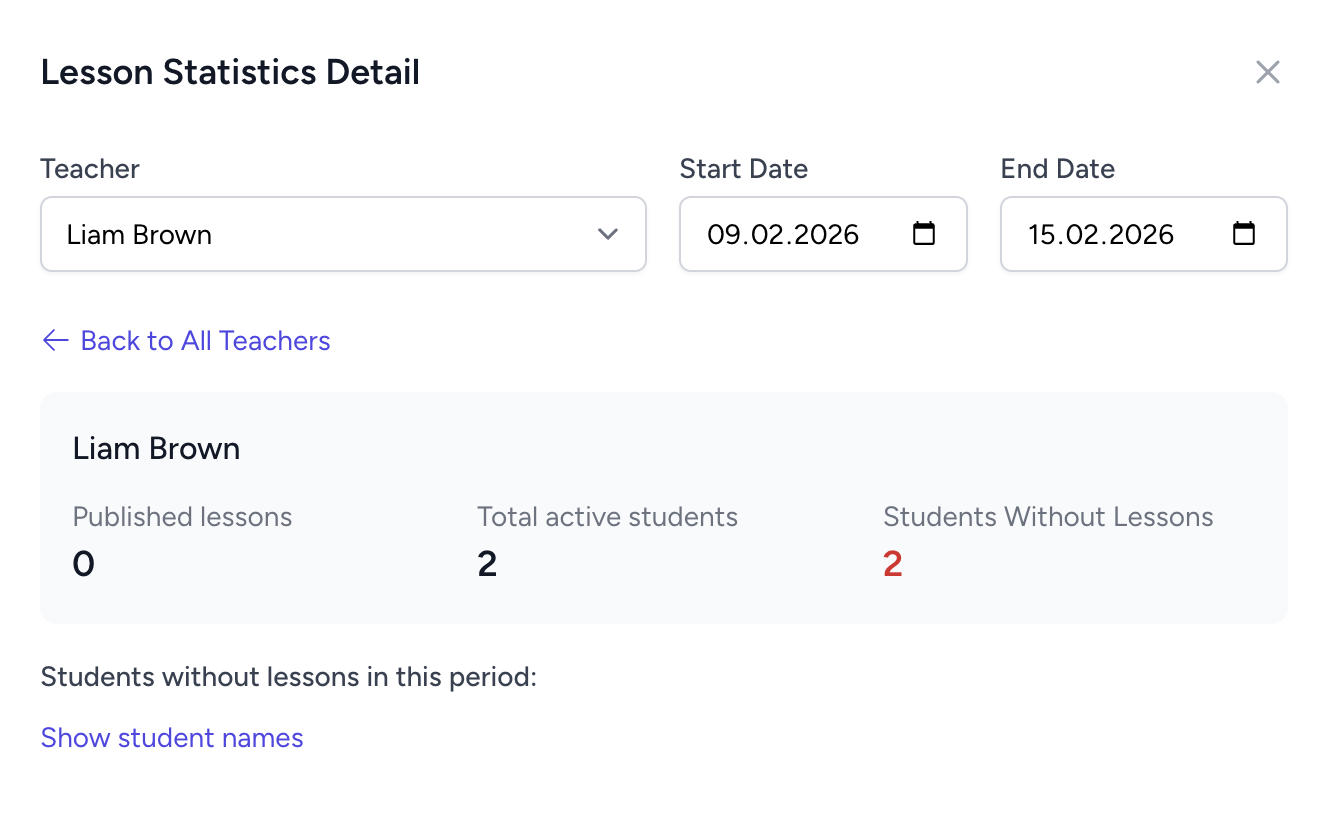
Activity analytics: see daily active users, session counts, engagement breakdowns, and lesson statistics.
Registration codes: generate invite codes for teachers, students, or new organizations with usage limits and expiry.
Archive without deleting: archive teachers and students who have left — they drop out of every active list and their login can be switched off, while lessons, notes, files and message history are preserved in full. Fully reversible.
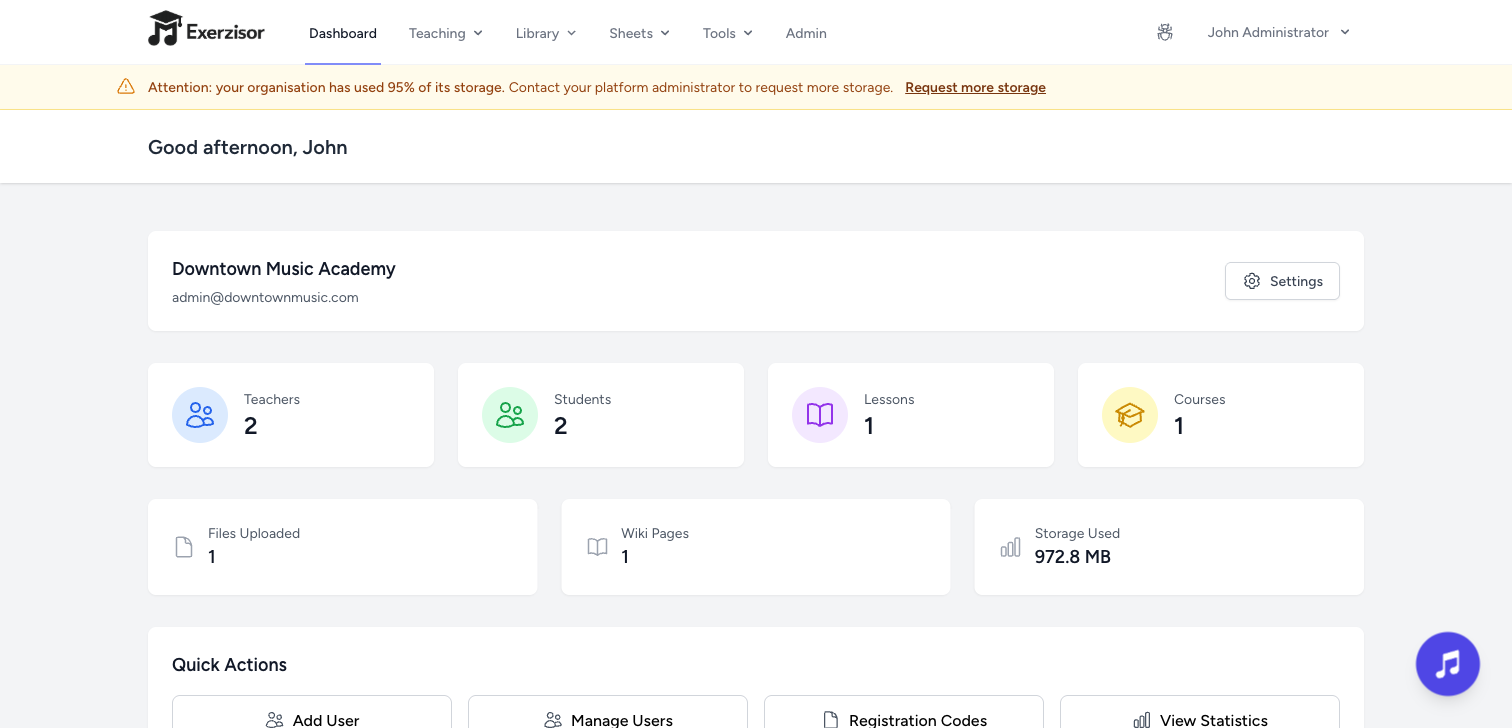
Storage allowance: each school has an enforced storage limit with a warning banner and email from 90%, a live usage breakdown, and a clear “limit reached” screen instead of a mystery upload error.
Database backups: create, download, and manage database backups on demand.
⚙️
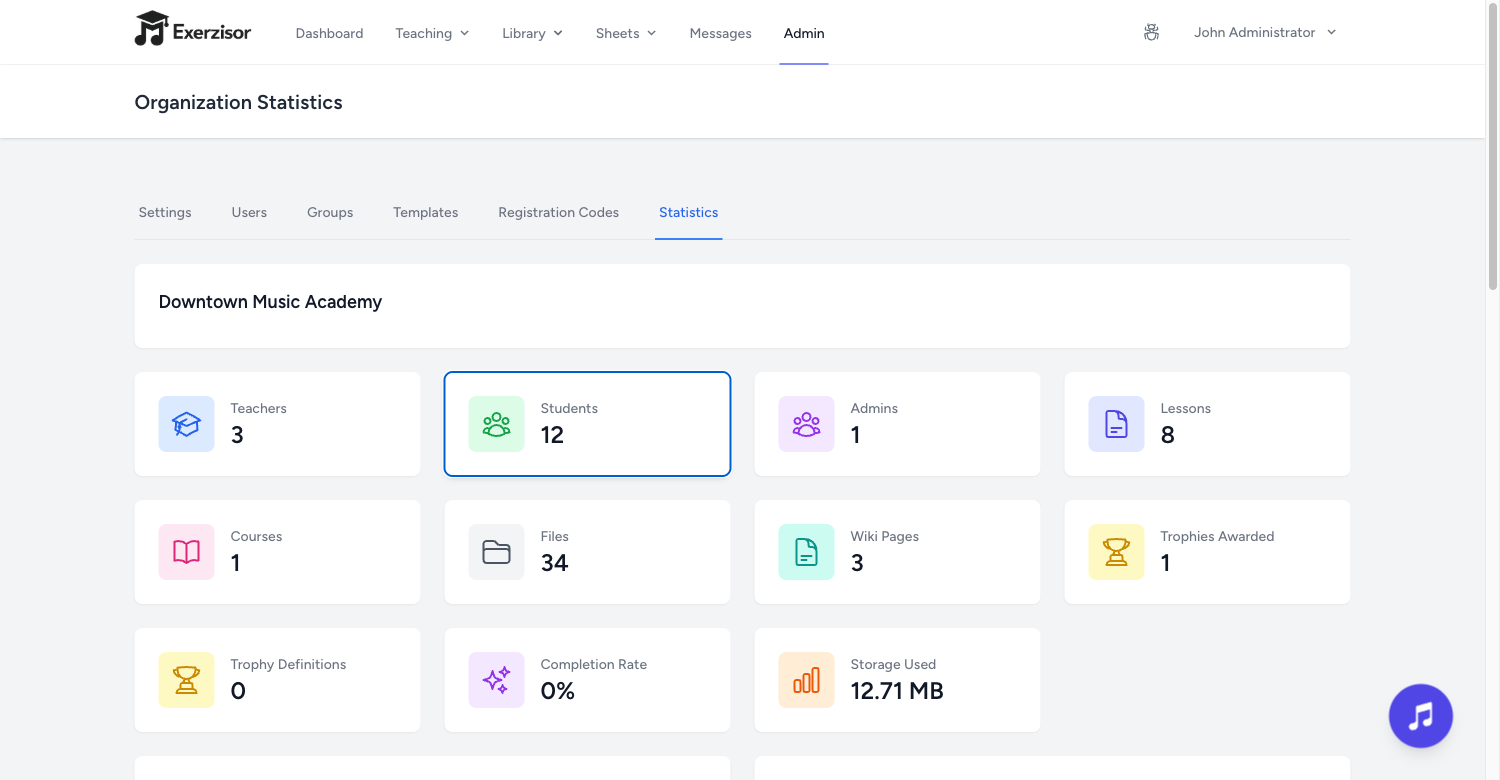
Admin console with user management, analytics & feature flags
Guitar & Theory
Fretboard Visualizer
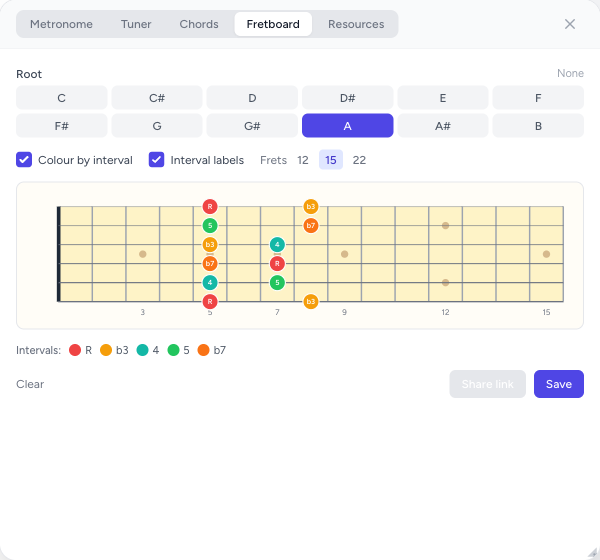
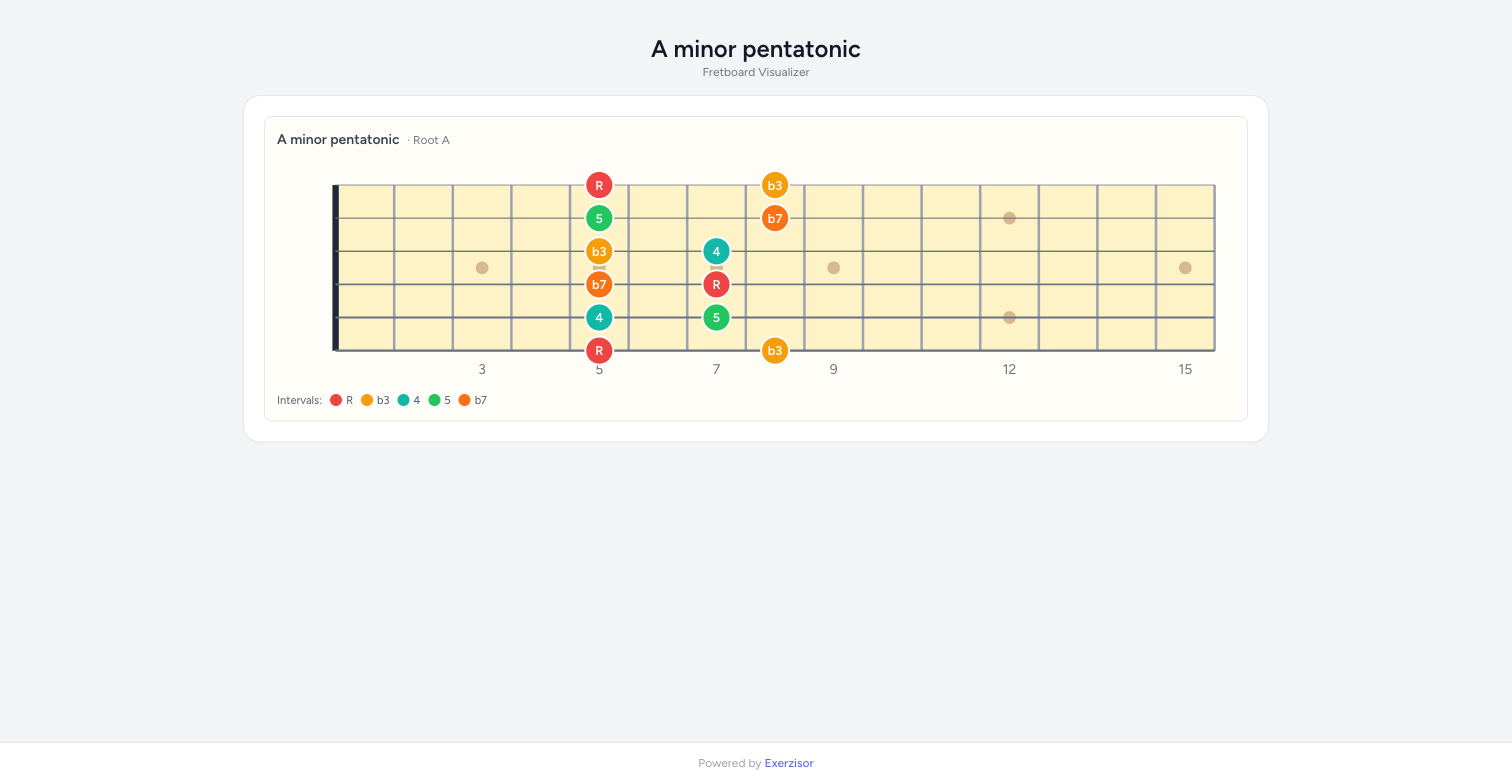
Build interactive guitar-neck diagrams right inside the Toolbox. Click frets to place notes, name a root, and every note instantly shows its interval — colour-coded so scale and chord shapes pop off the neck.
Click to build, intervals automatic: place notes anywhere on the neck; pick a root and each note is labelled and coloured by its interval (root, 3rd, 5th, 7th…) with a live legend.
Your spelling, your call: switch any note between enharmonic spellings (for example ♭5 ↔ ♯4) or type your own custom label — so the diagram matches how you teach the chord or scale.
Save to your files: store a diagram as a PNG image in your File Manager with a friendly name, ready to reuse or download.
Attach to lessons — still interactive: drop a diagram into any lesson section. Students don't just see a picture: they can click around the live neck to explore how the shapes and intervals work. Their tinkering is theirs alone — it never changes your original and resets on refresh.
Resizable, and great on iPad: make the board bigger or smaller to suit the screen; fully touch-friendly.
Share & embed — for free: send a public link (optionally password-protected) so anyone can open the interactive diagram with no account, or embed it on your own blog or website with one snippet — just like sheets and chord sheets.
Guitar & Theory
Melodic Voice Leading
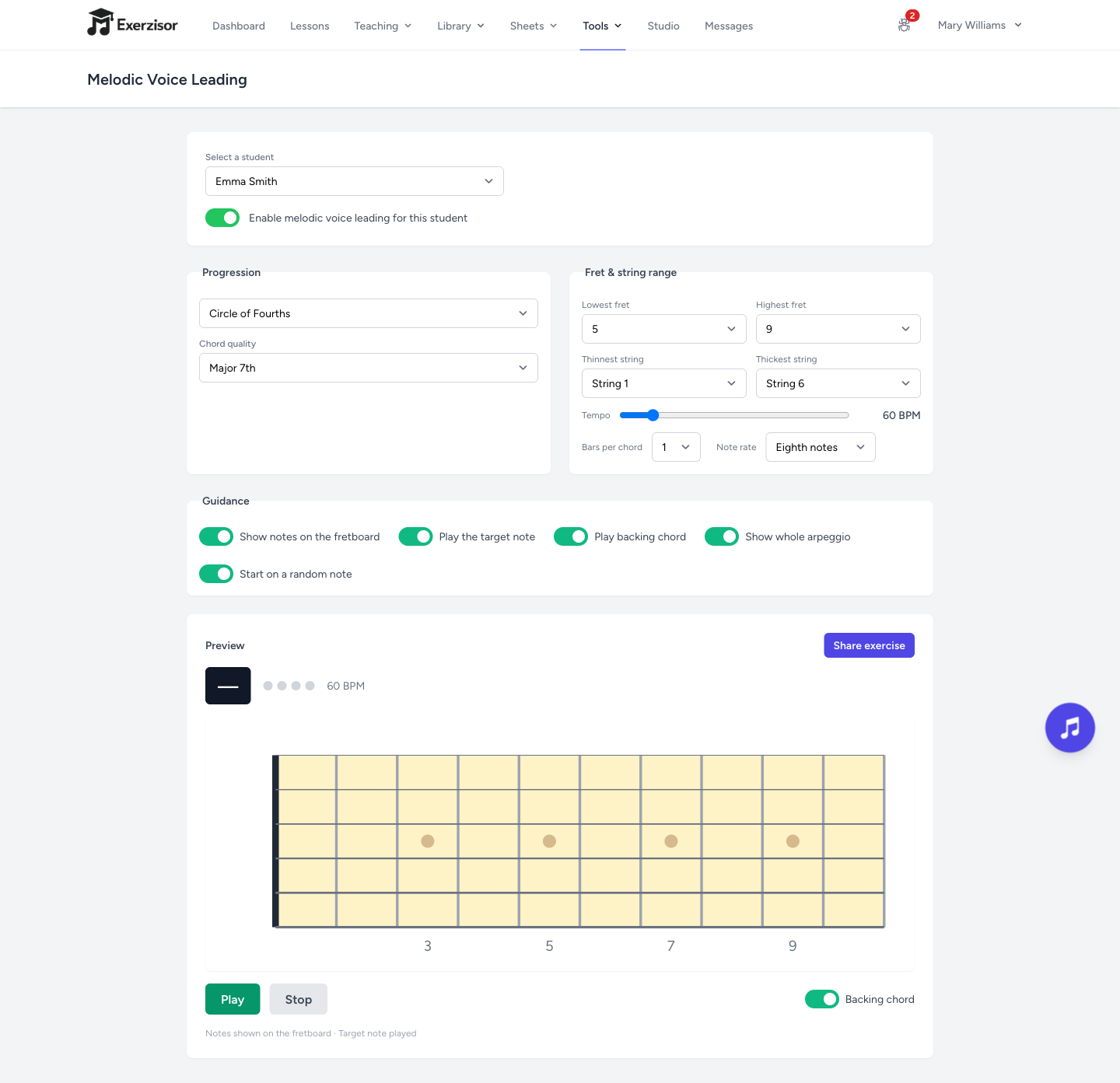
A new Toolbox game for connecting arpeggios across a chord progression. Over a metronome and backing chords, the student plays one chord tone per beat up and down the neck — and when the chord changes, the line glides to the nearest tone of the next chord instead of jumping back to the root.
You choose the workout: pick a ready-made progression (Circle of Fourths/Fifths, ii–V–I, I–vi–ii–V, 12-bar blues, chromatic) or build your own chord-by-chord — functional progressions use the right chord qualities automatically (ii–V–I = Dm7, G7, Cmaj7).
Stay in a box: set the fret and string range, the starting note and tempo, quarter or eighth notes, and how many bars each chord lasts.
Dial in the difficulty: show the notes on the fretboard and play them for beginners, or hide them so advanced students play from ear — the metronome always keeps time.
See the whole shape: optionally light up the entire arpeggio (root, 3rd, 5th, 7th) across the box, with the currently-played note glowing so it’s easy to follow.
Keep it fresh: start on a random note each time so it never becomes muscle-memory.
Share & embed — for free: send a public link (optionally password-protected) so anyone can open and play the exercise with no account, or embed it on your own site — just like sheets, chord sheets and fretboard diagrams.
Games & Drills
Chords Practice Game
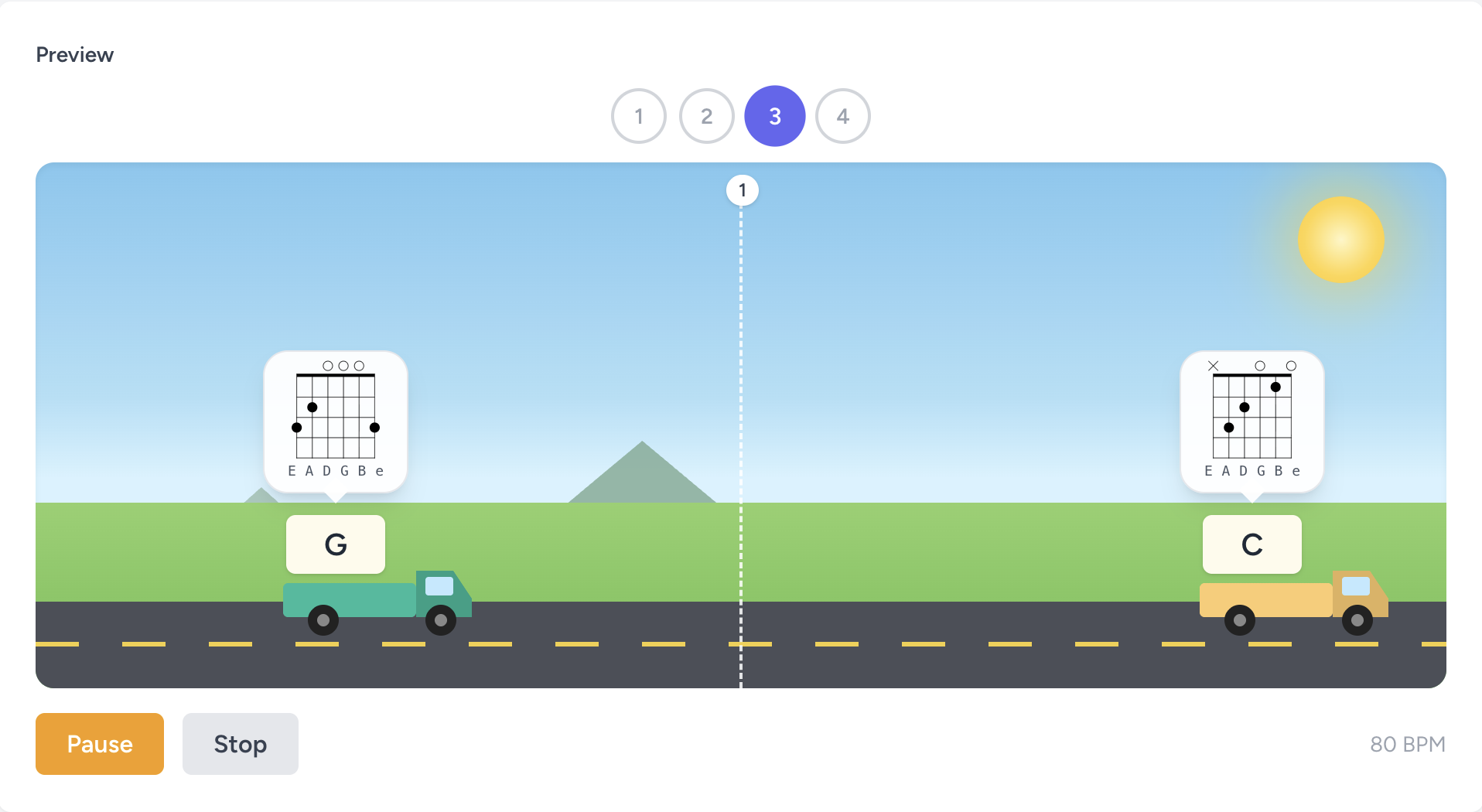
A game-styled Toolbox trainer for chord changes. Chords ride in on trucks driving along a sunny highway, and when a chord reaches the centre line — on beat 1, in time with the metronome — that’s the cue to play it. It turns the repetitive work of switching chords cleanly into something students actually want to do.
Locked to the beat: a metronome keeps time and each chord lands on the downbeat as its truck crosses the centre, with a one-bar count-in so students start in tempo.
You set the workout: choose the chord pool, the tempo, the time signature (3/4, 4/4, 5/4, 6/8, 7/8…) and how many rest bars sit between chords — chords are drawn at random and never repeat back-to-back.
See it and hear it: optionally show each chord’s diagram above its truck and play the chord aloud when it hits the beat — for guitar, piano, ukulele, or bass.
Counts as practice: time spent flows into each student’s statistics under the Games category, and the timer pauses on inactivity so idle tabs never inflate the numbers.
Share & embed — for free: send a public link (optionally password-protected) so anyone can open and play the exercise with no account, or embed it on your own site — just like sheets, chord sheets and fretboard diagrams.
Games & Drills
Improviser — Soloing Over a Real Backing Track
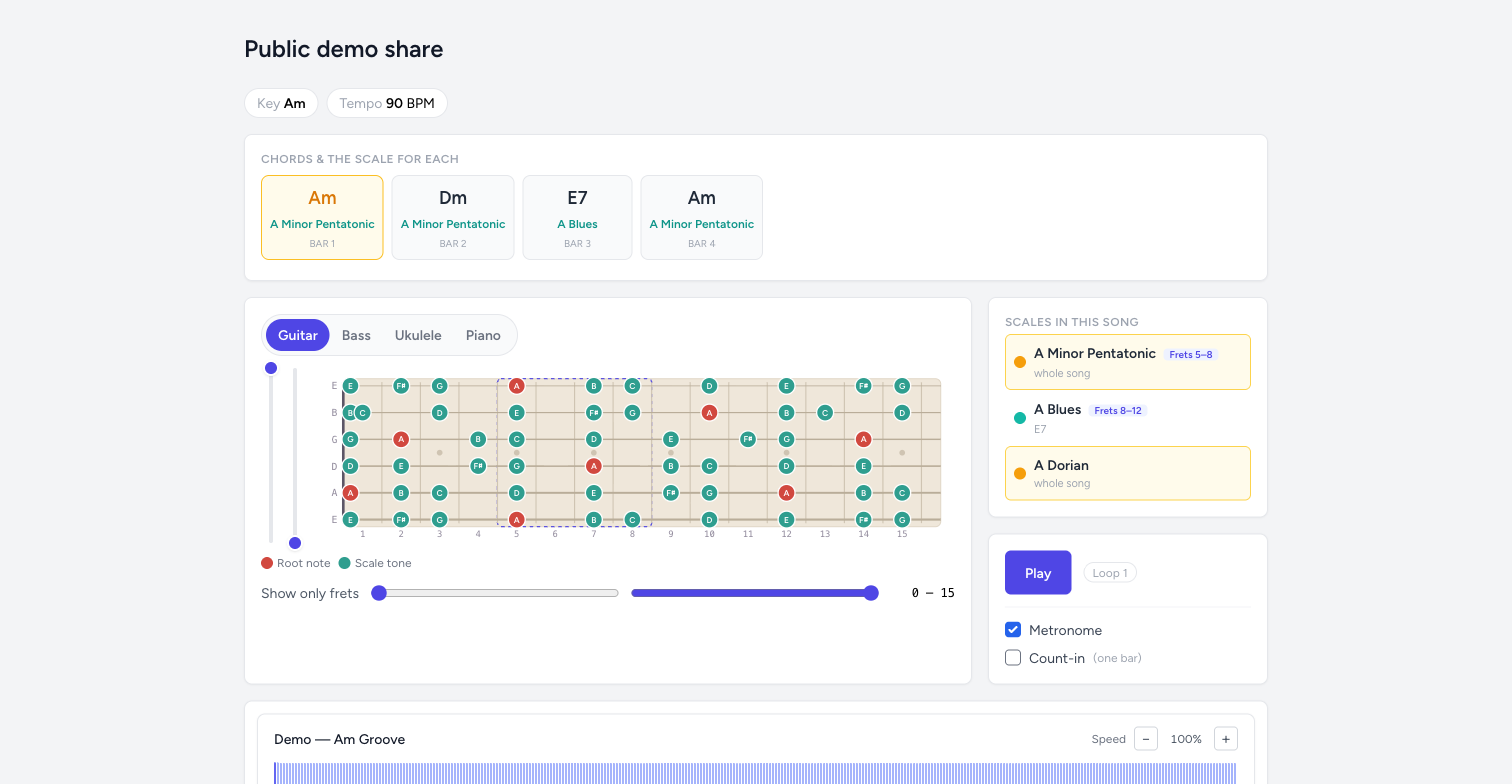
Improvising is the hardest thing to practise alone: you need a band behind you, and you need to know which notes work over the chord that is playing right now. The Improviser gives students both. A backing track loops while the student plays over it, and the scale that fits the current chord lights up on their own fretboard or keyboard — changing as the progression moves.
Scales that follow the chords: set one scale for the whole song, or bind a different scale to each chord — the neck redraws as the progression moves, so students always see what fits.
Set up once, use all year: your administrator uploads the backing track, types in the chord progression, taps the timing to the music and picks the scales. After that the track is ready for every student.
Teachers choose per student: assign tracks to individual students and decide which of the song’s scales each of them sees — a beginner gets the minor pentatonic, an advanced student gets all of them.
Any instrument: guitar, bass, ukulele or piano — the scale is drawn on the instrument the student actually plays.
Practice controls built in: a metronome, a one-bar count-in, playback speed, and sliders that narrow the neck down to just the frets and strings you want to work on — all remembered per student.
Counts as practice: time spent improvising flows into each student’s statistics under the Games category, exactly like the other trainers.
Share & embed — for free: send a public link (optionally password-protected) so anyone can play along with no account, or embed the game on your own site — just like sheets, chord sheets and the other games.
Scheduling
Lesson Calendar, Cancellations & Make-Up Booking
Exerzisor schedules your school. A teacher sets up “Emma · Mondays 14:00–14:30 · 24 Aug to 21 Dec” once and the whole term appears. Students and parents see their lessons, cancel when they have to, get the time back as credit, and rebook a make-up slot themselves — without a single phone call to the office.
Recurring series, per-week control: create a whole term in one step, then move a single week without disturbing the others, or change a series from a chosen date forward while the past stays as it happened.
Double-bookings are impossible: two overlapping lessons for the same teacher are refused outright, not merely discouraged by the interface.
School-wide overview: administrators see the whole day, one column per teacher, filterable by teacher and location — plus holidays and closures, permitted lesson lengths, and the school timezone.
Students and parents see their schedule: the next lesson appears on the dashboard greeting, with a My schedule box and a chronological list. Parents see every child in one colour-coded list.
Cancel and reuse the slot: a cancelled lesson stays visible on the teacher’s calendar, greyed out, so another student can be put into it. A family can take their own slot back if nobody else has claimed it.
Lesson credits, not lost lessons: qualifying cancellations return the time as credit minutes with a visible expiry date and a full, auditable history of every minute earned and spent. Schools switch credits on or off and set how long they last.
Families book their own make-up lesson: one dropdown of real, bookable times — built from the teacher’s availability with existing lessons and closures already subtracted. No grid to learn, no email thread, no phone call.
Everything is on the record: every booking, move and cancellation is logged in plain sentences that administrators can filter by date, student, teacher or location, and export as a spreadsheet.
📅
Teacher calendar with recurring lessons, cancellations & make-up booking
Ready to modernize your music teaching?
Exerzisor brings your lessons, sheet music, files, and student progress into one clean platform.
Saving a course — even a one-word fix to its title — used to rebuild every module and task from scratch, which silently erased what students had already completed. Editing a course now leaves student progress untouched.
Completions survive an edit: tasks a student had already ticked off stay ticked off after you rename the course, reorder a module or fix a typo.
Saved position kept: students return to the module and task they were last working on instead of being sent back to the start.
Honest progress bars: the percentage shown next to a student now always matches the completions behind it.
Existing courses need no action — the fix applies from the next time you press Save.
FixSeptember 01, 2026
Parent Portal Courses Page Opens Again
Parents whose child was enrolled in at least one course hit an error page when they opened that child’s Courses view. The page now loads normally, and course descriptions read as text instead of raw code.
The page loads: the error only appeared once a child actually had a course, which is exactly when parents wanted to look — it is gone.
Lesson counts show up: each course now displays how many lessons it contains.
Readable descriptions: course descriptions are rendered as formatted text rather than the editor’s underlying data.
FixSeptember 01, 2026
Images in Course Content Now Appear
An image added to a course description or a course task uploaded correctly but never showed up when the task was opened — no image, no placeholder, no error. Images now render everywhere course content is displayed.
Every image, every time: this affected all images in course content, not just large or unusual ones. Existing courses show their images again with no re-upload needed.
Nested content too: images inside lists, quotes and other nested blocks render as well.
Download permission respected: whether a student may download an attached file is now carried correctly through nested content instead of being lost part-way down.
FixAugust 27, 2026
Accurate Audio Seeking on iPhone & iPad
On iOS, tapping a bar in a synced sheet could land the audio several seconds away from where the cursor sat — and the drift grew the further into the track you were. Uploaded MP3s are now normalised on arrival so Safari reports the true playback position.
The cause was the file, not the sync: MP3s were the one media type stored exactly as uploaded. Most are variable-bitrate and carry no seek index, so iOS guessed the position and reported the guess as fact.
Everything downstream is fixed at once: the playback cursor, bar highlighting, auto-scroll and click-to-seek all read that same position — correcting it corrects all four.
Nothing to do for new uploads: MP3s uploaded from now on are converted automatically, exactly like every other audio and video file.
Audio quality is unchanged — only the way the file stores its timing is rewritten.
FeatureAugust 23, 2026
Calendar Activity Log & Export
Every scheduling action — who booked, who moved a lesson, who cancelled and when — is recorded and can be looked up months later by an administrator. The office can answer “why was there no credit for that lesson?” with certainty.
Written in plain sentences: each entry reads as a sentence first, with the technical detail underneath, so it can be read to a parent on the phone.
Filter it down: narrow by date range, student, teacher, location, type of action, or search the text of the entries directly.
Spreadsheet export: download the filtered log as a CSV file with both the school-local time and the exact universal time of every action.
Nothing is edited or removed: the log is append-only — entries can be read and exported, never changed.
FeatureAugust 23, 2026
Book a Make-Up Lesson from a Dropdown
Families with credit minutes can rebook a missed lesson themselves. They open one dropdown, pick something like Mon 22 Sept · 15:00–15:30 · Downtown Studio, and the lesson is booked and confirmed on the spot.
No calendar grid to learn: deliberately a single list of real, bookable times — no dragging, no month view, nothing to misread.
Only genuinely free times are offered: the list is built from the teacher’s availability with existing lessons and school closures already subtracted.
Teachers set their own hours: weekly availability windows per teacher and location, with optional start and end dates for a term.
Credits are spent as you book: the balance is checked and the oldest-expiring credits are used first, so nothing expires unnecessarily.
Schools decide how credit may be split: allow any combination, require a minimum block, require the whole balance at once, or require an exact lesson length.
FeatureAugust 23, 2026
Lesson Credits for Cancelled Lessons
When a cancellation qualifies, the school can return the lesson time to the family as credit minutes instead of losing it. Students and parents see their balance, when it expires, and exactly where every minute went.
Plain-language balance: a student reads “You have 30 credit minutes. 30 of them expire on 14 October” right on their dashboard, and parents see the same per child.
Full history, always addable: credits are a running list of movements rather than a single number, so every grant, spend and correction stays visible and nothing is quietly overwritten.
Goodwill grants: administrators can award credit that has no cancelled lesson behind it, and revoke a grant if it was made in error.
Expiry you can see coming: schools set how long credit stays valid, and the nearest expiry date is always shown next to the balance.
Off means off: if a school switches credits off, no lesson earns credit and nothing about credit appears anywhere in the app.
FeatureAugust 23, 2026
Cancelling a Lesson — and Reusing the Slot
Students, parents, teachers and administrators can cancel a scheduled lesson. The teacher still sees the hour on their calendar, greyed out, and can put another student into it straight away.
The time is not lost: a cancelled lesson leaves a visible, reusable gap rather than disappearing from the day.
Reasons are recorded: a teacher cancelling must say which student it is for, so the log always shows who was affected.
Take it back: a family can reactivate their own cancelled slot as long as nobody else has taken it.
Holidays cancel automatically: declaring a school closure over lessons that already exist cancels them in one step.
Credit is decided at the moment of cancellation: whether a cancellation qualifies for credit is settled and locked in there and then, so a later change of policy cannot rewrite it.
FeatureAugust 23, 2026
Students & Parents See Their Schedule
Students get their upcoming lessons on their dashboard and a simple chronological list of their own schedule. Parents see every child’s lessons together in one place, colour-coded per child.
Next lesson at a glance: the dashboard greeting now reads “your next lesson is tomorrow at 14:15 · Mary Williams”, with a My schedule box beside the rest of the week.
One list per family: parents with several children see all of them in a single list rather than switching between profiles.
Read-only by design: these views show the schedule and change nothing — cancelling and booking are separate, deliberate actions.
FeatureAugust 23, 2026
School-Wide Calendar Administration
An administrator opens the same Calendar page a teacher uses and sees the whole school’s day — one column per teacher — with filters for teacher and location.
Holidays and closures: declare closed dates for the whole school or for a single site.
Lesson lengths: decide which durations teachers may choose when scheduling.
School timezone: change the school clock and every existing lesson is re-timed consistently, including cancelled ones, so nothing comes back an hour off.
Filter the day: narrow the overview to one teacher or one location when the school runs several rooms at once.
FeatureAugust 23, 2026
The Teacher Lesson Calendar
Exerzisor now has a real lesson calendar. A teacher opens Calendar, sets up “Emma · Mondays 14:00–14:30 · 24 Aug to 21 Dec”, and every Monday appears at 14:00 school time for the whole term.
Recurring series in one step: enter the weekday, the time, the length and the term dates once — every occurrence is created for you.
Move one week without touching the rest: shift a single lesson when a student is away, and the other weeks stay exactly where they were.
Change a series from a date forward: a new time from November onwards leaves September and October as they happened.
Double-bookings are impossible: two overlapping lessons for the same teacher are refused outright, not merely discouraged by the interface.
Locations: lessons carry the site or room they take place in, so schools with several studios can tell them apart.
FixAugust 18, 2026
Inline PDF Preview Works Again
Opening any PDF showed “This PDF could not be displayed” instead of the document. PDFs now preview inline again everywhere they appear — files, lessons, course content and wiki pages.
Every PDF, every size: the failure was not limited to large documents; images, audio and video were never affected.
Nothing was lost: the files themselves were always intact and downloadable — only the in-page viewer failed to start.
Full viewer back: page-by-page scrolling and the “Page x of y” indicator work as before.
FeatureAugust 17, 2026
Archive Teachers & Students Without Losing Data
School administrators can archive a teacher or a student who has left. Archiving is reversible and never deletes anything — it simply removes the person from day-to-day lists and controls whether they can still sign in.
Nothing is destroyed: lessons, notes, wiki pages, files and message history all stay exactly as they were, and remain readable by the students and parents who need them.
Archived teachers: cannot sign in and disappear from pickers, rosters and statistics — but their name still appears as the author of every lesson they wrote.
Archived students: keep read-only access by default, so they can still view and download their own material behind a clear banner. An administrator can switch their login off entirely.
Fully reversible: unarchiving restores the person to every list and to full access.
Clean lists everywhere: archived people are left out of rosters, search, messaging, statistics, the leaderboard and email — you can still find them through the archived filter on the admin board.
FixAugust 17, 2026
Reused Section Titles Start Fresh
A section called something common like C Major used to inherit its green “confirmed” state from any lesson with the same title, even one from a year ago — so the student could not mark it again and the teacher could not re-approve it. Completion is now tracked per lesson.
A returning topic starts clean: reintroducing a section months later gives the student a fresh section to work through and the teacher a fresh approval to give.
One approval still covers the run: a section practised across several consecutive weekly lessons goes green everywhere from a single approval — you do not have to confirm it five times.
History stays put: sections approved in the past keep their original state and are never re-stamped, and lessons planned for the future stay untouched.
Existing completions were carried over, so nothing a student had already earned was lost.
FixAugust 17, 2026
Clearing Every Sync Point Now Saves
In the sheet sync editor, pressing Clear All and then Save appeared to work but changed nothing — the only way round it was to leave one point behind. Clearing everything now saves properly.
Start over cleanly: wipe all sync points and save to begin a fresh sync from scratch.
Errors are visible: if a save does fail, a red banner explains why and your work stays in the editor so you can try again — previously the failure was silent.
Chord sheets already behaved this way; the sheet editor now matches them.
ImprovementAugust 17, 2026
Practice Games Counted in Statistics
Time students spend in the practice games was being recorded but never shown by name — it vanished into the unlabelled “Other Activity” slice of the teacher statistics. Games now have their own segment.
A named slice:Games appears on both the engagement and the session-type charts, so you can see how much practice happens there.
All games included: Sight Reading, Melodic Voice Leading, the Chords Practice Game and Improviser all feed the same figure.
Consistent everywhere: the class overview and the individual student breakdown compute the share the same way, so the numbers agree.
No time is counted twice — game minutes were always part of the total, they were simply never labelled.
FixAugust 17, 2026
No More Phantom “Unsaved Changes” Warning
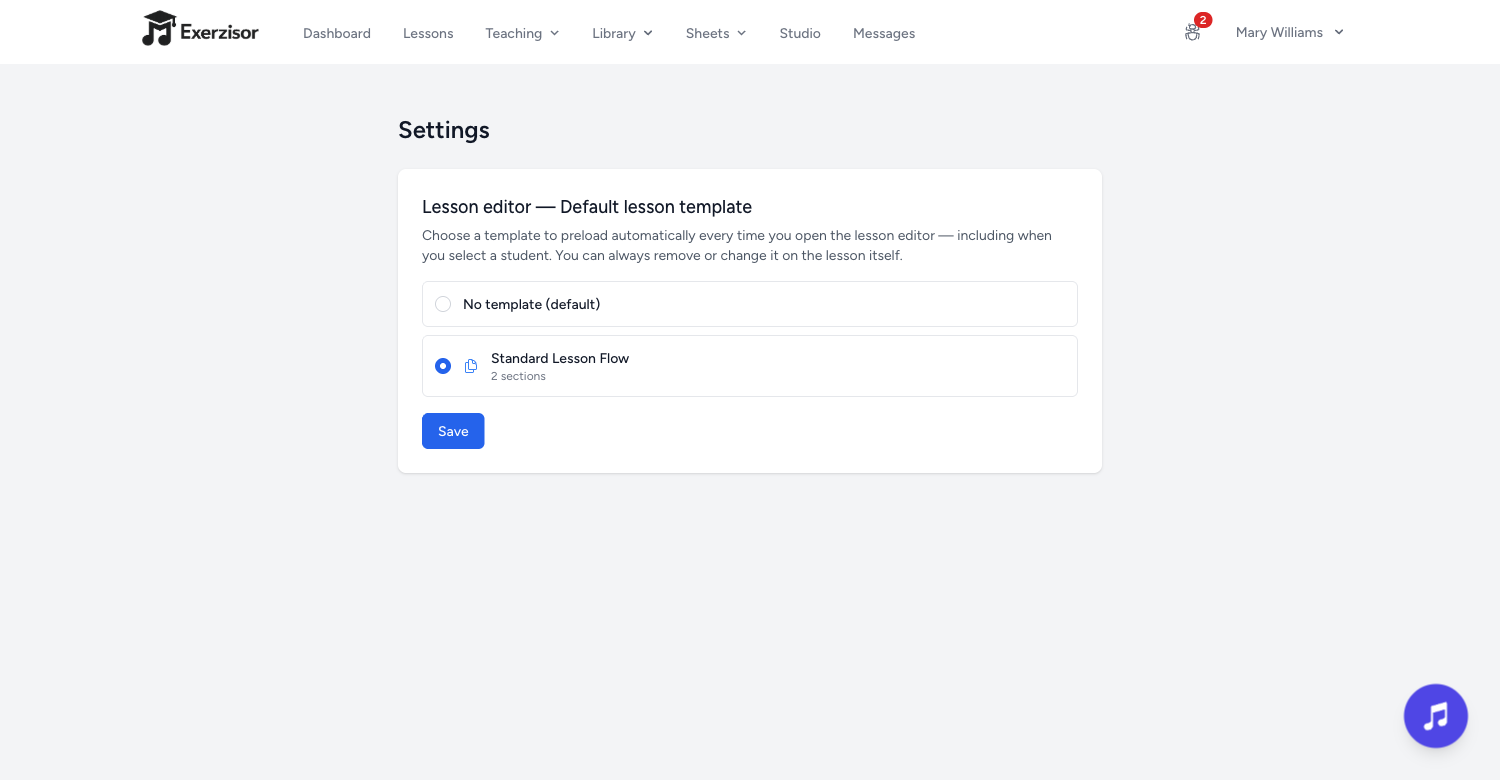
In schools where a lesson template is mandatory and only one template exists, opening the lesson editor and leaving again immediately produced an “You have unsaved changes” prompt — even though nothing had been typed.
The template counts as the starting point: the automatically applied template is now treated as the untouched state of a new lesson, not as an edit.
Real edits still warn you: the prompt continues to appear the moment you actually change something.
FixAugust 08, 2026
XP Awarded Exactly Once per Practice Session
A practice session could occasionally award its XP twice — and because totals are never recalculated, the extra points stayed for good and fed into level progress, trophies and the leaderboard. Each session now awards its XP exactly once.
Honest totals: the XP on a student’s dashboard now always adds up from the sessions behind it.
Fair rankings: the leaderboard and level-based trophies are no longer influenced by duplicated points.
One session at a time: a student can no longer end up with two practice sessions running at once, each counting the same minutes.
FeatureAugust 07, 2026
Storage Limits with Early Warnings
Each school now has a storage allowance that is actually enforced, with plenty of warning before it is reached. Administrators can see exactly how much space is in use and ask for more.
Warning from 90%: a banner appears for administrators well before the limit is reached, with a link to request more space.
An email too: a single reminder is sent when the school crosses 90%, at most once a day.
A clear stop, not a mystery error: once the allowance is full, uploads land on a page that explains what happened and what to do next.
Applies to every upload: files, sheets, studio tracks, Improviser tracks and chord-diagram images all count towards the same allowance.
Usage always visible: the admin settings page shows current usage and the breakdown, and the platform operator can raise a school’s allowance directly.
FeatureJuly 29, 2026
Clean Print Mode for Sheets & Chord Sheets
Printing a sheet or a chord sheet now produces a clean page: only the music prints, and every menu, sidebar, player and toolbar is left out.
Just the music: navigation, headers, footers, the waveform player, the sync editor and the annotation sidebar are all hidden on paper.
Print button back on sheets: reachable from the settings drawer; chord sheets keep their existing Print button.
Attribution footer: every printed page carries a small Exerzisor line, so a handout can be traced back to where it came from.
Works from the normal browser print dialog — print to paper or save as a PDF.
FixJuly 29, 2026
Stuck Audio Transpositions Recover on Their Own
Transposing an audio file into another key could get stuck on Processing and stay there indefinitely, even once the server had recovered. Stalled transpositions are now picked up and retried automatically.
Automatic retry: a transposition that has made no progress for half an hour is restarted without anyone needing to notice.
No more endless spinner: if a transposition genuinely cannot be completed it is marked as failed, so you know to try again rather than waiting forever.
Ordinary audio and video conversions were already retried this way — transpositions now behave the same.
FeatureJuly 16, 2026
Improviser — Practise Soloing Over a Backing Track
A new practice game joins the Toolbox. An administrator uploads a backing track and taps out its chord progression; students then improvise over the loop on a fretboard or keyboard that shows exactly which scale fits the chord playing right now.
Set up once, use all year: upload the track, enter the chord progression, tap the timing, and choose the scales that belong to the song — either for the whole song or a different scale bound to each chord.
Teachers choose per student: assign tracks to individual students and decide which of the song’s scales each of them sees.
Guitar, bass, ukulele or piano: students pick their instrument and the scale is drawn on their own fretboard or keyboard, following the track as it loops.
Play controls built in: a metronome, a one-bar count-in, and sliders that narrow the neck down to just the frets and strings you want to work on — all remembered per student.
Share & embed: send a public link (optionally password-protected) so anyone can play along without an account, or embed the game on your own site.
Counts as practice: time spent improvising flows into the student’s statistics like every other game.
Switched on per school — ask your administrator to enable it.
FixJuly 15, 2026
Lesson Dates No Longer Slip to the Previous Day
On the student lesson timeline, a lesson could appear one day early — and under the wrong month heading — for anyone in a timezone west of Greenwich. Dates are now read as plain calendar dates, so they read the same wherever you are.
Correct month grouping: a lesson on the first of the month no longer lands under the previous month’s divider.
Consistent everywhere: the month divider, the lesson card and the jump sidebar all show the same date.
Only the displayed date was affected — no lesson was ever stored on the wrong day.
FixJuly 15, 2026
Double-Clicking Section Completion Is Now Harmless
Asking a teacher to confirm a finished section, or confirming one as a teacher, could misbehave when the button was clicked twice in quick succession. Both actions are now handled exactly once.
No more error page: a double-clicked completion request is recognised as the same request instead of failing.
One email, not two: confirming a section sends the student a single confirmation, even when two confirmations arrive at the same moment.
Trophies and automatic lesson completion were already protected and behave exactly as before.
ImprovementJuly 14, 2026
Tuner Hears You at Normal Volume & Confirms When You’re In Tune
The chromatic tuner in the Music Toolbox used to need an uncomfortably loud note before it showed anything at all. It now uses a new detection method that works at normal playing volume, and it tells you with a sound when a string is right.
Works quietly: ordinary instrument or singing volume is enough — no more staring at an empty display.
In-tune chime: hold a note in tune for a moment and a soft two-note chime plays while the note name flashes green, so you can tune by ear without watching the screen.
Sound can be muted: a speaker button silences the chime while the tuner keeps working, and your choice is remembered.
Honest signal meter: the level bar now reflects how loud you actually are instead of sitting near zero.
FixJuly 14, 2026
Sheet Music Cursor Stops Guessing Past the Synced Part
When only part of a song has been tapped into sync, the cursor used to keep gliding along an invented tempo — and clicking an untapped bar jumped the audio to a made-up position. The player is now honest about where the sync ends.
Cursor goes dark past the last synced bar: nothing is highlighted rather than something wrong, and it comes straight back the moment you jump into the synced part again.
Untapped bars ignore clicks: clicking a bar that was never tapped no longer sends the audio somewhere random. On a repeated bar, the nearest tapped pass is used instead.
Scrolling still follows: the page keeps scrolling at the song’s typical tempo so you are not left behind.
Teachers see the coverage: a badge on the sheet shows how far the song is synced — for example synced through bar 23 of 94.
FeatureJuly 14, 2026
Jump to Any Lesson from the Student Timeline
The student lesson timeline loads ten lessons at a time, so finding an older one meant a lot of scrolling. A new Jump to a lesson sidebar lists every lesson and takes the student straight there.
Browse by month: lessons are grouped into collapsible month sections, with pinned lessons kept in their own group at the top.
Search as you type: a few letters filter the list by lesson title or section title — matching text is highlighted, and a section match shows which section it came from.
Straight to the lesson: older lessons load in the background if needed, then the page jumps directly to the one you picked.
Appears next to the timeline on wider screens.
FeatureJuly 14, 2026
Day Streaks on the Leaderboard
A student’s current practice streak now appears right on the leaderboard, next to their level badge.
Flame badge: an active streak of two days or more shows as a small flame with the number of days beside the student’s name.
Only live streaks: a streak that has already lapsed is not shown, so the badge always means “practising right now”.
The board still loads in a single query — the extra information costs no speed.
FixJuly 14, 2026
No Empty Studio Tab When Recording Is Turned Off
The lesson editor’s library sidebar showed a Studio tab even for schools that have the Recording Studio switched off — and opening it only produced an empty list. The tab is now hidden entirely when the studio is disabled.
Fewer dead ends: the sidebar shows only the tabs that actually hold something for your school.
Schools with the Recording Studio enabled see the tab exactly as before.
FeatureJuly 09, 2026
Live Search on the Chord Sheets Page
The chord sheets list now has a search box that filters as you type — by title or artist, with no Enter and no page reload. It behaves exactly like the search already on the sheet music page.
Title or artist: typing oasis finds Wonderwall, and part of a title finds the song. Upper and lower case do not matter.
Instant: the list narrows while you type, and a small × clears the box again.
Survives paging: your search stays applied as you move through the pages.
ImprovementJuly 09, 2026
Tablature in Chord Sheets Lines Up Properly
Plain-text tab blocks pasted into a chord sheet — solos, riffs, intros — were shown in the same proportional font as the lyrics, so the columns drifted apart and the bar lines looked broken. They now render as a compact, aligned monospace block.
Columns line up: the fret numbers sit exactly where they belong and | bar lines stay intact.
Wide tabs scroll: a long tab block scrolls sideways inside its own box instead of wrapping into nonsense.
Nothing to redo: every chord sheet you have already saved is displayed the new way automatically — including shared links and embeds.
FeatureJuly 08, 2026
Seasonal Leaderboard Reset & Hall of Fame
Teachers can now schedule a school-wide leaderboard reset — at the start of a new semester, for instance — so newcomers stand a chance against students who have been collecting points for years. Nobody loses anything: the reset clears the competition, never a student’s real progress.
Lifetime XP is untouched: after a reset the board starts from zero, while each student’s dashboard, level and trophies keep their full history.
Scheduled in advance: pick a future date, then change it or cancel it any time before it fires.
Everyone is warned: a countdown banner appears on the dashboard and the leaderboard — students taking part are told to grab the last points, and those who have not joined yet get an invitation.
Hall of Fame: the top three of every finished season are crowned gold, silver and bronze and pinned above the board permanently.
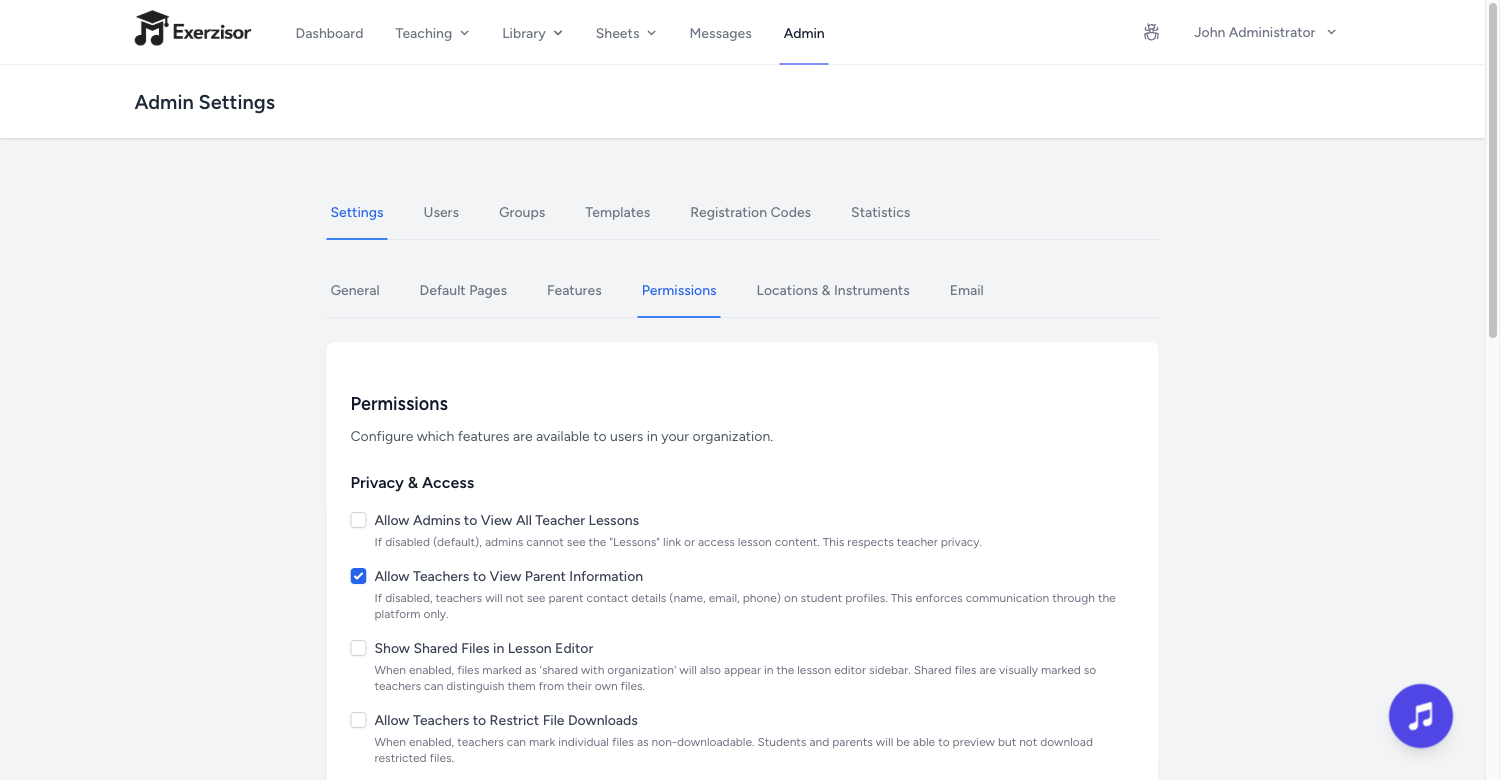
Who may schedule it: admins always, and teachers too unless an admin restricts it in the school settings.
ImprovementJuly 07, 2026
Sync Editors Warn About Uneven Taps
When tapping sync points, a hurried burst of taps leaves timings far off the rest of the song — and later the highlight sprints ahead and dies early. Both sync editors now point those taps out while you work.
Named, not blocked: an amber note lists the affected taps by number and chord name, for example “#11–12 (G → C)”. Saving is never prevented.
Updates live: undo the hurried taps and the warning disappears by itself.
Works in the chord sheet sync editor and the sheet music sync editor alike.
FixJuly 07, 2026
Lesson Audio No Longer Jumps Back to the Start
Clicking the progress bar of a lesson’s audio player while the file was still loading sent the audio to 0:00 instead of where you clicked. The click is now remembered and applied the moment the audio is ready.
Nothing gets lost: clicks made during loading land on the right spot, and the most recent one wins.
Skip-forward fixed too: the forward button no longer collapses to the beginning while the file loads.
FixJuly 07, 2026
Sheets & Chord Sheets Stay in Sync Under Heavy Use
A round of hard testing — rapid speed changes right after pressing play, jumping back to the beginning mid-song, dozens of seeks in a row — turned up four remaining ways the display could drift away from the audio. All four are fixed.
Jumping back into the intro: on a chord sheet whose first sync point is not at 0:00, seeking back to the start used to leave the page frozen mid-song. It now snaps back to the top of the sheet.
Speed set while loading: a tempo change made in the split second after pressing play now reaches the audio instead of being silently dropped.
Progress-bar clicks during loading: a click on the slim progress bar before the audio is ready is honoured as soon as it loads.
Shared sheets: stop and speed now work on shared sheets that have no sync points, matching the normal sheet page.
FixJuly 07, 2026
Consistent Leaderboard Ranking & a Faster Board
When several students were tied on points, the rank shown on a student’s own dashboard could disagree with the rank on the leaderboard. Ranking is now worked out the same way everywhere, and the board itself loads noticeably faster.
One ranking method: tied students share a rank and the next student follows immediately — consistently, on every screen.
Always in your own window: the “near you” part of the board can no longer push a student out of their own view when many students share the same score.
Stable order: students on identical points keep the same order every time the page loads.
Faster: a 50-row board used to fire hundreds of extra database queries. Those are gone.
FixJuly 06, 2026
Clicks Before the Audio Loads & Partly Synced Chord Sheets
Two follow-ups to the audio sync work. Clicking a bar while the audio was still loading moved the cursor but not the audio, and a chord sheet that had only been tapped part of the way raced its highlight through the rest of the song.
Early clicks are remembered: on the sheet music page, a bar clicked during loading is applied as soon as the audio is ready — play starts where you clicked, not at the beginning.
No highlight on untapped chords: past the last tapped chord the highlight simply stops instead of flashing through chords several times a second.
Scrolling still follows: auto-scroll keeps pacing at the song’s typical chord speed rather than racing to the bottom and freezing.
Untapped chords ignore clicks: in a sheet where only the middle section is tapped, clicking an intro chord no longer jumps the audio to a guess.
FixJuly 02, 2026
Audio Sync Fixes Across Sheets, Chord Sheets & Lessons
A cluster of long-standing sync problems is fixed: the highlight, the cursor and the video could all drift away from the audio when you slowed the track down, sped it up, clicked a bar or chord to jump, or moved back and forth.
Click the chord you mean: on chord sheets, clicking a chord that sits between two tapped points now highlights that chord and seeks to the right moment.
One clean scroll on a jump: the page snaps to the new position once instead of chasing it with a smooth animation.
Accurate seeking on sheet music: clicking a bar no longer lands slightly off as the browser refines its estimate of the file length.
Speed follows everywhere: changing the tempo in the player now moves the notation, the video and the on-screen readout with it.
Lessons too: the sheet music viewer inside a lesson gained the same repeat-aware click-to-seek and section loops as the main sheet page, and the cursor no longer freezes when you seek while paused.
FeatureJuly 02, 2026
Share the Voice Leading Trainer as a Practice Tool
Next to the existing Share exercise link, which freezes an exercise exactly as you set it up, teachers can now send a Share practice tool link: the visitor gets the full settings panel and builds their own exercise.
No account needed: anyone with the link can set the progression, chord quality, custom chords, fret and string range, tempo, bars per chord, note rate, break bars and every guidance toggle.
Settings stick: the visitor’s choices are remembered in their own browser for that link, so they pick up where they left off.
The same controls as before: label, optional password, view counting and revoking work exactly like existing shares, and an Open badge marks the links visitors may configure.
Existing links are untouched: every share you created before stays a frozen exercise.
FixJuly 02, 2026
“XP to Next Level” Bar Fixed for New Students
The progress bar on the student dashboard read 0% for brand-new students and stayed pinned there through the first part of level 1 before suddenly jumping. It now fills smoothly from the very first points earned.
Moves from the start: a student with 50 points sees real progress instead of an empty bar.
Correct throughout: the bar grows steadily as points are earned, at every level.
Only the display was wrong — no points, level or trophy was ever affected.
FixJuly 01, 2026
Students’ Chord Library Now Shows Exactly the Right Chords
The Chords tab in a student’s Music Toolbox used to come up empty. It now fills itself with precisely the diagrams that matter: the chords used in the chord sheets assigned to that student.
Their chords, not the whole catalogue: a beginner sees just the handful of chords from their own sheets — not every diagram their teacher has ever created.
Matched to the instrument: a guitar sheet brings in guitar diagrams, a piano sheet piano diagrams — they never mix.
All teachers combined: students with more than one teacher see the chords from all of their assigned sheets in one place, read-only.
Parents too: the parent portal shows the same chord library the child sees.
FeatureJuly 01, 2026
Spidey-Sense — Automatic Alerts When a Student Goes Quiet
Exerzisor can now tap you on the shoulder when a student needs attention. A friendly built-in helper called Spidey 🕷️ keeps an eye on practice activity and sends teachers a chat message the moment a student drifts away — before weeks go by unnoticed.
Gone-quiet alerts: when a student hasn’t practised for a set number of days, Spidey posts an alert into your chat — and follows up with a running day count if the silence continues.
Practice-drop alerts: Spidey also warns you when a student’s weekly practice time falls well below their usual level, judged on the last completed week.
Your admin sets the rules: the feature is off by default and enabled per organisation. Admins choose the thresholds and can either allow teachers to fine-tune them per student or lock them org-wide.
One-way by design: Spidey’s messages arrive in the normal Chat tab of the Toolbox, clearly marked as system alerts — you can’t chat back, and students never see them.
Available in English and German.
FixJuly 01, 2026
The Leaderboard Box Is Back for Every Student
After the new student dashboard launched, students who hadn’t joined the leaderboard had no way to find it — the Leaderboard box only appeared once you were already ranked. The box is now always there.
Join in one tap: students who haven’t opted in see a Join Leaderboard button that takes them straight to the sign-up.
Nothing changes for the ranked: opted-in students still see their rank and the top three, exactly as before.
FixJune 26, 2026
Lesson Completion Stays in the Teacher’s Hands
A short-lived Mark as Complete button let students declare an entire lesson finished in one click — skipping the teacher’s confirmation. It has been removed, so lessons once again complete the proper way.
How completion works: students mark each section as ready, the teacher confirms it — and when the last section is confirmed, the whole lesson completes automatically.
Nothing else changes: completion dates, green check-marks, trophies, and dashboard badges all keep working exactly as before.
FeatureJune 26, 2026
A New Student Dashboard — One Box for Everything
The student dashboard is now the home base. Instead of hunting through menus, students land on a clean, glanceable grid with a box for every part of Exerzisor — built mobile-first, because that’s where students are.
A box for everything: Lessons, Courses, Trophies, Sheets, Games, and the Leaderboard each get their own tile with live counts and a one-tap way in, topped by the XP banner and personal greeting.
A slimmer menu: since the boxes do the navigating, the student menu bar has been trimmed to the essentials — teacher, admin, and parent menus are untouched.
Mark sections as ready from the full lesson page: the standalone lesson view now shows the same per-section Mark as Ready buttons as the dashboard timeline, and timeline cards gained an Open Full Page link.
Truer leaderboard ranks: the rank shown on the dashboard and leaderboard page now matches the list itself, even when students are tied.
ImprovementJune 26, 2026
A Direct Trophies Link for Students
Students used to reach their trophies through a dropdown oddly labelled Teaching — with exactly one entry in it. They now get a plain Trophies link in the menu instead.
One tap, no dropdown: the Trophies link sits directly in the menu bar, on desktop and mobile.
Teachers and admins keep their full Teaching menu, unchanged.
FixJune 26, 2026
The Chords Game Now Shows Your Own Chord Diagrams
In the Chords Practice Game, the chord diagram a student sees is now always your diagram from your Toolbox library. Previously a stored voicing could be skipped in favour of a generic built-in shape — so a student might see a different fingering than the one you taught them.
Your fingerings win: if you have a diagram for a chord in your library, the game shows exactly that one — you no longer have to mark it as the “default” voicing for it to appear.
No more surprise shapes: the game no longer falls back to a generic built-in diagram. If you haven’t added a diagram for a chord, it simply shows the chord symbol on its own.
A helpful heads-up: while setting up a student’s game, a small note tells you which of their chords don’t have a diagram in your library yet, so you can add them in the Toolbox.
FeatureJune 26, 2026
Messaging Moves into the Toolbox — and Parents Can Chat Too
Messaging is no longer a separate full-screen page. Teachers, students, and admins now open all their conversations straight from the floating Music Toolbox, and parents get their own messaging inside the parent portal — so everyone can stay in touch without leaving what they’re doing.
Chat from the Toolbox: a new Chat tab in the Music Toolbox holds every conversation, with an unread badge on the Toolbox button so you never miss a message. New messages appear on their own, every few seconds, while you keep working.
Parents can message the teacher: from the parent portal a parent can write to their child’s teacher and follow the child’s conversation with that teacher — the child’s side stays read-only, so nothing they wrote is ever changed or marked as read.
Private by design: a parent only ever sees their own child’s conversation with that child’s current teacher — never other families, other students, or staff-only threads.
Text messages for now: this first version is text-only; file attachments are coming in a later update.
Admins can still turn messaging on or off per organisation from the admin console.
FeatureJune 25, 2026
Students Can Now See Their Practice Day-Streak
Students can finally see their own day-streak right on their dashboard — a small flame chip next to the Leaderboard button showing how many days in a row they’ve practised. Until now this streak was only visible to teachers.
At a glance: a flame chip in the dashboard banner shows the current run of consecutive practice days, nudging students to keep the habit going.
Only when it counts: the chip stays hidden for brand-new students who don’t have a streak yet, so the dashboard stays clean.
Fully translated: shows “day streak” in English and “Tage in Folge” in German.
ImprovementJune 24, 2026
A Personal Greeting on Your Dashboard
Everyone is now welcomed by name at the top of their dashboard, with a friendly “Good morning / afternoon / evening” that changes with the time of day.
Time-aware: the greeting switches between morning, afternoon, and evening based on your own device’s clock.
For everyone: teachers, students, parents, admins, and super admins all see the personalised greeting.
Available in English and German.
FeatureJune 21, 2026
Chords Practice Game — Moving-Chords Trainer
A new Toolbox game that turns chord changes into a fun, game-styled drill. Chords ride in on little trucks driving along a sunny highway, and the moment a chord reaches the centre line — on beat 1, in time with the metronome — that’s the student’s cue to play it. Teachers set it up per student, and any exercise can be shared with a public link.
Play in time: a metronome counts the beat and each chord lands on the downbeat as its truck crosses the centre line — with a one-bar count-in so students start in tempo.
Your chord pool, your tempo: pick the chords to drill, the tempo (BPM), the time signature (3/4, 4/4, 5/4, 6/8, 7/8…) and how many rest bars to leave between chords. Chords are drawn at random and never repeat twice in a row.
See the shape, hear the chord: optionally show each chord’s diagram in a thought bubble above its truck, and optionally play the chord out loud when it hits the beat — for guitar, piano, ukulele, or bass.
Counts as practice: time spent flows into each student’s statistics under the Games category, just like the other practice games.
Share & embed — for free: send a public link (optionally password-protected) so anyone can open and play the exercise with no account, or embed it on your own site — just like sheets, chord sheets and fretboard diagrams.
ImprovementJune 21, 2026
Melodic Voice Leading: Practice Time Counts, Break Bars & a Next-Chord Preview
Three teacher-requested upgrades landed in the Melodic Voice Leading game shortly after its launch.
Practice time counts: time a student spends playing the game now flows into their practice statistics under the Games category — only while they’re actively playing. Teacher previews and public share links don’t count anyone’s time.
Break bars: teachers can insert up to four rest bars after each chord. The metronome keeps clicking so the student keeps time, but no notes sound — breathing room for slower chord changes.
Next-chord preview: the upcoming chord is shown next to the current one, so the student always knows what’s coming — especially handy across a break.
Available in English and German.
ImprovementJune 21, 2026
Cleaner, Roomier Tabs in the Toolbox & Lesson Library
The tab bars in the Music Toolbox and the lesson editor’s Library panel were getting crowded — with five tabs each, the labels no longer fit on narrower screens and some tabs could be cut off. They now use clear icons instead of text, so every tab always stays visible.
Icon tabs everywhere: the Toolbox (Metronome, Tuner, Chords, Fretboard, Resources) and the Library (Sheets, Chords, Fretboards, Files, Studio) now show a recognisable symbol for each tab.
Hover to see the name: point at any tab and its full title appears, so nothing is lost — and screen readers announce the name too.
Always fits: all tabs stay on screen at every window size, on desktop and mobile.
FixJune 21, 2026
Links in Lessons Are Now Clickable
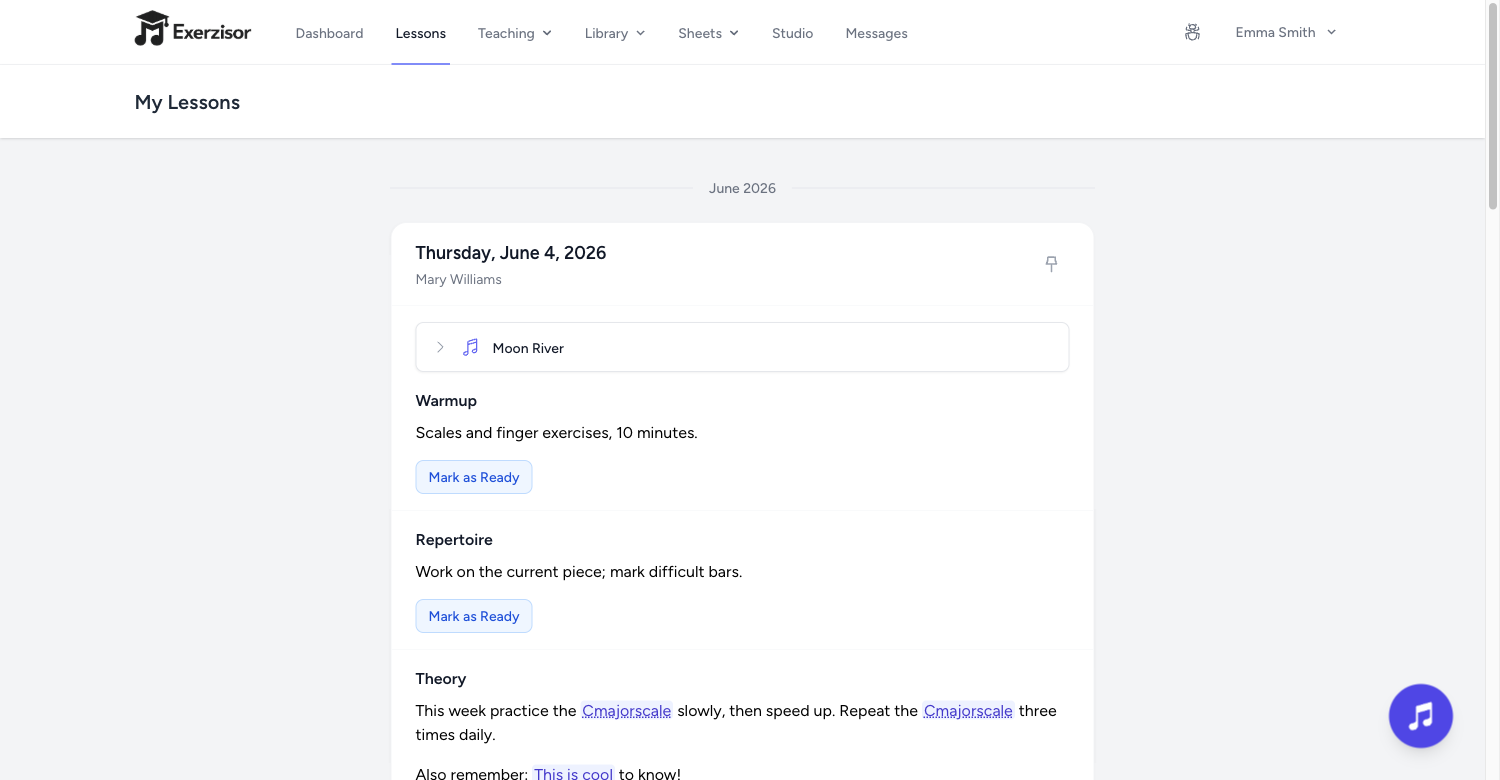
When you type a web or email address into a lesson, it now turns into a real clickable link for everyone who reads it — students, parents, and you. Previously these addresses showed up as plain text that nobody could click.
Automatic links: web addresses (https:// and www.) and email addresses (mailto:) typed into lesson content become clickable on their own — no extra formatting needed.
Everywhere a lesson appears: the lesson page, the timeline card, the parent portal, and the lesson preview all show the links the same way.
Safe by design: only standard web and email links are created, so lesson content stays secure.
Existing internal wiki links keep working exactly as before.
FeatureJune 21, 2026
Melodic Voice Leading — Arpeggio Connection Game
A new Toolbox game for practising smooth arpeggios across chord changes. Over a metronome and backing chords, students play one chord tone per beat up and down the neck; when the chord changes, the line moves to the nearest tone of the next chord instead of restarting on the root. Teachers configure it per student, and any exercise can be shared with a public link.
Ready-made or custom progressions: Circle of Fourths/Fifths, ii–V–I, I–vi–ii–V, 12-bar blues, chromatic — or build your own chord-by-chord. Functional progressions use the correct chord qualities automatically.
Set the box & feel: fret and string range, starting note, tempo, quarter or eighth notes, and bars per chord.
Adjustable difficulty: show and play the notes for beginners, or hide them so students play from ear; optionally show the whole arpeggio shape with the played note glowing.
Start on a random note so it never turns into rote memory.
Share with anyone — no account needed: send a public link (optionally password-protected) or embed the exercise on your own website, just like sheets and chord sheets.
A new tool in the Toolbox lets you build interactive guitar-neck diagrams: click frets to place notes, name a root, and every note instantly shows its interval, colour-coded so scale and chord shapes are easy to read. You can save them, drop them into lessons, and share them with anyone.
Click to build, intervals automatic: place notes on the neck, choose a root, and each note is labelled and coloured by its interval (root, ♭3, 4, 5, ♭7…) with a live legend.
Enharmonic spelling, your way: click a note to switch its spelling (for example ♭5 ↔ ♯4) or type a completely custom label — so a diagram reads the way you actually teach the chord or scale.
Save as an image: store any diagram as a PNG in your File Manager with a friendly name.
Attach to a lesson — and it stays interactive: students don't just see a picture; they can click around the live neck in the lesson to explore how the shapes work and watch the intervals change. Their exploring is private — it never edits your original and resets when they refresh.
Share with anyone — no account needed: send a public link (optionally password-protected) so people outside Exerzisor can open the interactive diagram, or grab an embed snippet for your own website — the same way sheets and chord sheets work.
Resizable & touch-friendly: size the board to the screen; works great on iPad.
FixJune 19, 2026
Click a Bar in a Song with Repeats — and Land on the Right One
In sheet music that repeats a section (the 𝄆𝄇 repeat signs), clicking a bar after the repeat could jump the playback marker to the wrong place — for example, clicking bar 6 would land on bar 2. Now a click takes you to exactly the bar you tapped, every time.
Right bar, every click: bars after a repeated section now seek correctly during synthesizer playback.
No setup needed: works automatically on every sheet — songs without repeats are unaffected.
ImprovementJune 18, 2026
Practice Loops Now Snap to the Beat — Not Just Whole Bars
Until now, a practice loop in the sheet music player could only span whole bars. You can now drag across the exact notes you’re working on and get a loop that starts and ends right on the beat — just like the big dedicated practice tools.
Drag across the notes: the selection snaps to beat boundaries, so you can loop “the second note to the fourth note” instead of the whole bar.
Fine-tune with handles: grab either end of the loop and drag to resize it, beat by beat.
No more accidental text selection: dragging across the score no longer highlights the page like a copy‑paste — on desktop, iPad, and iPhone alike.
Works everywhere: beat-level loops play back with both the synthesizer and synced audio recordings, and classic whole-bar loops still work exactly as before.
The Sight Reading game grew from a quick drill into a proper practice tool. Exercises are longer, notes can be colour-coded, and students can now hear exactly how each one should sound.
Longer exercises: every drill now spans four bars instead of two, so students read through a real musical phrase rather than a quick snippet.
Colour-coded notes (optional): teachers can switch on Synthesia-style colours, where every note has its own hue — and the same note in a higher or lower octave gets its own shade. Patterns jump off the page for younger or newer readers. Off by default; teachers turn it on per student.
Play along: a green Play button counts the student in, then plays the exercise note by note at the tempo you set, lighting up each note as it sounds — so they always know how it should go.
Tap any note for help: tapping a note on the staff opens a panel with its name, octave, where to find it on the fretboard, and a “play this note” button — plus an always-on colour legend under the music.
Set the pace: teachers choose each student’s practice tempo, so the play-along matches their level.
FixJune 17, 2026
Sheet Music That Can’t Load Now Says So — Instead of Showing a Blank Page
Once in a while a sheet’s underlying music file can go missing behind the scenes. When that happened, the viewer simply showed a blank screen with no explanation. Now it displays a clear “This score is unavailable” message instead, so you immediately know it’s the sheet — not your connection — that needs attention.
FeatureJune 17, 2026
A Much Better Sheet Music Player — Cleaner, Smoother, and Now You Can Sync the Audio Yourself
The sheet music player got a top-to-bottom upgrade focused on the things you do every day — reading, practising along, and (for teachers) lining the recording up with the notation.
A calmer, less cluttered player: the controls that crowded the bar now live behind a single settings button — view (Score / Tab / Both / Chords), instruments, chord names & diagrams, and video are tucked into a tidy panel, so the music gets the space.
Zoom that finally feels right — especially on iPad: pinch‑to‑zoom is smooth and never gets “stuck”, and the music stays put under your fingers instead of jumping back to the top. One‑finger scrolling keeps working as normal.
Controls stay within reach: when a sheet has no audio, the play/pause bar now stays pinned as you scroll, so you can stop playback without scrolling back up. Playback itself glides more smoothly and respects your device’s “reduce motion” setting.
Sync your own audio to the notation, right on the waveform (teachers): in Sync mode the waveform opens up and you can click to place a bar, drag a marker to fine‑tune its timing, nudge it, or delete it — no more guessing. Tap‑along on each beat still works too. Once it’s synced, the cursor follows the real recording as it plays.
FeatureJune 15, 2026
Exerzisor Now Speaks German
The entire interface is now available in German, and it appears automatically — there’s no setting to change. If your browser or device is set to German, Exerzisor shows up in German; everyone else keeps seeing English.
Automatic: the language follows your browser’s preferred language, so German-speaking students, parents, and teachers feel at home from the very first screen.
Complete: menus, buttons, dashboards, and form messages are all translated — including the wording you see when a form needs fixing.
More languages later: the groundwork is now in place to add further languages over time.
FixJune 15, 2026
Student Levels & Progress Now Show Correctly
Some students were stuck showing Level 1 with a progress bar that looked permanently full and “0 XP to next level”, even after lots of practice. Their experience points were always counted correctly — only the level and progress were displayed wrong. Everyone’s level and progress bar now reflect their real XP, and existing students were corrected automatically.
FeatureJune 11, 2026
New Game: Sight Reading Training — Built Right Into Exerzisor
Reading notes fluently is half the battle of learning an instrument — and the only way to get there is reps. The new Sight Reading game, found under the new Tools menu in the navigation bar, turns those reps into a game your students can play anytime.
You decide who plays, and what: the game is off for every student until their teacher switches it on. In the configuration view you pick exactly which notes, strings, and rhythms each student gets — a beginner might see only open strings and whole notes, an advanced student the whole fretboard. A live preview shows what their exercises will look like.
Endless fresh exercises: the student gets a randomized two-bar exercise rendered as real notation. Played it? Hit Next and a brand-new one appears — no two sessions are the same.
Stuck on a note? The Help button reveals where each note lives on the fretboard, so the game teaches instead of frustrates.
It counts as practice: time spent in the game flows into the student’s practice statistics under a new Games category — visible in the same charts and totals teachers already use. The timer pauses automatically after a minute of inactivity, so idle tabs don’t inflate anyone’s numbers.
Room to grow: the Tools menu is built to host more games and trainers in the future — Sight Reading is the first resident.
FeatureJune 11, 2026
The Leaderboard Goes Incognito: Game Names & Fantasy Avatars Protect Your Students
Most of our students are kids — and kids love a good leaderboard. What they (and their parents) don’t need is their real name and photo visible to every other student in the school. From today, the XP leaderboard is pseudonymous: students compete as Shadow Dragon, Silver Falcon, or Mystic Fox — never as themselves.
Join with a game name: clicking “Join Leaderboard” now opens a friendly dialog where the student picks a game name (2–30 characters) and one of 24 fantasy avatars — wizards, dragons, foxes, rockets, guitars and more. Only that identity is ever shown to other students. Profile photos are gone from the board entirely.
One name per school: game names are unique within your organization (capitalization doesn’t fool it), so nobody can impersonate a classmate’s alias.
Leave and come back anytime: hiding from the leaderboard keeps the chosen name — re-joining is one click, no retyping. Editing the name later is just as easy.
Teachers see the full picture: a new Leaderboard entry in the Teaching menu shows every participant with their real name right under the game name — so you always know who’s behind the dragon.
Moderation built in: an inappropriate game name? One click on “Reset name” removes it and takes the student off the board until they re-join with a better one.
A fresh start for everyone: students who joined the leaderboard before this update are taken off it once — they simply see the “Join Leaderboard” button again and pick their new secret identity. Nothing else changes; XP, levels, and trophies all stay exactly as they were.
FeatureJune 11, 2026
Award a Trophy Without Leaving the Lesson Editor
Your student just nailed the piece they’ve been fighting with for weeks — that’s a trophy moment, and it shouldn’t require leaving the lesson you’re writing. There’s now a trophy button right in the lesson editor header.
One click, done: the button opens a small dialog with all of your school’s manually awardable trophies — click one and it’s awarded to the selected student instantly. You stay exactly where you were, mid-lesson.
See what they already have: trophies the student has earned before show a little “awarded N×” badge, so you know whether this is their first or their fifth.
Everything still counts: the student gets their XP and the usual notification, exactly as if you’d awarded it from the trophy library.
ImprovementJune 11, 2026
Editing a Trophy Now Rewards Everyone Who Already Qualifies
Until now, automatic trophies only looked backwards when they were first created. Lower the threshold of an existing trophy from 20 lessons to 10, and students who already had 15 lessons got… nothing. That’s fixed.
Easier trophy = instant awards: lowering a threshold, reactivating a trophy, or switching it to automatic now immediately awards every student who already meets the criteria — no waiting for their next lesson.
Never the other way around: raising a threshold or tweaking the title, points, or icon never takes a trophy away from anyone. Earned stays earned.
A safety net for the past: awards that were missed before this fix have been healed retroactively, so every trophy cabinet is now complete.
ImprovementJune 11, 2026
Lesson Autosave, Rebuilt: One Clean Safety Net Instead of a Pile of Drafts
Autosave in the lesson editor has one job: if your browser crashes or your laptop dies mid-lesson, your work survives. It now does exactly that — and only that.
One snapshot, not a draft graveyard: autosave keeps a single crash-recovery snapshot per teacher. Opening the editor, loading a template, and leaving again no longer mints empty drafts that clutter your lesson list.
It saves when there’s something to save: the snapshot is taken once you’ve picked a student and actually written content — typed-then-deleted text doesn’t count.
Recovery is one click: after a crash, the editor offers to restore the exact snapshot. Saving, publishing, or cancelling cleans it up automatically.
And the gremlin is gone: we root-caused the bug where a brand-new draft could get stuck rejecting every subsequent autosave (the dreaded persistent “Autosave failed”). Failed saves now also retry gently in the background instead of hammering the server.
ImprovementJune 11, 2026
Open Files Right Inside the Lesson Preview
The Preview window on the Lessons page used to show attached files as a dead list — you could see them, but not open them, and lesson-level attachments didn’t appear at all. Now the preview behaves like the real lesson page.
Every file is clickable: audio opens with the waveform player, videos play, PDFs and images display — all in a viewer stacked right on top of the preview.
Lesson-level files included: attachments on the lesson itself (not just on its sections) now show up in their own Files block.
Tidy keyboard flow: Escape closes the file first, then the preview — no surprises.
FixJune 11, 2026
Multi-Page PDFs Now Show Every Page — Especially on iPad
On iPad, opening a multi-page PDF inside the app showed only the first page, with no way to scroll — a Safari quirk that desktop browsers happened to hide. We’ve replaced the built-in browser preview with a proper PDF viewer on every inline surface.
All pages, everywhere: file previews, lessons, the student timeline, course content, and wiki pages all render the full document with smooth scrolling and a “Page x of y” indicator.
Same on every device: iPad, phone, and desktop now show identical, complete PDFs.
Download rules unchanged: students with download-restricted files can still view them, exactly as before.
FixJune 11, 2026
Recent Lessons on the Teacher Dashboard: Readable at Last
The Recent Lessons card on the teacher dashboard showed a raw technical timestamp (2026-06-09T00:00:00.000000Z) and the student info was missing entirely. It now reads the way you’d say it: 09 Jun 2026 • John Smith and 2 others.
Clean date: the same friendly format students already see on their dashboard.
Who the lesson was for: one student shows their name; group lessons show “…and N others”.
FeatureJune 10, 2026
New Trophy Type: Automatic Awards for Completed Sections
Until now, automatic trophies counted whole lessons — but most of the actual work happens one section at a time. Teachers can now create a trophy with the award type Automatic (Sections).
Set a goal, let it run: “Award 50 points after 25 completed sections” — the trophy lands automatically the moment a teacher confirms the qualifying section. No manual bookkeeping.
Only confirmed work counts: the counter uses sections a teacher has actually reviewed and confirmed — a student marking things done by themselves doesn’t inflate it.
Fair from day one: creating the trophy retroactively awards every student who already passed the threshold.
FixJune 09, 2026
Stuck Audio Conversions: Root Cause Fixed — Plus a Watchdog That Never Sleeps
Some of you hit uploads or audio transposes that sat on “converting” forever until we kicked the server. We found the real culprit — a background-worker incompatibility introduced by a dependency update that silently stopped all media processing while reporting everything as healthy — and fixed it for good.
Conversions flow again: audio/video conversion and transpose jobs process reliably; the failure can’t recur from a routine update.
A watchdog with trust issues: an independent monitor now checks the processing queue every minute — and deliberately ignores the worker’s own “I’m fine” status. If any job waits more than 5 minutes, we’re alerted immediately instead of finding out from you.
FixJune 09, 2026
“Autosave Failed” No Longer Gets Stuck on a Stale Attachment
If a lesson draft referenced something that had quietly changed underneath it — say a colleague deleted a shared file while you were editing — every autosave from that moment on failed with “Autosave failed”, forever. Autosave is a background safety net, and it now acts like one.
It saves what it can: instead of rejecting your entire draft over one stale reference, autosave quietly drops what no longer exists and keeps saving everything else.
Manual save still speaks up: when you actually hit Save or Publish, real problems are still reported clearly — only the background saves became forgiving.
Hardened against odd data: a malformed attachment reference (the other way this bug could strike) is dropped safely too, instead of poisoning the draft.
ImprovementJune 08, 2026
The Lesson Editor No Longer Logs You Out Mid-Lesson
The classic heartbreak: open the lesson editor, teach for an hour, type up your notes, hit Save — and land on the login page with your work gone. The editor was idle long enough for the session to expire. Not anymore.
Your session stays warm: while the lesson editor is open, Exerzisor quietly keeps your login alive — even if the tab is in the background or your screen is locked. Open editor = no logout, period.
A local safety copy, just in case: the editor also mirrors your unsaved work to your browser. If the session is ever cut short anyway (say, a server restart), the editor offers your unsaved changes back with a restore banner the next time you open it.
Longer leash overall: the base session lifetime was raised as extra insurance.
FeatureJune 07, 2026
The Lesson Editor Now Knows Who You’re Teaching Right Now
It’s Monday, 9:58. Emma’s lesson starts at 10:00 — same as every Monday. You open the lesson editor and… Emma is already waiting at the top. Right below her: John, whose lesson starts at 10:15. No scrolling through 60 names. No typing. No thinking. The two students you’re about to teach are simply there, under a little sparkle that says “Suggested now” — each with their usual time next to their name, like the editor checked your watch for you.
The first time it happens, it feels like the app read your mind. It didn’t — it just paid attention. Every lesson you publish quietly leaves a tiny trace: which weekday, around what time. A few weeks of normal teaching and a pattern forms all by itself: “Emma’s slot is Monday around 10:00.” From then on, whenever you open the editor, Exerzisor glances at the clock, compares it with everyone’s usual slot, and lifts the students whose lesson is happening right about now to the top — at most five, closest first. You never told it anyone’s schedule. You never will have to.
It gets smarter every single week: each lesson at the same day and time makes that slot “heavier”. Ten Mondays in a row and Emma owns her Monday-morning spot — the suggestion becomes rock solid precisely because you teach the way you teach.
And it’s impossible to confuse: one make-up lesson on a random Wednesday? Ignored with a shrug. Emma still appears on Mondays, and she will not ghost-appear on Wednesdays. Only her one true slot counts — outliers bounce right off.
New semester? It just… follows: recent lessons count double, old ones fade away. When Emma moves to Friday 16:00, her suggestion quietly migrates with her over the next few weeks — no button, no settings, no “please update the schedule”. The app catches up with reality on its own, every single time.
Quiet hour with no usual suspects? Then it shows your most recently taught students — which, on a random afternoon, is almost always exactly who you were about to pick anyway. And if you’re brand new with no lessons yet, everything looks like it always did. Nothing random, ever — every name shown has a reason.
Zero control taken away from you: “Show all students” expands the complete roster with one tap (and the editor remembers your choice), while the search box always searches everyone — start typing and the suggestions step aside instantly.
It even thinks in your time: matching runs on your local clock — summer time, winter time, teaching from a holiday flat in another country: your suggestions stay exactly on schedule.
And here’s the genius of it: there is nothing to set up. At all. No calendar to maintain, no times to type, no settings page to find. All of this grows out of lessons you’ve already given — the feature was technically working for you before it even existed. You keep teaching exactly the way you always have. Exerzisor just pays attention.
FeatureJune 06, 2026
New for Teachers: Top Students on Your Dashboard & a Full Statistics Page with Charts
Your dashboard now celebrates the students who put in the work this week — and one click takes you to a complete statistics overview of everyone you teach, with beautiful charts on top.
Top Students widget: right on your dashboard, see your top 3 students by practice time over the last 7 days — with their instrument, practice time, and current day streak (yes, with a little flame). Click a name to jump straight to the student’s page.
“View all statistics” opens a dedicated page with one row per active student: total practice time, last 7 days, number of practice sessions, day streak, when they were last active, and how many lessons, sheets, chord sheets, files, and PDFs you’ve shared with them.
Three charts at a glance: donut charts show your class’s Practice Mix (sheet practice vs. videos, audio, PDFs, and reading), Who Practiced How Much (each student’s share of the class’s practice time), and Session Types (lessons vs. free sheet and chord-sheet practice). Switch all three between Last 7 Days and All Time with one toggle, and hover any slice for exact times and percentages.
Sort it your way: click the column headers to sort by name, practice time, streak, or last active — by default the most recently active students are on top.
Honest numbers: the charts and the table are computed from the same data with the same rules, and practice time matches exactly what you see on each student’s profile page. Streaks reset to zero when a student hasn’t practiced since the day before yesterday, and students with no activity yet simply show “Never” — no surprises.
ImprovementJune 05, 2026
Wiki Tags Now Light Up for Parents — and in the Lesson Preview
The wiki-tag highlighting introduced on June 04 reached the last two places lesson texts are read: the parent view of a child’s lesson and the teacher’s lesson preview window.
Parents get answers too: when a lesson says “practice the C Major Scale”, parents now see the same highlighted phrase — hover for a short explanation, click to read the wiki page. Helping with practice at home just got easier.
Preview matches reality: teachers previewing a lesson now see exactly the tags their students will see.
Privacy rules carry over: visibility follows the wiki page’s settings — pages limited to teachers stay invisible to parents, plain text and all.
FixJune 05, 2026
No More Raw “{count}” Placeholders in Dialog Texts
A few texts in the app showed their internal placeholder instead of the actual value — most visibly the publish dialog, which said the lesson would be “visible to {count} assigned student(s)”. These now display the real numbers and names, and an automated guard makes sure this class of typo can’t sneak back in.
FixJune 05, 2026
Recording Studio Switch Now Respected Everywhere
Schools can turn the Recording Studio on or off in their settings — but lessons didn’t fully get the memo: with the studio disabled, lesson pages could still show recording projects, and students saw links that led nowhere. The toggle now applies consistently across every lesson view.
Off means off: with the studio disabled, recording projects disappear from lesson pages, the editor, and the student timeline — no more dead links.
Nothing is lost: existing links between lessons and recording projects are preserved while disabled, and reappear untouched if the school re-enables the studio.
FeatureJune 04, 2026
Wiki Tags: Lesson Texts Now Link to Your Knowledge Base
Teachers can add tags to wiki pages — a single keyword, a few words, or even a whole sentence, written naturally just like you’d write it in a lesson. Whenever that word or phrase shows up in a lesson text, it lights up for both teachers and students: hover to see a short preview of the wiki page, click to read the whole thing. Your lessons explain themselves.
Natural language welcome: tag a page Cmajorscale, C Major Scale, or even This is cool — spaces and everyday wording are fine (up to 20 tags per page). Write “practice the C Major Scale daily” in a lesson and the phrase becomes a link — mid-sentence, in any casing like c major scale.
Hover for a preview: a small tooltip shows the wiki page’s title and the first lines of its content — often that’s all a student needs to remember what a term means.
Example: create a wiki page “Cool Things” with the tag This is cool, then write “Also remember: This is cool to know!” in a lesson — exactly the tagged phrase gets highlighted and links to the page, the rest of the sentence stays normal text.
Privacy built in: highlights follow the wiki page’s visibility. If a page is private or limited to certain students, everyone else just sees plain text — no link, no preview, no hint that the page exists.
Easy to manage: add or remove tags as little chips when creating or editing a wiki page; they’re shown on the page itself too. Works in the lesson view and in the student timeline.
FeatureJune 04, 2026
New Settings Page: Pick Your Standard Lesson Template
Teachers now have a Settings entry in the menu under their name (next to Profile). The first setting is a big time-saver: choose a default lesson template that loads automatically every time you start a new lesson.
Loads with your student: open the lesson editor, click a student’s name — their recent lessons, files and practice stats appear together with your template’s sections, ready to fill in.
Your choice, always: the default is No template. Pick one of your school’s templates whenever you like, change it anytime, and remove a preloaded template from any single lesson with one click.
School rules still apply: if your school requires a specific template, that requirement always wins — the settings page tells you so instead of letting the two collide.
Works everywhere templates live: even if your school hasn’t enabled template pickers in the editor, your personal default still preloads.
ImprovementJune 04, 2026
Find Any Student Instantly in the Lesson Editor
Teachers with many students know the scroll. The Students sidebar in the lesson editor now has a search box that filters the list as you type — no Enter needed.
Instant & forgiving: type an, An or aN and you’ll see Anna, Stefan and Marianne immediately. Accents don’t matter either — jose finds José.
Search by name or instrument: first name, last name, full name (“anna m”), or the instrument they play.
Keeps your place: after you pick a student, your search term stays — perfect for working through several students in a row. Clear it with one tap on the ×.
Works on phones too: the same search lives in the mobile students drawer.
FeatureJune 04, 2026
Found a Bug? Report It Right From the App — and Become a Bug Hunter
There’s a new bug icon in the top navigation bar, next to your name. Spot something that doesn’t work? Tell us right where it happened — students, teachers, parents and admins alike.
Kid-friendly guided form: four simple questions — What is the problem? What should happen? What is happening instead? How can we repeat it? — each with an example, so even our youngest musicians can write a great report.
Earn points: every report our team confirms as a real bug earns you a point. The Bug hunters tab shows the top bug finders across the whole platform (first names only).
Stay in the loop: a little badge appears on the bug icon when your report has been reviewed. If it wasn’t a bug, you’ll get a friendly message explaining why.
Track your reports: the Reported bugs tab lists everything you’ve sent and its status — open, accepted, or declined.
FixJune 03, 2026
Students Can Open Sheets & Chord Sheets Attached to Lesson Sections
When a teacher attached a sheet or chord sheet to a section of a lesson (rather than the lesson as a whole), students hit a permission error — the score viewer was stuck on “loading score” and chord sheets showed “Forbidden.” That’s fixed.
Opens everywhere: students (and their parents) can now open section-attached sheets and chord sheets right inside the lesson, on both mobile and desktop.
Shows up in the library too: these items now also appear on the student’s Sheets and Chord Sheets pages, not just inside the lesson.
Still private: access stays limited to the students the lesson is actually shared with — nothing is exposed beyond that.
FixJune 03, 2026
Lesson Preview Now Shows Section Sheets & Chord Sheets
When previewing a lesson, the sheets and chord sheets attached to individual sections now appear in the preview, matching what students see.
Accurate preview: each section’s sheets and chord sheets are listed in the preview modal, so what you check is what the student gets.
No more blind spots: previously section-attached materials were missing from the preview even though they showed up for students.
FixJune 03, 2026
Practice Minutes Now Count Accurately
Practice time is now recorded consistently for students and teachers, and is no longer over- or under-counted.
Same number everywhere: the minutes a student sees on their dashboard now match what the teacher sees — previously a student could see 0 minutes while the teacher saw the real total.
No phantom time: a session that has already ended can no longer keep adding seconds in the background, so totals stay correct.
FixJune 03, 2026
Your Manual Save Is No Longer Overwritten by Autosave
When editing a lesson, a background autosave that was already in flight could overwrite a Save or Publish you just made — sometimes dropping your newest sections. That can no longer happen.
Your latest edit wins: an explicit Save or Publish always takes precedence over a stale autosave.
Nothing dropped: the sections you just added are kept, not silently reverted.
FixJune 03, 2026
No More Duplicate Lesson Drafts
Editing a lesson no longer creates duplicate draft copies when several autosaves happen close together.
One draft, not many: rapid autosaves now update the same draft instead of spawning extra copies you’d have to clean up.
FixJune 03, 2026
The Cursor Now Follows Repeated Sections
During audio sync, the score cursor now correctly follows repeat signs — so when the music repeats a section, the highlight repeats with it.
Repeats respected: previously the cursor ignored repeats and drifted out of place during repeated passages.
FixJune 03, 2026
Live Cursor While Creating Sync Points
When setting up audio sync, the score cursor now follows the audio as you place marks, instead of only after you save.
Immediate feedback: newly added sync marks take effect right away, making it much easier to line the score up with the recording.
FixJune 03, 2026
Editing a Sheet Keeps Its Linked Video
Opening a sheet for editing no longer drops the attached video when that video isn’t among your 50 most recent files.
Always shown: the currently linked video now stays selected in the picker, so saving won’t accidentally remove it.
FixJune 03, 2026
Accurate Trophies & Experience Points
Automatic trophies are no longer awarded twice, and experience points are no longer inflated when several actions land at the same moment.
Earned once: each automatic trophy is granted a single time.
Correct XP: point totals now reflect what was actually earned.
FixJune 02, 2026
Sheet & Chord-Sheet Picker No Longer Greyed Out
In the lesson editor, the Sheets and Chord Sheets picker stayed greyed out even after you’d picked a student and added a section. It now activates as expected.
Add right away: the picker enables as soon as you have a section to attach to, so you can drop in sheets and chord sheets without getting stuck.
FeatureJune 02, 2026
Students See Every File Sent to Them
The student Files page now gathers all the materials a student has been given — no matter how they were shared — in one place.
Five sources, one list: files attached to lessons, to individual lesson sections, to course lessons, to whole courses, and files assigned directly to the student now all appear together.
Nothing slips through: previously some of these files were only visible deep inside a lesson or course; now they surface on the Files page where students expect to find them.
No duplicates: a file shared through more than one path is shown only once.
FixJune 02, 2026
Chord-Sheet Practice Now Counts
Time spent practising chord sheets is now recorded in your practice stats, just like time spent on sheet music. Previously chord-sheet sessions were never tracked, so that practice time was silently lost.
Every session counts: opening and practising a chord sheet now starts a practice session, earning experience points and feeding your streaks and trophies.
Consistent with sheets: chord sheets and sheet music are now treated the same way for practice tracking.
FixJune 02, 2026
Practice Time No Longer Lost on Refresh or Close
Practice sessions now end correctly when you refresh, close, or navigate away from a page. Before this fix, leaving a page without explicitly stopping could drop the practice time you had just earned.
Reliable session end: the app now flushes the end of your session the moment the page unloads, so the minutes you practised are saved.
Accurate stats & XP: your practice totals, streaks, and experience points now reflect the time you actually spent.
ImprovementJune 02, 2026
Email Is Now Optional When Adding Students
When a teacher adds a student from the Students page, an email address is no longer required — perfect for younger students or anyone without their own inbox.
Add without an email: leave the email field blank and still create the student record.
Still validated when provided: if you do enter an email, it is checked for a valid format as before.
Parents unchanged: this applies to students only — parent accounts still require an email so they can sign in.
FeatureJune 02, 2026
Attach Sheets to Individual Lesson Sections
Sheets and chord sheets can now be attached to a specific section of a lesson, instead of all piling up at the top. Each section shows its own materials, exactly where they belong.
Open a section, then click to attach: open a section in the lesson editor and click any sheet or chord sheet in the right-hand library to attach it to that section.
One sheet, one section: a sheet that is already used in another section is shown greyed out with a hint telling you where it lives, so the same material is never attached twice by mistake.
Students see it in context: on both the lesson page and the student timeline, each section displays its own sheets and chord sheets inline — so students find the right material next to the step it relates to.
Existing lesson-level sheets keep working unchanged.
FeatureJune 02, 2026
Reuse a Past Lesson & Editable Lesson Titles
Teaching the same student week after week? Reuse Lesson now clones a previous lesson into a brand-new draft — without ever touching the original — and you can give every lesson its own title and subtitle.
Full, non-destructive copy: reusing a lesson copies the title, subtitle, all section content, and the attached files, sheets, and chord sheets into a fresh draft dated today. The original lesson is left completely unchanged.
Editable title & subtitle: add a clear title and an optional subtitle to any lesson. Leave the title blank and it falls back to a date-based default, just as before.
Recording projects stay put: a Studio recording project belongs to a single lesson, so it is intentionally not copied — the reuse preview reminds you of this.
FixJune 01, 2026
Live Score Cursor While Marking Bars
When syncing sheet music to audio, the score cursor now follows the recording as it plays, so you can see exactly where you are while marking each bar.
Cursor follows the audio: the cursor line and the highlighted bar track the playback position while the sync editor is open — previously they stayed frozen.
No more scroll fighting: automatic page scrolling stays switched off while you are marking bars, so the view no longer jumps around as you work.
FeatureJune 01, 2026
Transpose Audio Without Leaving the Editor
You can now transpose the audio linked to a chord sheet or sheet directly from its edit page — no detour to the file manager required.
Inline transpose widget: pick a number of semitones (from −12 to +12) and press Transpose. The new version is created and linked in place when it is ready.
Originals are safe: the transposed track is added alongside your audio — the original file is never deleted.
Patient with new uploads: if the audio is still being processed, the widget waits until it is ready before letting you transpose.
ImprovementJune 01, 2026
One-Tap Playback Speed Stepper
The playback-speed dropdown in every player has been replaced with a simpler − 100% + stepper, so adjusting tempo is now a single tap.
Tap to adjust: the − and + buttons change speed in small 5% steps, with the current tempo always shown as a clear percentage.
Sensible limits: speed ranges from 25% up to 200%, and each button greys out once you reach the limit.
Everywhere you play: the new stepper appears across the audio player, video player, waveform player, and the sheet-music player.
FixJune 01, 2026
Sticky Audio Player on Chord Sheets
On the chord-sheet page, the audio player now stays pinned to the bottom of the screen as you scroll, matching the sheets page and shared links.
Always within reach: the waveform player no longer scrolls away at the top of long chord sheets — it stays docked at the bottom of the viewport while you read and play along.
FeatureMay 31, 2026
Finer Playback Speed Control
You can now fine-tune playback speed in small 5% steps, making it far easier to practise tricky passages at just the right tempo.
0.25× to 2.0× in 5% steps: choose any speed from a quarter-tempo up to double-tempo, instead of being limited to a few coarse presets.
Everywhere you play: the finer control is available across the audio player, video player, waveform player, and the sheet-music player.
Great for slowing a passage to 80% or 90% to learn it, then nudging back up to full tempo as you improve.
FixMay 31, 2026
Consistent Lowercase Usernames
Usernames are now kept consistent, preventing confusing or duplicate-looking accounts that differ only by capitalisation.
Clear rules: a username may contain lowercase letters, numbers, dots, hyphens, and underscores (for example max.mueller).
Helpful message: if an entered username doesn’t fit, you now get a clear explanation instead of a silent failure — when creating users in the admin area, during student creation, and at registration.
ImprovementMay 31, 2026
Easier Waveform Navigation in Student View
The audio waveform in a student’s lesson view is now easier to work with when following along to a recording.
Zoom in: students can now zoom the waveform to focus on a specific section of the audio.
Click to seek: the waveform shows a pointer cursor and responds to clicks, so jumping to a moment in the recording is more obvious and direct.
FixMay 31, 2026
Smoother Follow Playback on Sheet Music
The follow-along cursor now keeps tracking all the way to the end of a piece, instead of freezing on the last synchronised bar.
Continues past the last sync point: when the audio plays on beyond the final marked bar, the cursor now continues smoothly at the established tempo rather than stopping.
Fixes a reported issue with Follow Playback when using imported MusicXML sheets.
FixMay 31, 2026
Correct Percussion Notation on Imported Sheets
Sheet music imported from music files now shows percussion parts correctly, fixing notation that previously came through wrong.
Accurate articulations & noteheads: percussion articulations are now corrected during import, so drum and percussion staves display as intended.
Resolves a reported problem with faulty results when importing certain music files.
FeatureApril 02, 2026
Strumming Patterns for Chord Sheets
You can now add up to 10 strumming patterns to any chord sheet, giving students a visual guide for the right-hand rhythm.
Visual pattern editor: click through each beat slot to cycle between down-stroke, up-stroke, muted hit, and rest. The grid updates instantly as you build the pattern.
Time signatures & subdivisions: choose from 2/4, 3/4, 4/4, 5/4, 6/8, or 7/8, and set quarter, eighth, triplet, or sixteenth subdivisions. The grid resizes automatically.
Named patterns: give each pattern an optional label (e.g., “Verse” or “Chorus”) so students know which rhythm goes where.
Visible on shared links: strumming patterns appear on shared and embedded chord sheets, so students can reference the rhythm without any extra setup.
FeatureApril 02, 2026
Beat Counts on Chord Sheets
You can now annotate each chord in a chord sheet with a beat count, giving students an instant picture of how long to hold each chord — right on the sheet itself.
Click any chord to annotate: while editing a chord sheet, click any chord in the live preview to open a small popover. Type a number from 1–32, press Enter, and the beat count is saved above that chord as a badge (e.g., ×3).
Visible everywhere: beat count badges appear in the editor preview, on your own chord sheet page, and on any share link where you have enabled them.
Share control: when creating or editing a share link, use the new Beat Counts toggle under Feature Toggles to decide whether students see the annotations.
Student toggle: students viewing a shared sheet can show or hide beat counts at any time using the ♩ Beats button in the toolbar.
Survives edits: beat annotations are stored separately from the chord text — minor edits leave them intact and they clear automatically only if you restructure the chord layout.
FixApril 02, 2026
Recording Studio: Rock-Solid Multi-Track Playback on iPad
iPads are the natural home for the Recording Studio in a rehearsal room — but iOS Safari played by its own rules: tracks could slowly drift apart, and locking the screen or switching tabs threw the timeline off. A deep rework of the audio engine fixes all of it.
Tracks stay locked together: all tracks now run on one shared audio clock, so a project with 3, 5, or 10 tracks plays in perfect sync on iPad — for the whole song.
Interruptions handled: lock the screen or hop to another app mid-playback — the timeline resumes exactly where it should, without drift.
Instant Mute & Solo: the M/S buttons now react the moment you tap them instead of after a noticeable pause.
No more ghost audio: rapidly swapping track versions can no longer leave stray sounds playing in the background.
FixApril 01, 2026
File Names in the Lesson Editor
Attached files in the lesson editor now display their actual file name instead of a raw internal ID.
Readable file names: the Attached Files section on the lesson Create and Edit pages shows the original file name and a matching file-type icon for every attachment.
Newly uploaded files: files you upload or attach during the current session resolve to their name immediately — no page reload required.
Converted media: after a media file finishes converting, the editor refreshes its metadata so the correct name and icon appear automatically.
FixMarch 30, 2026
File Source Visibility & Deletion Safety
The Files page now shows the correct default view and warns you before deleting files that are still in use.
Cleaner default view: the Files page now shows only general files by default instead of listing everything — use the source filter to browse all file types.
Chord Sheet source filter: Chord Sheet audio files now appear under their own source category and can be filtered in the dropdown.
Deletion warnings: when you delete a file that is linked to a Sheet or Chord Sheet, the confirmation dialog now lists exactly which items depend on it — so you don't accidentally remove a file that's still in use.
FeatureMarch 29, 2026
Recording Studio
A multi-track recording studio built right into Exerzisor. Create music projects, record audio, and collaborate with students — all in one place.
Multi-track recording: add unlimited tracks with individual volume, pan, mute, and solo controls — record directly from your microphone or upload audio files.
Version history: every track keeps a full history of uploads so you can restore any previous version at any time.
Timeline comments: leave timestamped feedback at specific points in a recording — click a comment to jump straight to that moment.
Collaboration roles: invite students as viewers, commenters, uploaders, or editors — assign individual tracks to specific students for focused practice.
Lesson integration: attach a recording project to any lesson and students are automatically added as members.
FixMarch 26, 2026
Audio Player Loading Indicator
The audio player on sheet and chord sheet pages now shows a loading spinner while the waveform is being prepared.
Visual feedback: a spinning indicator appears while the audio file loads, so you know the player is working — not stuck.
Accessibility: the loading state is announced to screen readers with proper status labels.
FixMarch 26, 2026
Stale Sheet Score After Re-Upload
Re-uploading a score or video file now immediately shows the new version instead of the previously cached one.
Cache busting: score and video URLs now include a version identifier that changes whenever you replace a file — your browser always fetches the latest version.
All views covered: the fix applies to the sheet player, shared links, lesson views, and the student timeline.
FixMarch 26, 2026
Sync Mode Keyboard Shortcut Fix
Space and M keyboard shortcuts in sync mode now work reliably, even when a button or other control has focus.
Exclusive capture: sync editors now intercept Space and M key presses before any other element can steal them — no more accidentally triggering buttons or dropdowns while syncing.
Text fields respected: keyboard shortcuts are still disabled when you are typing in an input, text area, or inside a dialog.
FixMarch 18, 2026
Shared Links Now Open for Everyone — Including Logged-In Visitors From Other Schools
Public share links for sheets and chord sheets had a blind spot: a visitor who happened to be logged in to a different Exerzisor school got an error page instead of the music. Anonymous visitors were fine — which made the bug extra confusing to reproduce. Share links now work for every visitor, logged in or not, from any school.
FixMarch 18, 2026
Replacing a Sheet’s Audio File Now Shows Up Immediately
Swapping the audio on a sheet or chord sheet looked like it hadn’t worked: the “current file” label kept showing the old name, the delete button vanished, and the browser sometimes kept playing the old cached audio. All three are fixed.
The editor tells the truth: the current-file indicator updates the moment you pick a replacement, and the delete button stays available whenever audio is attached.
Fresh audio, guaranteed: players now always fetch the new file after a replacement — no stale cache, no mystery “why is it still the old recording?”.
FeatureMarch 12, 2026
Sheets Folders, Tags & Search
The sheets library now supports folders, tags, and instant search so you can organize and find your sheet music faster.
Color-coded folders: create folders with custom colors to group related sheets — assign them when creating or editing a sheet.
Tags: add tags like “Jazz” or “Beginner” to label sheets across folders, with inline create and edit directly from the sidebar.
Instant search: a search bar filters sheets by title, description, folder, and tags in real time as you type.
Filter chips: active filters appear as removable chips above the grid so you always know what is filtered, with a single click to clear all.
Compact grid: a denser layout scales from one column on mobile up to five columns on large screens, showing more sheets at a glance.
ImprovementMarch 12, 2026
Redesigned Sheet Player Toolbar
The sheet music player has a fresh, modern look with a sleek dark toolbar that makes controls easier to find and use.
New dark toolbar: a polished design with clearly grouped controls — playback, view switching, tracks, display options, and zoom are all visually separated and easy to locate.
Smarter view switcher: Score, Tab, Both, and Chords views are now displayed as a prominent segmented control, so switching between notation styles is faster.
Easier track selection: when a piece has multiple instruments, each track appears as a labeled button you can toggle on or off at a glance.
Cleaner zoom controls: the old zoom slider has been replaced with simple +/− buttons that clearly show when you have reached the minimum or maximum zoom level.
Pinch-to-zoom: on tablets and laptops, you can now pinch or use Ctrl+scroll to zoom the sheet music directly — without accidentally zooming the entire page. Maximum zoom has been increased to 300%.
Notification badges: the annotations and sync buttons now show a count badge so you can see at a glance how many items are available.
FeatureMarch 12, 2026
Audio File Management in Sheet Editor
You can now see, delete, and replace audio files attached to sheets and chord sheets directly from the edit form.
See your current audio: the edit form now displays the filename of the attached audio recording, so you always know which file is linked.
Delete audio in one click: a Delete button lets you remove the attached audio file instantly, without needing to recreate the sheet.
Replace audio seamlessly: when audio is already attached, the upload label changes to “Replace audio file,” making it clear you can swap recordings at any time.
FixMarch 10, 2026
Saving Chord Diagrams No Longer Fails With a Server Error
Adding a new voicing to the chord diagram library could fail with an unexpected server error caused by a database quirk. Saving diagrams is reliable again — and we tightened our test setup so this category of database issue is caught before it ever reaches you.
FixMarch 09, 2026
Sticky Audio Player & Play Button Fix
The audio player on sheet pages now stays pinned correctly while scrolling, and the play button always controls the uploaded audio when one is present.
Sticky player restored: a layout overflow issue caused the waveform player to scroll out of view — it now stays fixed at the bottom as intended.
Play button priority: pressing play no longer triggers the built-in MIDI synthesizer when an uploaded audio file exists, even if sync points have not been saved yet.
Auto-scroll in sync mode: when marking bars during audio sync, the score now scrolls to the just-marked bar so teachers always see where they are in the notation.
Active bar highlight: an amber overlay marks the current bar during sync mode, giving clear visual feedback before sync points are saved.
ImprovementMarch 09, 2026
Navbar Dropdowns & Mobile Fixes
The navigation bar is reorganized into dropdown groups, and several mobile layout issues are resolved across the app.
Dropdown menus: eleven flat navigation items are now grouped into logical dropdowns (Teaching, Library, Sheets) with ARIA attributes and keyboard support.
Mobile overflow fixes: scrollable tab navigation and corrected viewport heights prevent content from being cut off on mobile browsers.
New branding: updated logo and favicon with the new Exerzisor design.
Click-outside detection: dropdown menus close when clicking elsewhere — no more full-screen overlay blocking other nav items.
FeatureMarch 08, 2026
Chord Diagram Library
Build your own chord diagram library and see fingerings appear right next to your chord sheets. Supports guitar, ukulele, bass, and piano.
Chord diagrams sidebar on a chord sheetChords tab in the Music Toolbox
Visual editor: create chord diagrams with finger placement, barre chords, open/muted string indicators, and custom tuning labels — rendered as clean SVG.
Sidebar on chord sheets: when you open a chord sheet, a sidebar shows the diagrams for every chord used in the piece. Tap any chord name on mobile to see a popup.
Auto-fill on transpose: when you transpose a chord sheet, diagrams for the new chords are fetched automatically so you never lose visual reference.
Multiple voicings: store up to 10 voicings per chord and mark one as the default. Students see the default; teachers can browse all voicings.
Toolbox integration: manage your full chord library from the new Chords tab in the Music Toolbox — search, filter by instrument, and edit in place. Available for both teachers and students; teachers can control whether students see chord diagrams.
Shared & embedded views: chord diagrams appear on public shared links and embedded chord sheets too, so blog visitors see the same fingerings.
Piano diagrams: for keyboard players, a piano-key visualisation highlights the notes instead of a fretboard grid.
FixMarch 08, 2026
Chord Sheet Import: Real-World Pastes Now Just Work
Right after launch, some pasted chord sheets refused to save — and worse, the form failed silently, leaving you staring at a button that did nothing. A trio of fixes makes the importer cope with chord sheets as they actually look in the wild.
Dense songs accepted: sheets with many chords per line or very long lines — typical for real Ultimate-Guitar-style pastes — no longer trip internal limits.
Messy metadata understood: lines like “Tuning: E A D G B E Key: F Capo: No capo” — everything crammed together, with or without colons — are now split and read correctly, key and all.
Errors you can actually see: if something is genuinely wrong, the form now says so at the top in plain words (“Key”, “Capo”, “Tuning”) instead of failing without a word.
FeatureMarch 07, 2026
Chord Sheets with Lyrics & Audio Sync
You can now view chord sheets with lyrics and chords displayed inline. Copy-paste any lyrics with chords, optionally add an audio file, and sync them together in minutes — or simply use it as a standalone chord sheet without audio.
Inline chords: chord names appear directly above the lyrics so you can read both at a glance.
Sections & chords sidebar: quickly jump between song sections and see all chords used in the piece.
Audio sync: play along with the audio player — sync points keep the music and chords aligned.
Transpose & capo: shift the key up or down instantly, with capo position displayed alongside.
Auto-scroll & print: enable auto-scroll to follow along hands-free, or print the chord sheet for offline use.
FeatureMarch 07, 2026
Chord Chart View for Sheets
Sheets now include a dedicated Chord Chart view that displays chords in a clean, bar-by-bar grid layout.
Bar grid layout: chords are arranged in numbered bars with beat slashes, making it easy to follow the song structure at a glance.
View switcher: toggle between Both, Score, Tab, and Chord Chart views using the toolbar buttons.
Playback & tools: use zoom, speed control, chord diagrams, and annotations alongside the chord chart.
FeatureMarch 06, 2026
Pinned Resources in Music Toolbox
Teachers and admins can now pin frequently-used files to the Music Toolbox for instant access during lessons.
Pin from Files: right-click any file and choose Pin to Toolbox to add it to your resources panel.
Organization & personal pins: admins can pin files visible to all teachers, while teachers can keep their own personal set.
Drag to reorder: rearrange pinned resources by dragging them into your preferred order.
Inline preview: click a pinned file to open it in a preview modal — no need to leave the toolbox.
FixMarch 05, 2026
Student Page CSRF & Heartbeat Errors
Fixed several issues on the student lesson page that could cause errors when completing sections or tracking activity.
Session expiry errors: resolved CSRF 419 errors caused by stale tokens, so section completion and activity tracking no longer fail after the page has been open for a while.
Activity data preservation: activity data accumulated during a failed request is no longer lost — it is preserved and sent with the next heartbeat.
Stuck buttons: the section completion button no longer gets stuck in a loading state when an error occurs.
Error feedback: clear error messages now appear when something goes wrong, instead of failing silently.
FeatureMarch 03, 2026
Section-Level Completion
Students can now mark individual lesson sections as ready for review, and teachers confirm them one by one — replacing the old all-or-nothing lesson completion.
Per-section workflow: each section has its own completion button with three states — unrequested, pending review, and confirmed.
Teacher review queue: teachers see a dedicated page listing all pending section requests, with a badge count in the navigation bar.
Auto-complete: when every section in a lesson is confirmed, the lesson automatically marks itself as complete.
Email notifications: both the completion request and the teacher’s confirmation trigger an email to the other party.
FeatureMarch 03, 2026
Chord Display Controls
The sheet music viewer now lets you toggle chord names and fretboard diagrams on or off, and remembers your preference per sheet.
Chords toggle: show or hide chord letter names (e.g. Am, G7) above the staff.
Diagrams toggle: switch between text chord names and inline fretboard diagram grids.
Settings persistence: your stave profile, zoom level, and chord preferences are saved per sheet so they carry over between sessions.
FeatureMarch 03, 2026
Student Lesson Timeline
Students now see all their lesson content in a single scrollable timeline — no more clicking into each lesson individually.
Inline content: sections, audio players, video, sheets, and files are all displayed directly in the timeline feed.
Pin lessons: pin important lessons to keep them at the top of the timeline for quick access.
Infinite scroll: lessons load automatically as you scroll down, with cursor-based pagination for fast performance.
Lazy media loading: audio, video, and sheet players only initialise when they scroll into view, keeping the page responsive.
FixMarch 03, 2026
Sheet Stave Profile Toggle
The Both / Score / Tab toggle in the sheet viewer now selects the correct stave layout — previously each option was mapped to the wrong view.
Corrected mapping: “Both” shows score and tablature together, “Score” shows notation only, and “Tab” shows tablature only — matching their labels.
The underlying issue was an off-by-one error in the AlphaTab StaveProfile enum values.
FixMarch 01, 2026
Mobile Audio Playback
Audio files attached to sheet music now play reliably on mobile devices — previously, playback could fail silently on Safari and Chrome for iOS/Android.
Range request support: the server now responds with partial content (HTTP 206) when the browser asks for a byte range, which mobile Safari and Chrome require before they will start playing audio.
Shared sheets included: publicly shared sheets benefit from the same fix, so anyone with a share link can listen on their phone.
No behaviour change on desktop: desktop browsers continue to work exactly as before.
FeatureFebruary 28, 2026
Storage Dashboard
Admins now have a dedicated storage overview on the Stats page that shows exactly how disk space is being used across the platform or organization.
Quota bar: organization admins see a colour-coded progress bar showing how much of their storage quota is used — green, yellow, or red depending on usage.
By file type: a breakdown by Audio, Video, Images, Sheet Scores, Documents, and Other shows how each category contributes to total storage.
By source: see which areas of the app — Lessons, Courses, Wiki, Messages, Sheets — are consuming the most space.
Storage by user: a sortable table of the top 50 users ranked by storage, file count, or name, with user type badges for quick identification.
FeatureFebruary 28, 2026
Audio Transpose
You can now pitch-shift any audio file directly from the file manager — the original file stays untouched and a new transposed copy is created in the background.
Right-click to transpose: select Transpose from the context menu on any audio file to open the transpose dialog.
Semitone slider: choose anywhere from −12 to +12 semitones with a visual slider, minus/plus buttons, and a live output filename preview.
Tempo-preserving: transposition uses high-quality pitch shifting so the tempo and duration of the audio stay the same.
Background processing: the transposed file appears in your file list when ready — you can keep working while it processes.
FeatureFebruary 28, 2026
Ephemeral Loop Selection for Sheet Music
You can now click and drag across bars in any sheet music view to create a practice loop that repeats the selected section automatically.
Drag to loop: click and drag across one or more bars to instantly create a repeating practice loop — works with both audio and synthesizer playback.
Visual feedback: selected bars are highlighted with an indigo overlay, and a loop indicator in the controls shows the active bar range and repeat count.
Easy to clear: press Escape or click the × button to remove the loop — clicking outside the loop range also clears it.
Ephemeral by design: loops are purely client-side and disappear when you navigate away — no clutter saved to your account.
ImprovementFebruary 27, 2026
Compact Audio Player & Sheet Scroll Fix
The audio player in the student view and in lessons has been redesigned into a slim, single-row bar, and the score now scrolls correctly when the player is visible.
Compact player: play/pause, rewind, forward, progress bar, speed selector, and mute are now arranged in one horizontal strip instead of a tall block.
Auto-expand on play: pressing play on a collapsed sheet automatically opens the score viewer and scrolls it into view.
Scroll fix: active bars no longer scroll behind the sticky audio player at the bottom — the score dynamically adjusts for the player’s height using a ResizeObserver.
FeatureFebruary 26, 2026
Sheet Bar Annotations
Teachers can now add notes to individual bars of a sheet, giving students targeted feedback directly on the score.
Per-bar notes: select any bar on the score to add, edit, or delete an annotation — visible in a toggleable sidebar panel.
Indicator dots: small colored dots appear on bars that have annotations, so students can spot feedback at a glance without obstructing the music.
Click to navigate: clicking a dot opens the annotation panel and highlights the matching note, with auto-scroll for long lists.
Works everywhere: annotations are available on the Sheets page, inside the Lesson viewer, and on shared public links.
FeatureFebruary 26, 2026
Lesson Autosave
Lessons are now automatically saved as drafts every 5 seconds while you type, so you never lose work if your browser closes unexpectedly.
Automatic drafts: changes are saved in the background after 5 seconds of inactivity — no manual save needed.
Draft recovery: if you return to the lesson creator with an unsaved draft, a banner lets you pick up right where you left off.
One draft per teacher: each teacher keeps a single autosave draft at a time, keeping the lesson list clean.
Automatic cleanup: abandoned drafts older than 30 days are removed automatically.
FeatureFebruary 25, 2026
Public Sheet Sharing
Teachers can share any sheet with anyone via a link — no account required. Recipients get a full interactive viewer with optional password protection.
Share links: generate a unique link for any sheet directly from the Sheets page. Create multiple links per sheet, each with its own label and settings.
Password protection: optionally require a password before the sheet can be viewed — useful for sharing with specific groups outside the platform.
Feature toggles: control exactly what the recipient can do — enable or disable audio playback, video, practice loops, annotations, speed control, track selection, and score download on a per-link basis.
Full viewer experience: shared sheets open in a standalone viewer with synced audio playback, the score renderer, and all enabled practice tools — no login or sign-up needed.
Embeddable widget: copy an embed code to place the sheet viewer inside any website or blog as an iframe.
Inline editing: update a share link’s label, password, or feature toggles at any time without creating a new link.
Revoke & delete: disable a link instantly to cut off access, or delete it permanently when it is no longer needed.
FeatureFebruary 25, 2026
Wiki Sorting, Import & Page Linking
The built-in Wiki gets sorting and filtering on the page index, Markdown import for bulk content migration, and inter-page linking with a visual graph.
Sort & filter: sort wiki pages by title, creation date, last update, or view count, and filter by visibility level or author — your selections are preserved in the URL.
Markdown import: upload up to 20 Markdown files at once — YAML frontmatter (title, visibility, tags) is parsed automatically and the content is converted to the rich editor format.
Page linking: link to other wiki pages inside the editor and see which pages link back to the current one in a dedicated backlinks panel.
Page graph: a visual graph shows how wiki pages are connected through links, making it easy to explore the knowledge base.
Version history: every edit is tracked — view and compare previous versions of any wiki page.
Wiki trash: deleted wiki pages are moved to a trash folder and can be restored before they are permanently removed.
FeatureFebruary 25, 2026
Trophy Analytics & Student Timeline
Admins can now see detailed trophy statistics per teacher, and students see a visual timeline of their earned trophies on both the Trophies and Student Profile pages.
Trophy stats modal: click the “Trophies Awarded” card on the admin stats page to see how many trophies each teacher has given, with a drill-down into individual trophy types.
Students without trophies: the modal highlights which students have not yet received a trophy from each teacher — making it easy to spot gaps.
Trophy timeline: a new horizontal timeline on the Trophies page and Student Profile shows each trophy earned (and unearned) with the number of days between awards.
Filter pills: filter the timeline by trophy type to focus on a specific category and see a summary bar of progress at a glance.
FeatureFebruary 25, 2026
Student Overview for Admins
Admins can now quickly access any student’s profile and view per-teacher lesson statistics from the admin area.
View Student Profile button: when editing a student in the admin panel, a new button takes you directly to their student profile page.
Student stats modal: click the “Students” card on the admin stats page to see a per-teacher overview of lessons assigned, lessons completed, completion rate, and trophies earned.
Drill-down to individual students: click any teacher row in the modal to see detailed statistics for each of their students, with clickable names that link to the student profile.
FeatureFebruary 23, 2026
Video Playback for Sheets
You can now attach a video file to any sheet and watch it in a floating player that stays in sync with the audio waveform.
Video upload: add a video when creating or editing a sheet — the system automatically extracts the audio track so it plays through the waveform player.
Floating video player: a draggable, resizable video window appears on the sheet page so you can watch and listen at the same time.
Synced playback: the video stays in sync with the audio waveform using drift-based correction, so playback feels smooth without stuttering.
Minimize to pill: collapse the video player into a small pill button to free up screen space, then expand it again with a single click.
Automatic audio extraction: when a video is uploaded, the audio is extracted in the background — a progress indicator shows the extraction status.
FeatureFebruary 23, 2026
Waveform Zoom for Sheets
You can now zoom into the audio waveform on the Sheets page to see fine detail and place comments with precision.
Zoom slider: use the +/− buttons or drag the slider below the waveform to zoom in and out.
Fit button: click “Fit” to instantly reset the zoom and see the full waveform again.
Improved comment markers: comment pins on the waveform now stay in the correct position at any zoom level and show a tooltip on hover.
FeatureFebruary 22, 2026
File Trash & Delete Warning
Deleted files now move to a trash folder where they can be restored for up to 30 days, and a new confirmation dialog shows exactly who will lose access before you delete.
Smart delete warning: before a file is deleted, a dialog shows which students and lessons currently use it — so you know the impact up front.
30-day trash: when enabled by an admin, deleted files are kept in a trash folder for 30 days and can be restored with a single click.
Full restore: restoring a file from the trash brings back all student and lesson associations exactly as they were before deletion.
Bulk restore: select multiple trashed files and restore them all at once from the dedicated Trash view.
Admin toggle: school admins can enable or disable the trash feature for their organisation in settings.
Files that are not restored within 30 days are automatically purged from storage.
FeatureFebruary 21, 2026
Teaching Locations & Instruments
Organizations can now manage structured lists of teaching locations and instruments, replacing the old free-text instrument field with a curated, reusable system.
Teaching locations: define physical locations (with optional address) and assign students to them from their profile or during registration.
Instrument management: maintain an organization-wide list of instruments with custom sort order, and assign one or more instruments to each student.
Registration code presets: pre-fill a location and instrument on registration codes so new students are automatically assigned during sign-up.
Automatic data migration: existing free-text instrument entries are converted into structured instrument records — no manual cleanup needed.
FeatureFebruary 21, 2026
Per-File Download Restriction
Teachers can now restrict downloads on individual files while still allowing students and parents to preview them in the browser.
Org-wide toggle: admins enable the feature in settings before teachers can use it — all existing files remain fully downloadable by default.
Per-file control: when enabled, teachers can mark any file as non-downloadable from the file edit modal.
Preview still works: restricted files stay visible and previewable (PDFs, images, audio, video) — only the download button is removed for students and parents.
No impact on staff: teachers, admins, and super-admins can always download every file regardless of the restriction setting.
FeatureFebruary 20, 2026
Email Notifications with Customizable Templates
Organizations can now send automated email notifications for key events, with fully customizable templates managed from the admin settings.
Per-organization templates: each organization can customize the wording, toggle recipient types (student or parent), and enable or disable individual notifications.
Placeholder chips: insert dynamic values like student name or lesson title directly into templates using easy-to-use placeholder chips.
Test emails: send a test email from the settings page to preview exactly what recipients will see.
Message digest: chat messages are batched into a single digest email instead of sending one notification per message.
FeatureFebruary 20, 2026
Unified Parent Account System
Parent accounts are now automatically created and linked when you add parent details to a student form — no separate setup needed.
Automatic account creation: enter a parent's email on the student create or edit form and the system creates a parent account, links it to the student, and sends an invitation email so the parent can set their password and log in.
Smart linking: if a parent account with the same email already exists in your organization, the system reuses it instead of creating a duplicate.
Live status on the edit form: the student edit page shows a green badge when a parent account is already linked, with details like how many students the parent is connected to.
Parent accounts in the user list: parent accounts now appear in the admin user list with a distinct badge and can be filtered by type — they are managed through the student form, not edited directly.
FeatureFebruary 19, 2026
Music Toolbox with Metronome & Tuner
A floating toolbox gives teachers and students quick access to essential music tools — right inside Exerzisor, on any page.
Metronome: set BPM with a slider or tap tempo, choose a time signature (2/4, 3/4, 4/4, and more), and pick subdivisions — with visual beat indicators that pulse along.
Chromatic tuner: uses the device microphone to detect pitch in real time, with a cents gauge for precise tuning and 12 instrument presets.
Reference tone: tap any note in the tuner to hear the correct pitch played back.
Always available: the toolbox floats as a draggable window that stays open while you navigate between pages.
Available to teachers and students — no extra software or browser extensions needed.
FixFebruary 17, 2026
Correct File Extension for Converted Media
Downloaded media files now have the correct file extension after conversion, so your browser and media player recognize them properly.
Audio files: converted recordings now download with the correct .mp3 extension instead of keeping the original format name.
Video files: converted videos now download with the correct .mp4 extension.
Edge-case filenames with leading dots or multiple dots are handled correctly.
FixFebruary 17, 2026
Session Stability Improvements
Resolved an issue where users could encounter “419 Session Expired” errors after logging out and back in, or when submitting forms after extended use.
No more 419 errors: logging out and back in no longer causes session token mismatches that block subsequent actions.
Secure cookies: session cookies are now always transmitted securely, improving reliability behind load balancers and CDNs.
Forms and save actions work consistently without unexpected session expiration prompts.
FeatureBetaFebruary 14, 2026
Sheets Platform
Create and use digital sheet music directly in Exerzisor — with synced audio, interactive practice tools, and easy lesson integration.
Supports Guitar Pro & MusicXML: upload .gp, .gpx, .gp5, and MusicXML files and view them instantly in the built-in score viewer.
Audio-synced playback: connect an audio file and use the tap-along sync editor to link bars to the recording — the cursor then follows playback in real time.
Built-in synthesizer: play back the score directly without uploading audio, using the AlphaTab synthesizer — admins can toggle this per organisation.
Practice loops: select a range of bars to loop, making it easy to drill tricky passages.
Use in lessons: teachers can attach sheets to lessons, and students can practise from the lesson page.
XP & activity tracking: students earn progress and XP for viewing and interacting with sheets, just like other activities.
Saved preferences: track selections are remembered per sheet, so each user keeps their preferred setup.
Version history & backup:every uploaded score file is kept in a full version history, making Sheets a reliable backup for large music libraries.
FeatureFebruary 10, 2026
Shared Files in the Lesson Editor
Teachers can now browse organisation-wide shared files directly inside the lesson editor, so they can attach them to lessons without leaving the page.
Admin toggle: enable Show Shared Files in Lesson Editor under Settings → Permissions. When turned off (the default), teachers only see their own files.
Visual distinction: shared files appear with an indigo highlight, a Shared badge, and the name of the person who uploaded them, so teachers can easily tell them apart from their own files.
Filter toggle: a small Include shared files checkbox in the file sidebar lets teachers quickly show or hide shared files while browsing or searching.
Works everywhere: shared files appear both when creating and when editing a lesson. File search also returns matching shared files alongside the teacher’s own results.
FeatureFebruary 10, 2026
Lesson Templates
Admins can now create reusable lesson templates that give teachers a consistent structure to follow when building lessons. Create and manage templates under the new Templates tab in the admin area, then enable them under Settings → Permissions.
Define sections up front: each template contains one or more named sections (e.g. Warmup, Technique, Repertoire) with optional default content and file attachments. Section titles are locked when a teacher uses the template, while the content remains editable.
Three usage policies: under Settings → Permissions, admins choose how templates are enforced — None (teachers create lessons freely), Optional (templates appear in a sidebar for quick use), or Required (teachers must select a template before they can start a lesson).
Per-teacher assignment: templates can be made available to all teachers or assigned to specific ones. For each assigned teacher, admins can override whether the template is required and whether extra sections are allowed.
Extra sections toggle: a global setting under Permissions controls whether teachers may add their own sections below the template sections. Admins can override this per teacher from the template editor.
Template management: the Templates tab shows all your templates with their section count, assigned teachers, and how many lessons use each one. From there you can create, edit, deactivate, or delete templates.
FeatureFebruary 10, 2026
Student Groups
Admins can now organise students into reusable groups, making it faster to assign lessons, courses, and trophies to the same set of students.
Create & manage groups: a new Groups page in the admin area lets you name a group, add an optional description, and pick which students belong to it.
Quick selection everywhere: when creating or editing a lesson, course, or trophy, you can now click a group name to instantly select all its members instead of picking students one by one.
Automatic per-teacher filtering: groups are organisation-wide, but each teacher only sees the students that are assigned to them. For example, if an admin creates a “Class 1” group with five students and a teacher has three of them, clicking that group selects just those three — no manual filtering needed.
FeatureFebruary 10, 2026
Lesson Statistics Detail for Admins
Admins can now click the Lessons stat card on the dashboard to open a detailed breakdown of lesson activity per teacher, filtered by date range.
Overview table: lists every teacher with their published lesson count, total active students, and how many students did not receive a lesson in the selected period.
Teacher detail view: click any teacher row to see their individual stats and optionally reveal the names of students who had no lessons.
Date range filter: defaults to the current week (Monday–Sunday) and updates results automatically when changed.
Students without lessons: highlighted in red so admins can quickly spot gaps in lesson coverage.
FeatureFebruary 09, 2026
Student Activity Tracking & XP Level System
Exerzisor now tracks how much time students spend practising and rewards them with XP and levels to keep them motivated.
Automatic tracking: practice time is recorded in the background while students view lessons, play audio, watch videos, or read PDFs.
XP & levels: students earn 1 XP per minute of active practice and progress through 50 levels, each with its own title and badge colour.
Teacher visibility: practice statistics appear on the lesson creation page and the student profile, so teachers can see who is practising and for how long.
Trophy points stay separate: trophies awarded by teachers are displayed alongside XP but do not affect the level or leaderboard ranking — keeping rankings fair and based on actual practice.
XP-based trophies: teachers can create trophies that are automatically awarded when a student reaches a certain level, including retroactive awarding for students who already qualify.
FixFebruary 09, 2026
Legacy Streak Trophy Cleanup
The old streak-based trophy system has been removed. It was incompatible with the new trophy and XP system and could not award trophies correctly.
What changed: the outdated streak trophy settings page and its behind-the-scenes code have been removed. Daily streak recording still works as before.
Why: the old system tried to create trophies without the required data, so streak-based trophies never worked properly. The new trophy system (with manual and XP-based trophies) replaces it entirely.
No data lost: existing streak records and any previously awarded trophies are preserved.
FeatureFebruary 09, 2026
Admin Trophy Management & Creation Toggle
Admins can now create and manage organization-wide trophies, and control whether teachers are allowed to create their own.
Admins can create trophies: the Trophies section is now visible to admins. Any trophy created by an admin is marked with an “Organization” badge so teachers can tell it apart from their own.
Trophy creation toggle: a new “Allow Teachers to Create Trophy Definitions” checkbox in Admin Settings. When disabled, only admins can create new trophies — teachers can still award existing ones and manage trophies they created before the toggle was turned off.
Admins can edit and delete any trophy: admins have full control over all trophy definitions in the organization, including those created by teachers.
Enabled by default: teachers keep full trophy creation access unless an admin explicitly turns it off.
ImprovementFebruary 09, 2026
Award Trophies to Multiple Students at Once
The trophy award page now lets you select several students in one go, so you no longer have to repeat the process for each student individually.
Multi-select with search: a searchable checkbox list replaces the old single-student dropdown. Filter by name or instrument to quickly find the students you need.
Selected students appear as tags: each chosen student is shown as a removable tag above the list, making it easy to review and adjust your selection before awarding.
All-or-nothing awarding: the trophy is given to every selected student in a single action. If any student cannot receive the award, none of them do — so you never end up with a partial result.
FeatureFebruary 09, 2026
Parent Contact Visibility Toggle
Admins can now control whether teachers see parent contact details on student profiles, helping organizations enforce privacy policies and platform-only communication.
New admin setting: a “Allow Teachers to View Parent Information” checkbox in Admin Settings. When disabled, parent name, email, and phone fields are hidden from teachers on all student views.
Enabled by default: existing organizations keep the current behavior unless an admin explicitly turns it off.
Server-side enforcement: parent data is stripped before it reaches the browser — not just hidden in the UI — so the information cannot be accessed through developer tools or API calls.
Admins always see everything: the toggle only affects teachers. Admins retain full visibility of parent details regardless of the setting.
FeatureFebruary 09, 2026
Admin Controls for Wiki Visibility
Organization admins can now choose which wiki visibility levels are available to teachers, giving full control over how wiki content is shared.
New admin setting: a “Wiki Visibility Options” section in Admin Settings lets you enable or disable each level — School-wide, Teachers Only, My Students, and Private — with a simple checkbox.
All levels enabled by default: nothing changes for existing organizations unless an admin explicitly turns a level off.
Existing pages are safe: if you disable a visibility level, wiki pages that already use it continue to work. Teachers can still view and edit those pages without being forced to change the setting.
Admins are not restricted: admins always have access to all four visibility levels, even when some are turned off for teachers.
FeatureFebruary 09, 2026
Wiki Page Visibility Levels
Wiki pages now support four visibility levels, giving teachers fine-grained control over who can see each page.
Private: only the page creator can view and edit the page — the same as before.
My Students: the page is visible to the creator’s currently assigned students and their parents. If a student is no longer actively assigned, they lose access automatically.
Teachers Only: every teacher and admin in the organization can see the page, but students and parents cannot. Useful for internal notes, pedagogy resources, or staff-only guides.
School-wide: visible to everyone in the organization — teachers, students, parents, and admins.
Admins always have full access to all wiki pages regardless of visibility level.
Each visibility level is shown as a colour-coded badge on the wiki list and detail pages so you can see the audience at a glance.
FeatureFebruary 09, 2026
Live Search for Files
The Files page now includes a search field in the left sidebar that instantly finds files as you type.
Search everywhere: matches filenames, titles, descriptions, tags, categories, folders, and student names — all from a single search box.
Instant results: results appear as you type (after 2 characters) and replace the file table, so you can quickly find what you need.
Privacy-aware: search results respect the same visibility rules as the main file list — you only see files you have access to.
FeatureFebruary 08, 2026
Rich Content Editor for Courses
Course lessons now use a full rich text editor, replacing the old block-based layout with a modern writing experience.
Rich formatting: bold, italic, bullet lists, links, and tables — everything you need to create well-structured lesson content.
Inline images: embed images from your file library directly into lesson text.
File embeds: attach PDFs, audio, and video files inline so students can access them without leaving the lesson.
Audio with waveform & practice loops: embedded audio files display a full waveform player with speed control and practice loops — the same experience students already know from lessons.
Shared loops: the course creator’s practice loops are saved and visible to all enrolled students, so they can practise the exact sections the teacher intended.
YouTube videos: paste a YouTube link to embed a video player right inside the lesson.
ImprovementFebruary 08, 2026
Improved Audio Loop & Practice UX
Creating a practice region in the audio player is now faster and more intuitive — loops start playing automatically so students can begin practising right away.
Auto-loop on create: when you draw a new practice region, practice mode activates automatically and the selected section starts looping immediately.
Practice button: the old status dot has been replaced with a clear “Practice” pill button that shows the number of saved regions at a glance.
No more naming prompt: regions are created instantly without an interrupting dialog — just draw and play.
FixFebruary 08, 2026
Lesson Editor File Selector Fix
The file picker in the lesson editor now shows all of your files, not just those uploaded from the Files page.
All files visible: files uploaded directly inside a lesson are now included alongside general uploads, so you no longer have to re-upload them.
Case-insensitive search: searching for files now matches regardless of upper or lower case, making it easier to find what you need.
Search by tag: tags (also known as categories) are now searchable — type a tag name into the “search files” field inside a lesson and all files with that tag appear instantly.
FeatureFebruary 08, 2026
Course Creation Permission Toggle
Admins can now control who is allowed to create new courses in their organization, directly from the Settings page.
New Permissions tab: a dedicated “Permissions” tab in Admin Settings lets you manage what teachers can do.
Restrict course creation: toggle a single setting to limit course creation to admins only — teachers will still be able to view, edit, and delete their existing courses.
On by default: existing organizations keep their current behaviour — all teachers can create courses unless an admin turns the restriction on.
FeatureFebruary 08, 2026
Organization Messages Toggle
Admins can now enable or disable the messaging system for their entire organization from the Settings page.
New Features tab: a dedicated “Features” tab in Admin Settings lets you manage which features are available to your users.
Messages toggle: turn messaging on or off with a single checkbox — when disabled, the Messages link is hidden from all navigation menus and all messaging endpoints are blocked.
Applies to all user types in the organization — teachers, students, and parents.
FixFebruary 07, 2026
Student Default Page Access Error
Students were seeing a "403 Forbidden" error when navigating to their default page if an admin had set it to a restricted page like Teachers or Students.
Automatic fallback: students with a misconfigured default page are now redirected to the Dashboard instead of seeing an error.
Admin settings updated: the default page dropdown for students now only shows pages that students can actually access — restricted options like Teachers and Students are no longer listed.
Existing accounts with a restricted default page are automatically corrected on next login.
FixFebruary 07, 2026
Admin User Creation & Parent Role
Users created by an admin now work correctly on first login, and a new parent role is available.
Login fixed: new users created by admins could not log in due to a password issue — this is now resolved.
Instant access: users created by an admin no longer need to verify their email before signing in.
Roles assigned automatically: the correct permissions (admin, teacher, student, or parent) are now granted as soon as the account is created.
Parent role: the parent role now exists with read-only access to lessons, courses, files, trophies, and messaging. Creating parent accounts is not yet possible — the UI for this is coming in a future update.
FixFebruary 07, 2026
More Reliable Media Conversion
Audio and video files that occasionally got stuck during conversion are now automatically detected and retried.
Automatic retry: files stuck in "converting" for more than 30 minutes are automatically re-queued every 10 minutes.
Conversion now uses the same queue as all other background jobs, eliminating a configuration issue that could silently drop conversion tasks.
Non-media files are no longer accidentally sent to the conversion pipeline.
ImprovementFebruary 07, 2026
Lesson Page Loading Fix for Large File Libraries
Teachers with many uploaded files could experience timeout errors when creating or editing lessons. The page now loads quickly and includes a search bar to find any file by name.
Faster loading: the lesson create and edit pages now load only the 50 most recent files instead of every file, preventing timeouts.
File search: a new search bar lets you find any file by name — just start typing and results appear instantly.
Faster page loads everywhere: a database improvement to unread message counting speeds up every page across the application.
FeatureFebruary 07, 2026
Optional Email for Student Accounts
Students can now be created and log in with just a username — no email address required. Email remains required for teachers, admins, and parents.
Username-only login: students who don't have their own email address can sign in using just their username and password.
Optional everywhere: the registration form, admin user creation page, and profile page all mark email as optional when the account is a student.
Add email later: students can add an email address on their profile at any time — it is verified automatically once saved.
Teachers, admins, and parents still require an email address as before.
FeatureFebruary 03, 2026
Inline File Preview for Lessons
Students and parents can now preview files directly inside the lesson view without leaving the page.
Audio files play inline with a visual waveform player.
Video files play in an embedded player within the modal.
PDFs open in a built-in document viewer.
Images display at full size with a click-to-enlarge option.
Other file types show a download button when no preview is available.
Files that are still being converted display a progress bar with percentage.
Parents see the same preview experience when viewing their child's lessons.
FeatureFebruary 03, 2026
Files Page Redesign: Google Drive-Style Table
The /files page has been completely rebuilt with a clean, professional table layout inspired by Google Drive.
Sortable columns: Name, Source, Date Modified, and Size — click any column header to sort.
Right-click context menu: Preview, edit, download, or delete files with a right-click or the three-dot menu.
"Shared With" column: See at a glance which students have access to each file through their lessons.
Smarter source filtering: Filtering by "Lesson" or "Course" now includes general files attached to those contexts.
Active filter chips: Applied filters appear as removable chips at the top for quick adjustments.
Color-coded file type icons and source badges for easy scanning.
The table responsively hides less-critical columns on smaller screens.
FeatureFebruary 03, 2026
Lesson Draft/Publish Workflow
Teachers can now save lessons as drafts and publish them when they're ready. Draft lessons are completely hidden from students and parents.
"Save Draft" and "Publish" buttons replace the old status selector on the create and edit pages.
A confirmation dialog shows how many students will see the lesson before you publish.
Published lessons display a notice that changes are immediately visible to students.
Publishing is one-way — once published, a lesson cannot be reverted to draft.
All existing draft lessons were automatically published during the migration to ensure no student lost access.
ImprovementFebruary 03, 2026
Improved Teacher Notes Experience
Teacher notes have been redesigned with better organisation, custom dating, and a streamlined editing interface.
Custom note dates: Backdate or future-date notes independently from when they were created.
Archive system: Move older notes to an archive to keep the active list clean while preserving them for reference.
Modal-based editing: Click any note to open it in a dialog where you can edit the content, change the date, archive, or delete — all in one place.
Notes show both the actual date and a relative timestamp (e.g. "2 days ago") for quick context.
Admins can now create and manage notes alongside teachers.
FeatureFebruary 03, 2026
Parent Contact Fields & Smarter CSV Imports
Store parent/guardian contact details directly on student profiles and import students without worrying about duplicates.
New parent fields: First name, last name, email, phone, and secondary phone are now available on every student profile.
Parent contact information can be set when creating or editing students in the admin panel.
Name-based duplicate detection: CSV imports now match students by first + last name when no email is provided, preventing accidental duplicates on re-imports.
The import preview shows exactly what will be created, updated, or flagged as a possible duplicate before you confirm.
Existing parent data is never overwritten during imports — only missing fields are filled in.
Parent contact fields are restricted to admins; teachers cannot modify them.
FixFebruary 03, 2026
Case-Insensitive Login
Email and username fields are no longer case-sensitive when logging in.
Entering John@Example.com, JOHN@EXAMPLE.COM, or john@example.com now all work the same way.
The same applies to usernames — JohnDoe and johndoe both match.
Passwords remain case-sensitive as expected.
Database indexes were added to keep login performance fast.
FixFebruary 03, 2026
Draft Lessons Hidden from Students
Draft lessons no longer appear anywhere in student or parent views.
Student dashboards, profiles, and recent lessons lists now only show published lessons.
Lesson counts and completion statistics no longer include drafts.
Trophy milestone calculations are now based on published lessons only.
Previously, clicking a visible draft lesson would result in an error page — this is fully resolved.
FeatureJanuary 30, 2026
Automatic Media Conversion for Audio & Video
Uploaded audio and video files are now automatically converted to browser-friendly formats in the background. No manual conversion needed.
Audio files (WAV, FLAC, OGG, M4A, etc.) are converted to MP3 at 320 kbps.
Video files (AVI, MOV, MKV, WebM, etc.) are converted to MP4 (H.264) at up to 720p with streaming-optimized encoding.
Files already in MP3 or MP4 format are left as-is.
Conversion happens in a dedicated background queue so uploads remain fast.
Real-time progress tracking shows conversion percentage on the file card.
If conversion fails, the original file is preserved and an error message is shown.
Teachers can upload any common audio/video format — the system handles the rest.
Getting Started
New to Exerzisor? This page is your map. In a few minutes you’ll know what it does, how to try it, and where to find everything.
Exerzisor is an all-in-one platform for music teachers and music schools. Lessons, sheet music, chord sheets, courses, files, a recording studio, and practice tools all live in one place — so you stop juggling email, cloud drives, PDFs, and messaging apps just to teach.
Teachers build lessons and share material; students practise, take notes, and earn rewards for their progress; parents can follow along; and admins keep the whole school running. The interface is available in English and German and switches automatically to match your browser.
🎥 Teachers
Build lessons, attach sheet music and audio, track every student’s practice, and award trophies.
🎧 Students
Open lessons, practise with synced audio and games, take notes, and level up as you go.
👪 Parents
Follow your child’s lessons, progress, and trophies with a read-only portal — no setup needed.
⚙️ Admins
Manage users, instruments, locations, and feature toggles for the whole organisation.
Try It in Two Minutes
The fastest way to understand Exerzisor is to click around in it. No install, no commitment.
2. Sign in with one of the sample accounts shown right on the demo login screen — there’s a teacher, a student, and a parent so you can see each point of view.
3. Start on the dashboard, open a lesson, then try a chord sheet or the Sight Reading game from the Tools menu. That’s the core loop your students will use every day.
Your First Steps as a Teacher
Ready to set up your own teaching? Here’s the natural order to do things in.
Explore the demo first
Get a feel for the layout and what’s possible before you set up your own classes — it’ll make everything below faster.
Add your students
Create student accounts one at a time or import a whole class. Email is optional, and you choose whether a welcome mail goes out. See the Adding Students guide →
Build your first lesson
Use the rich lesson builder to add sections, attach files, and assign the lesson to students. Drafts autosave, so your work is always safe.
Add sheet music or a chord sheet
Upload a Guitar Pro / MusicXML file for interactive notation, or paste lyrics with chords for a chord sheet — then sync audio so the cursor follows along. See the Chord Sheets guide →
Keep students motivated
Practice earns XP and trophies, and the Sight Reading game turns note-reading into reps students actually enjoy. See how XP & Levels work →
No. Exerzisor runs in any modern web browser on computers, tablets, and phones — including iPad, which is fully supported.
Do students need an email address?
No. Email is optional when you add a student, so you can set up younger students without one. See the Adding Students guide.
What languages are supported?
English and German. The interface follows your browser’s language automatically — there’s nothing to switch on.
Is my material safe?
Yes. Files are protected by a trash bin, optional retention, and an off-site backup. The Data & Backups page explains exactly how.
XP & Levels
Students earn experience points (XP) through practice and trophies. As XP grows, they level up through increasingly challenging tiers.
How XP Is Earned
There are two ways to earn XP:
Active practice: students earn 1 XP per minute of active engagement — viewing lessons, watching videos, listening to audio, or practising sheets.
Trophies: when a teacher awards a trophy, the trophy's point value is added as XP.
Tier Overview
The 50 levels are grouped into seven tiers. Each tier has its own title and badge colour.
Tier
Levels
XP Range
Badge
Beginner
1 – 5
100 – 1,118
Gray
Apprentice
6 – 10
1,469 – 3,162
Green
Intermediate
11 – 20
3,648 – 8,944
Blue
Advanced
21 – 30
9,623 – 16,431
Purple
Expert
31 – 40
17,260 – 25,298
Orange
Master
41 – 49
26,252 – 34,300
Red
Grand Master
50
35,355
Gold
All 50 Levels
The XP required for each level follows an exponential curve. Early levels are quick to reach; higher levels take progressively more practice.
Level
XP Required
Tier
1
100
Beginner
2
282
Beginner
3
519
Beginner
4
800
Beginner
5
1,118
Beginner
6
1,469
Apprentice
7
1,852
Apprentice
8
2,262
Apprentice
9
2,700
Apprentice
10
3,162
Apprentice
11
3,648
Intermediate
12
4,156
Intermediate
13
4,687
Intermediate
14
5,238
Intermediate
15
5,809
Intermediate
16
6,400
Intermediate
17
7,009
Intermediate
18
7,636
Intermediate
19
8,281
Intermediate
20
8,944
Intermediate
21
9,623
Advanced
22
10,318
Advanced
23
11,030
Advanced
24
11,757
Advanced
25
12,500
Advanced
26
13,257
Advanced
27
14,029
Advanced
28
14,816
Advanced
29
15,616
Advanced
30
16,431
Advanced
31
17,260
Expert
32
18,101
Expert
33
18,957
Expert
34
19,825
Expert
35
20,706
Expert
36
21,600
Expert
37
22,506
Expert
38
23,424
Expert
39
24,355
Expert
40
25,298
Expert
41
26,252
Master
42
27,219
Master
43
28,196
Master
44
29,186
Master
45
30,186
Master
46
31,198
Master
47
32,221
Master
48
33,255
Master
49
34,300
Master
50
35,355
Grand Master
Inside Exerzisor
A technical look at how Exerzisor works under the hood.
Data Loss Prevention
Losing personal data is a nightmare. Losing company data — including work you and your team depend on — is a disaster. That is why Exerzisor takes extra steps to make sure you only delete files that are truly no longer in use.
Step 1: Delete Warning In Testing
The moment a user tries to delete a file, a confirmation dialog appears. It shows exactly who currently has access to that file and where it is used — for example: "This file is shared with Anna and Ben in Lesson 3 and Lesson 7." This gives you a chance to think twice before going through with the deletion.
Step 2: Trash Folder In Testing
When an administrator enables the trash feature for the organisation, deleted files are not removed immediately. Instead, they are moved to a trash folder and kept for 30 days.
While a file is in the trash, students can no longer see it. For example, if a teacher deletes a file that is shared with a student in a lesson, the student will lose access right away — even though the file still exists in the teacher's trash.
Once the teacher restores the file, all previous sharing is restored as well. Every student who had access before the deletion will have access again, without any extra steps. This means that if a file is deleted by accident and many students are affected, the teacher can simply restore it and everything goes back to normal.
Step 3: Retention Coming Soon
Administrators can opt in themselves and their teachers to a file retention policy. When retention is active, files remain recoverable even after they have been permanently deleted — or removed from the trash, if trash is enabled.
Admins choose a retention period that fits their organisation: 30, 90, 180, or 365 days, or forever. During that window, every file from opted-in teachers is preserved behind the scenes.
From a dedicated retention dashboard, admins can browse all files belonging to opted-in teachers — both live files and deleted ones. The dashboard supports searching by file name, date, teacher, and deletion status, making it easy to find exactly what is needed.
When a file needs to come back, admins have several options:
View or download: open the file directly or download a copy without changing anything in the system.
Export: place a copy of the file into the teacher's file library inside a timestamped folder (e.g. export_2026_05_02), so the teacher can decide what to do with it.
Full restore: restore the file to its original state, including all student and lesson associations. Everything is recovered exactly as it was before deletion — the same students see the same file in the same lessons.
Step 4: Infrastructure-Level Backup
Behind the scenes, Exerzisor stores every file in two separate storage buckets from two independent providers. The primary bucket — used by the application and its users — runs on Cloudflare R2. The second bucket acts as a real-time backup and is hosted on AWS S3.
Every file uploaded to the primary bucket is mirrored by Exerzisor to the backup bucket in near real-time. When a file is eventually deleted by a user — after the trash period and any retention policy have expired — it is removed from the primary bucket. On the backup bucket, however, all modified and deleted files are retained for a minimum of 180 additional days.
This extra layer exists purely for disaster recovery: configuration mistakes, third-party attacks, ransomware, or any scenario where data is wiped unexpectedly. Even if everything in the primary bucket is lost, the version history on the backup bucket allows us to restore the affected files.
Please note: this infrastructure-level backup is not a self-service feature. It is a last-resort safety net operated by the Exerzisor team and is only used in the event of a genuine disaster.
Chord Sheets
A complete guide to creating chord sheets, reading the viewer, annotating chords with beat counts, adding strumming patterns, and sharing with students.
A chord sheet in Exerzisor is a song document where chord names are displayed directly above the corresponding lyrics, so the player always knows which chord to play at which word. You can attach an audio file, add beat counts, include strumming patterns, transpose the key on the fly, and share the result with students via a link — no account needed on their end.
This guide walks through everything from creating your first chord sheet to what a student sees when they open your share link.
Creating a Chord Sheet
Step 1 — Find the Chord Sheets Page
In the top navigation bar, open the Sheets dropdown and click Chord Sheets. This takes you to your Chord Sheets list — a page that shows all the chord sheets you have created so far. If you have none yet, it will be empty.
📷
Image placeholder — the top navigation bar with the Sheets dropdown open and Chord Sheets highlighted
Step 2 — Click “New Chord Sheet”
At the top-right of the Chord Sheets list page, click the New Chord Sheet button. This opens the creation form.
📷
Image placeholder — the Chord Sheets list page with the New Chord Sheet button visible in the top-right
Step 3 — Fill In the Form Fields
The form has the following fields, in order from top to bottom:
Title (required)
The name of the song or piece. This is required — you cannot save without it. It appears at the top of the chord sheet page and in your list.
Artist (optional)
The artist or band name. If you fill this in, it appears below the title in smaller gray text. Leave it blank if it is not relevant.
Instrument (optional)
A dropdown where you choose the instrument this chord sheet is written for (for example, Guitar or Piano). Setting an instrument enables chord diagram support — Exerzisor will automatically show fingering diagrams in the sidebar for every chord used in the song. If you have an instrument set on your teacher profile, Exerzisor will suggest it automatically with a green notice underneath the dropdown.
Source Text (required)
This is the heart of the chord sheet. You paste or type the full song text here, using a plain-text format where chord names sit above the corresponding lyrics. See How to Format the Source Text below for the exact rules. A live preview updates automatically as you type.
Audio File (optional)
An audio recording to attach to this chord sheet. See Attaching an Audio File below for details.
📷
Image placeholder — the full New Chord Sheet form showing all fields: Title, Artist, Instrument dropdown, Source Text textarea, and Audio File upload area
Step 4 — Write the Source Text
The Source Text field uses a simple plain-text format. You do not need any special software — it is just text. Here is how it works:
Chord names go above the lyrics. Place the chord name on its own line directly above the lyric line. Use spaces to push the chord name to the position in the line where you want it to be played:
Am              G         C
These are the lyrics below the chords
F               G         Am
And another line continuing the song
Section headers go in square brackets on their own line. They become clickable jump links in the sidebar:
[Verse 1]
Am              G
First verse lyrics here

[Chorus]
C        G       Am      F
The chorus lyrics go here
Chord-only sheets (no lyrics) also work. Just put the chord names with no lyrics underneath:
[Intro]
Am  G  C  F

[Verse]
Am  Am  G  G
F   F   C  C
Metadata like key, capo, BPM, and tuning can be embedded as a comment at the top of the source text in curly braces. Exerzisor reads these automatically and displays them as info badges:
{key: Am, capo: 2, bpm: 120}

[Verse 1]
Am   G   C   F
Lyrics start here
As soon as you start typing or pasting, a live preview appears below the Source Text field. The preview shows exactly how the chord sheet will look to your students. A green info box at the top of the preview also confirms what Exerzisor detected, for example: “Detected: Am, Capo 2, 24 chords”. If no chords are detected, an amber warning appears instead.
📷
Image placeholder — the Source Text field filled with a sample song, and the live preview rendered below it showing chords above lyrics with section headers
Step 5 — Attach an Audio File (optional)
You can pair a chord sheet with an audio recording so that students can listen while following along. The audio player appears at the bottom of the screen, and — if you set up sync points — it can highlight the currently-playing chord in real time.
To attach audio, scroll to the Audio File section of the form. You have two options:
Upload a new file: click the dashed upload area (it says “Upload an audio file (MP3, WAV, FLAC, ...)”). A file picker opens. Select your audio file and it will upload automatically. While it uploads, the label changes to “Uploading...”. Once done, you will see the filename with a green checkmark and a red Delete button in case you change your mind.
Use an existing file: below the upload area there is a dropdown labelled “Or select an existing audio file”. This lists all the audio files already in your file library. Pick one from the dropdown to attach it without re-uploading.
If you later want to swap the audio for a different file, come back to the edit form. The upload area will say “Replace audio file” to make this clear.
📷
Image placeholder — the Audio File section showing an already-attached file with its filename, green checkmark, and Delete button
Step 6 — Save
When you are happy with the form, scroll to the bottom and click the Create button (indigo, right-aligned). Exerzisor saves the chord sheet and takes you straight to the chord sheet viewer page.
If the Create button is grayed out and cannot be clicked, check that you have filled in both the Title and the Source Text fields — those two are required.
Viewing Your Chord Sheet
After saving, you land on the chord sheet viewer. This is also what you see whenever you click a chord sheet from your list. The page has three main areas: a controls bar across the top, the chord sheet content in the centre, and a right sidebar with sections and chord diagrams. If you attached audio, a sticky audio player sits at the bottom.
📷
Image placeholder — the full chord sheet viewer page, annotated to highlight the controls bar, chord content area, right sidebar, and sticky audio player
The Top Buttons
In the top-right area of the page, above the controls bar, you will find these action buttons:
Sync Mode (only visible if audio is attached) — activates a sync editor so you can mark which chord plays at which point in the audio. When Sync Mode is active, the button turns amber.
Share — opens the share modal where you create links to send to students. See Sharing Chord Sheets below.
Edit (pencil icon) — takes you back to the form to change the title, source text, instrument, audio, beat counts, or strumming patterns.
Delete (trash icon) — permanently deletes the chord sheet after a confirmation prompt.
The Controls Bar
The controls bar is a white strip below the title. It contains everything you need to adjust the display. Here is each control from left to right:
Transpose
Click the − button to shift all chords down by one semitone, or the + button to shift them up. The current transposition is shown between the two buttons. If the source text includes a key (e.g., {key: Am}), the display shows the original key and the new key side by side, like Am → Bm (+2). When the key is in its original position the display simply shows 0. A Reset link appears whenever you have transposed away from the original — click it to snap back instantly.
Font Size
Four buttons labelled S, M, L, and XL control how large the text is. The active size has an indigo background. M is the default. Use L or XL when projecting on a screen or when a student needs larger text.
Metadata Badges
If the source text contains metadata, it is shown here as coloured pill badges:
Key: Am (gray pill) — the current key, updated live when you transpose.
Capo 2 (amber pill) — the capo position, exactly as written in the source text.
BPM: 120 (blue pill) — the tempo.
Tuning: Drop D (purple pill) — the guitar tuning.
♫ N sync points (green pill) — appears once you have saved audio sync points, showing the total count.
Auto-scroll
This button only appears when the chord sheet has audio sync points saved. When active (green), the page automatically scrolls to keep the currently-playing chord visible while the audio plays. Click the button again to turn it off (gray) if you prefer to scroll manually.
Print
Click the printer icon labelled Print to open the browser print dialog. The printed version is clean — the controls bar, sidebar, and audio player are all hidden, leaving just the chord sheet content.
Hide / Show Sidebar
On the far right of the controls bar is a text link that says Hide sidebar or Show sidebar. Click it to collapse or expand the right sidebar. The chord sheet content expands to fill the full width when the sidebar is hidden.
📷
Image placeholder — a close-up of the controls bar showing the Transpose buttons, Font Size buttons (M active), metadata badges, and Print button
The Right Sidebar
The right sidebar has two sections stacked vertically:
Sections
Any section header you wrote in square brackets in the Source Text (like [Verse 1] or [Chorus]) appears here as a clickable button. Click a section name to jump straight to that part of the chord sheet. This is especially useful for longer songs with many sections.
Chord Diagrams
If you set an instrument on the chord sheet, this area shows a fingering diagram for every unique chord used in the song. Diagrams update automatically when you transpose — the correct voicings for the new key appear without any extra steps. If you have not created diagrams for some chords yet, you can add them directly from this sidebar.
On mobile, chord diagrams are not shown in the sidebar. Instead, tap any chord name in the sheet to open a popup showing the diagram for that chord.
The Audio Player
If you attached an audio file, a sticky player appears pinned to the bottom of the screen. It stays visible while you scroll through the chord sheet. The player controls are:
Play / Pause button — starts or stops playback.
Waveform / progress bar — shows the audio waveform. Click anywhere on it to jump to that point in the track.
Current time and total duration — displayed beside the waveform.
Speed control — lets you slow down or speed up playback. Useful for practising difficult passages at a reduced tempo.
📷
Image placeholder — the sticky audio player at the bottom of the screen, showing the waveform, play button, time display, and speed control
Beat Counts
Beat Counts let you mark how many beats each chord is held for. The number appears as a small badge directly above the chord — so students can see the timing at a glance without having to work it out by ear. For example, a chord marked ×4 lasts four beats; ×2 lasts two beats.
What Is a Beat Count?
A beat is the basic unit of time in music. When you play a chord, you hold it for a number of beats before moving to the next one. In a song in 4/4 time, a single bar might have one chord lasting all 4 beats, two chords at 2 beats each, or four chords at 1 beat each. Beat counts make this explicit so the student does not have to guess.
You can assign any whole number from 1 to 32 to any chord.
Step 1 — Open the Editor
Beat counts are set while editing a chord sheet, not on the viewer page. Open the chord sheet and click the Edit button (pencil icon) in the top-right. This takes you back to the form with the Source Text and the live preview.
Step 2 — Click a Chord in the Live Preview
Scroll down past the Source Text field to the live preview. At the top of the preview area you will see a small hint in gray text: “Click a chord to set beat count”. Every chord name in the preview is clickable.
Click directly on any chord name — for example Am, G, or C. A small popover appears just above the chord you clicked.
📷
Image placeholder — the live preview with a chord clicked and the popover floating above it, showing the input field and × button
Step 3 — Enter the Beat Count in the Popover
The popover contains two elements:
A text input field (placeholder text: beats) where you type the number.
A × button on the right side, which removes the beat count for that chord entirely.
Click inside the input and type a number from 1 to 32. To save and close the popover, do any of the following:
Press Enter — saves and closes immediately.
Press Tab — saves and moves focus away.
Click anywhere outside the popover — saves and closes.
To cancel without saving anything, press Escape.
Numbers outside 1–32, letters, or decimals are silently ignored when you close the popover — no error message appears, the value is just not saved.
Step 4 — The Badge Appears Instantly
After saving, a small ×N badge appears above the chord in the preview — for example ×4 for four beats. The badge is visible right away; you do not need to save the chord sheet first to see it.
Chords without a beat count show no badge, but the spacing above them is preserved so the layout stays consistent.
You can annotate as many or as few chords as you like. There is no requirement to annotate every single chord.
📷
Image placeholder — the live preview showing a full verse with ×N badges above some chords and nothing above others, illustrating the consistent spacing
Step 5 — Save the Chord Sheet
When you are done annotating, scroll to the bottom of the form and click Save. Beat count annotations are saved together with the chord sheet — there is no separate save step. They will be there the next time you open or edit the sheet.
Editing or Removing Beat Counts
To change a beat count, click Edit on the chord sheet, then click the chord in the preview. The popover opens with the current value already in the input field. Type a new number and press Enter to replace it, or click the × button to clear it entirely.
What Happens When You Edit the Source Text
Beat counts are stored separately from the source text, so most edits are safe:
Changing a chord name (e.g., Am → A) without changing how many chords are on the line: beat counts stay.
Changing lyrics or artist/title: beat counts stay.
Adding or removing chords on a line (changing the chord count): beat counts for that section are cleared automatically, because the old positions no longer map correctly to the new layout. You will need to re-enter them after restructuring.
Strumming Patterns
Strumming patterns are visual rhythm guides you can attach to a chord sheet. Each pattern is a grid of stroke symbols — down-strokes, up-strokes, muted hits, and rests — laid out beat by beat. Students see them above the chord sheet content so they can follow the rhythm at a glance.
Adding a Strumming Pattern
Open the chord sheet and click Edit. Below the Source Text and Audio File sections, you will find a Strumming Patterns area. Click the Add Pattern button to create a new pattern. You can add up to 10 patterns per chord sheet.
Configuring the Pattern
Each pattern has three settings at the top:
Name (optional) — a label like “Verse” or “Chorus”. It appears above the pattern grid so students know which section it belongs to.
Time signature — choose from 2/4, 3/4, 4/4, 5/4, 6/8, or 7/8. This sets how many beats appear in the grid.
Subdivision — choose quarter notes (♩), eighth notes (♪♪), triplets (♪♪♪), or sixteenth notes (♬). Higher subdivisions give you more slots per beat for detailed rhythms.
When you change the time signature or subdivision, the grid resizes automatically. Existing strokes are kept where possible; extra slots are filled with down-strokes by default.
Setting the Strokes
The grid shows one slot for each subdivision of each beat. Click any slot to cycle through the four stroke types:
↓ Down-stroke (indigo) — strum downward.
↑ Up-stroke (green) — strum upward.
× Muted hit (amber) — a percussive dead strum.
– Rest (gray) — skip this slot (silence).
Beat dividers separate the groups visually so you can see where each beat starts.
Removing a Pattern
Each pattern has a trash icon in the top-right corner. Click it to remove that pattern immediately. The remaining patterns stay in the same order.
Where Patterns Appear
After saving, strumming patterns are displayed on the chord sheet viewer page and on any shared or embedded links. Students see the pattern grid with colour-coded strokes and beat numbers — no editing controls are shown to them.
Sharing Chord Sheets
You can share any chord sheet with anyone via a link — no Exerzisor account is required to view it. You can create multiple share links for the same chord sheet, each with different settings (for example, one with beat counts visible and one without, or one with a password and one open).
Step 1 — Open the Share Modal
Open the chord sheet and click the Share button in the top-right. A modal window opens. If you have created share links before, they are listed here. If not, the modal shows: “No share links yet. Create one to share this chord sheet publicly.”
Step 2 — Click “New Share Link”
At the bottom of the modal, click the indigo New Share Link button (with a + icon). A form expands inside the modal with the following fields:
Label (optional)
A name for this link, visible only to you. Use it to tell your share links apart, for example “Year 7 class”, “Website embed”, or “With beat counts”. If you leave this blank, the link is simply called Share Link.
Password Protection (optional)
A toggle switch. When you turn it on (blue), a password field appears. Enter at least 8 characters. Anyone who opens the link will be asked for this password before they can see the chord sheet. Leave the toggle off for an open link anyone can open.
Features
Three toggle switches that control what the person opening the link can see and do:
Audio Player — when on (blue), the audio player is shown at the bottom. When off (gray), the audio player is completely hidden even if the chord sheet has audio attached.
Speed Control — when on, the speed adjustment button appears inside the audio player. When off, the speed button is hidden and playback is always at 1×.
Beat Counts — when on, beat count badges are visible and the student can toggle them. When off, beat counts are completely hidden regardless of whether they exist on the sheet.
All three are turned on by default. Turn off any feature you do not want that specific audience to have access to.
📷
Image placeholder — the New Share Link form inside the modal, showing the Label field, Password Protection toggle (off), and the three Feature toggles (all blue/on)
Step 3 — Click “Create”
Click the indigo Create button. Exerzisor generates the share link and it appears in the list. The Create button is disabled if you have password protection turned on but the password field has fewer than 8 characters.
Step 4 — Copy and Send the Link
Each share link in the list shows two copy buttons:
Copy Link — copies the direct URL to your clipboard. Paste this into an email, message, or learning management system. When a student opens it, they see the chord sheet immediately (or after entering a password if you set one).
Embed (only available on links without a password) — copies an <iframe> code snippet you can paste into any website or blog to embed the chord sheet as an interactive widget. The Embed button does not appear on password-protected links.
After clicking either button, it briefly turns green with a checkmark to confirm the copy worked.
Managing Existing Share Links
Each share link in the list has three action options on its bottom row:
Edit (indigo, pencil icon) — opens the same form you used to create the link. Change the label, password settings, or any of the feature toggles, then click Save. Changes take effect immediately.
Revoke / Reactivate (amber) — disables the link without deleting it. Anyone who tries to open a revoked link will see an error. Click Reactivate to turn it back on. Use this if you want to temporarily block access.
Trash icon (red) — permanently deletes the share link after a confirmation prompt. This cannot be undone. The chord sheet itself is not affected.
A revoked link shows a red Revoked badge next to its name in the list so you can see its status at a glance.
📷
Image placeholder — the share modal showing two existing share links: one active (with Copy Link and Embed buttons) and one revoked (with red Revoked badge)
What Students See
When a student opens your share link, they see a clean chord sheet viewer page. There is no navigation bar, no account menu — just the chord sheet, a controls bar, a right sidebar, and the audio player at the bottom (if enabled). Everything on the page is read-only; students cannot edit anything.
📷
Image placeholder — the full shared chord sheet page as seen by a student, showing the title, controls bar, chord content, sidebar, and audio player
The Student Controls Bar
The controls bar works the same as the teacher view, with these elements:
Transpose (− / + buttons and Reset) — students can transpose the key for themselves. This does not affect what the teacher or other students see.
Font Size (S / M / L / XL) — students can increase or decrease text size.
Metadata badges (Key, Capo, BPM, Tuning) — shown when present in the source text.
Auto-scroll — shown when the chord sheet has audio sync points. When active, the page scrolls to follow the currently playing chord.
♩ Beats — shown when Beat Counts are enabled on the share link and at least one chord has a beat annotation. See below.
Hide / Show sidebar — same as the teacher view.
The ♩ Beats Button
If you enabled Beat Counts on the share link and the chord sheet has at least one annotated chord, a ♩ Beats button appears in the student controls bar. This button lets students toggle the beat count badges on or off:
Green (on): beat count badges are visible above the chords.
Gray (off): beat count badges are hidden. The layout stays the same — no jumping or shifting — because the space above each chord is preserved either way.
Beat counts are shown by default when the student first opens the link. Their toggle preference is personal and temporary: it applies only to their current session and does not affect anyone else viewing the same link.
If Beat Counts was turned off on the share link, the ♩ Beats button does not appear at all and beat counts are never shown, even if the chord sheet has them.
📷
Image placeholder — the student controls bar zoomed in, with the ♩ Beats button shown in its green (active) state
The Sidebar (Student View)
The right sidebar works the same as in the teacher view:
Sections — click any section name to jump to that part of the song.
Chord Diagrams — shows fingering diagrams for every chord in the sheet (if an instrument was set and diagrams exist). These are read-only; students cannot add or edit diagrams.
On Mobile
On a phone or small tablet, the right sidebar is hidden by default to maximise reading space. Instead of a sidebar, students tap any chord name directly in the sheet to open a popup showing the chord diagram for that chord. The controls bar collapses to fit the smaller screen.
The Audio Player (Student View)
If you enabled the Audio Player on the share link, the same sticky player appears at the bottom. Students get the play/pause button, waveform scrubbing, and — if you enabled Speed Control — the speed adjustment button. If Speed Control was turned off on the share link, the speed button is simply not there.
📷
Image placeholder — the student view on a mobile phone: chord sheet filling the screen, controls bar at the top, audio player at the bottom
New Students
How student accounts are created in Exerzisor — and exactly when a new student does, and does not, receive an email.
There are two places in Exerzisor where a new student account can be created: the Students page (used by teachers) and the Users area in the admin section (used by administrators). The two routes behave differently when it comes to email. This page explains both, so you always know whether a new student will be notified by email or whether you need to pass on their login details yourself.
The short version: students added from the Students page are never emailed. Students added by an administrator can receive an account email, but only when several conditions are met. The details are below.
Two Ways to Add a Student
1. From the Students Page (Teachers & Admins)
On the Students page, a teacher or admin clicks Add Student and fills in the student’s first name, last name, email address, username, and a password. The email address and password are both required here, and the person adding the student chooses the password themselves.
When the form is saved, the student account is created and — if a teacher added them — the student is automatically linked to that teacher. No email of any kind is sent to the student. The student is not told that an account exists, and they do not receive their username or password by email.
What you must do: share the username and password with the student yourself (in person, by message, or however you normally communicate). Exerzisor will not do this for you on this page.
Email field: an email address is still required so the student can later receive lesson reminders and other notifications — but adding them here does not trigger a welcome message.
2. From the Admin → Users Area (Admins only)
An organisation administrator can also create accounts from Admin → Users → Add User. This form can create admins, teachers, or students, and it collects the same core details plus optional student information (date of birth, skill level, instruments, teaching location) and optional parent contact details.
This route behaves differently from the Students page in two important ways:
The email address is optional for students here. If you leave it blank, the student simply has no email on file.
An account email can be sent automatically — this is the “welcome mail” described in the next section.
Accounts created this way are also marked as email-verified automatically, because they were set up by a trusted administrator. The student does not need to click a verification link.
The Welcome Mail (Account Email)
When an administrator creates a student from the Admin → Users area, Exerzisor tries to send the student an account email. This message tells the student that an account has been created for them in your organisation and gives them a Log In button that links straight to the sign-in page.
This email is sent only when all of the following are true:
The student has an email address. If the admin left the email field blank, there is nobody to send to and no email goes out.
The “Account Created” email template is enabled for your organisation. Email templates are managed in your organisation’s email settings, and each one can be switched on or off. If this template is turned off, no account email is sent.
Email notifications are switched on for the organisation overall. If notifications are disabled globally, Exerzisor sends nothing.
A few things this email does not contain, which often surprises people:
No password. For security, the password is never included. Because the admin sets the password manually, you still need to share it with the student separately.
No “set your own password” link for the student. (Parents are different — see below.) The student logs in with the username and password the admin chose.
The wording, subject line, and styling of this email come from your organisation’s Account Created template, so you can customise exactly what new students read.
📷
Image placeholder — the email template settings showing the “Account Created” template with its enable/disable toggle
When No Email Is Sent
To make it completely unambiguous, a new student will not receive any email in any of these situations:
They were added from the Students page. This route never sends an email, regardless of any settings.
They were added by an admin but have no email address on file. With nothing to send to, no message goes out.
The “Account Created” email template is disabled for your organisation.
Email notifications are turned off organisation-wide.
In every one of these cases, it is up to you to let the student know their account exists and to give them their login details.
Parent Account Emails
When an administrator creates a student from the Admin → Users area and also enters parent contact details, Exerzisor may create a linked parent account. Unlike the student, a newly created parent does receive a proper set-your-password email — a secure link that lets the parent choose their own password and sign in.
So in a single admin action it is entirely possible for the parent to be emailed a sign-in link while the student is not. This is intentional: the parent self-manages their access, whereas the student’s credentials are set and shared by the teacher or admin.
Quick Reference
The table below summarises who gets an email when a new student is added.
How the student is added
Student emailed?
Which email
Login details shared by
Students page (teacher or admin)
No, never
—
You, manually
Admin → Users — student has an email & template enabled
Yes
Account Created (with Log In button, no password)
Email for the link; you share the password
Admin → Users — no email address on file
No
—
You, manually
Admin → Users — template disabled or notifications off
No
—
You, manually
Parent account created alongside a student
Parent: yes
Set-your-password link
Parent sets their own password
If you would like new students added from the Students page to be welcomed automatically by email as well, let us know — it is a setting we can extend.
Roadmap
Features currently in testing — coming soon to the Demo installation.
These changes are being tested locally and will be available on Demo shortly. Once deployed, they move to the Changelog.
Cancelled
Practice Mode with Sheet Music & Audio
Students can open a dedicated practice view that displays sheet music (PDF) alongside a synchronized audio player — everything they need to practise in one screen.
Side-by-side view: the PDF sheet music fills the screen while a sticky audio bar stays at the bottom for easy playback control.
Playback speed: slow down or speed up the audio (0.5× to 2×) to match the student's level.
Fullscreen mode: expand the practice view to remove all distractions.
A "Practice" button appears automatically on any lesson section that contains both a PDF and an audio file.
Works on desktop and tablets — touch controls are fully supported.
Reference: PR #19 — branch available for future use.